Sales and invoicing · Article 08
Pro forma invoice
Applies to Odoo 19 · 20
The pro forma invoice shows the customer how much they have to pay before you issue the actual invoice. It is sent directly from the quotation or the sales order. The pro forma is not a fiscal document: it does not get a number from the invoice series, has no accounting effect, is not included in the VAT returns and is not sent to e-Factura (the ANAF electronic invoicing system).
When to use
- The customer wants to pay before delivery and asks for a document with the amount.
- The customer needs a document for internal payment approval.
- You want to confirm prices and the total in writing, without issuing the invoice yet.
Before you start
Activate the pro forma from Sales › Configuration › Settings, section Quotations & Orders. Without this option, the button does not appear on orders.
Odoo 19
The option is called Pro-Forma Invoice.
Odoo 20
The option is called Pro Forma Invoice.
Steps in Odoo
1. Open the quotation or the order
Sales › Orders › Quotations or Sales › Orders › Orders. The pro forma can also be sent from an unconfirmed quotation.
2. Send the pro forma
Odoo 19
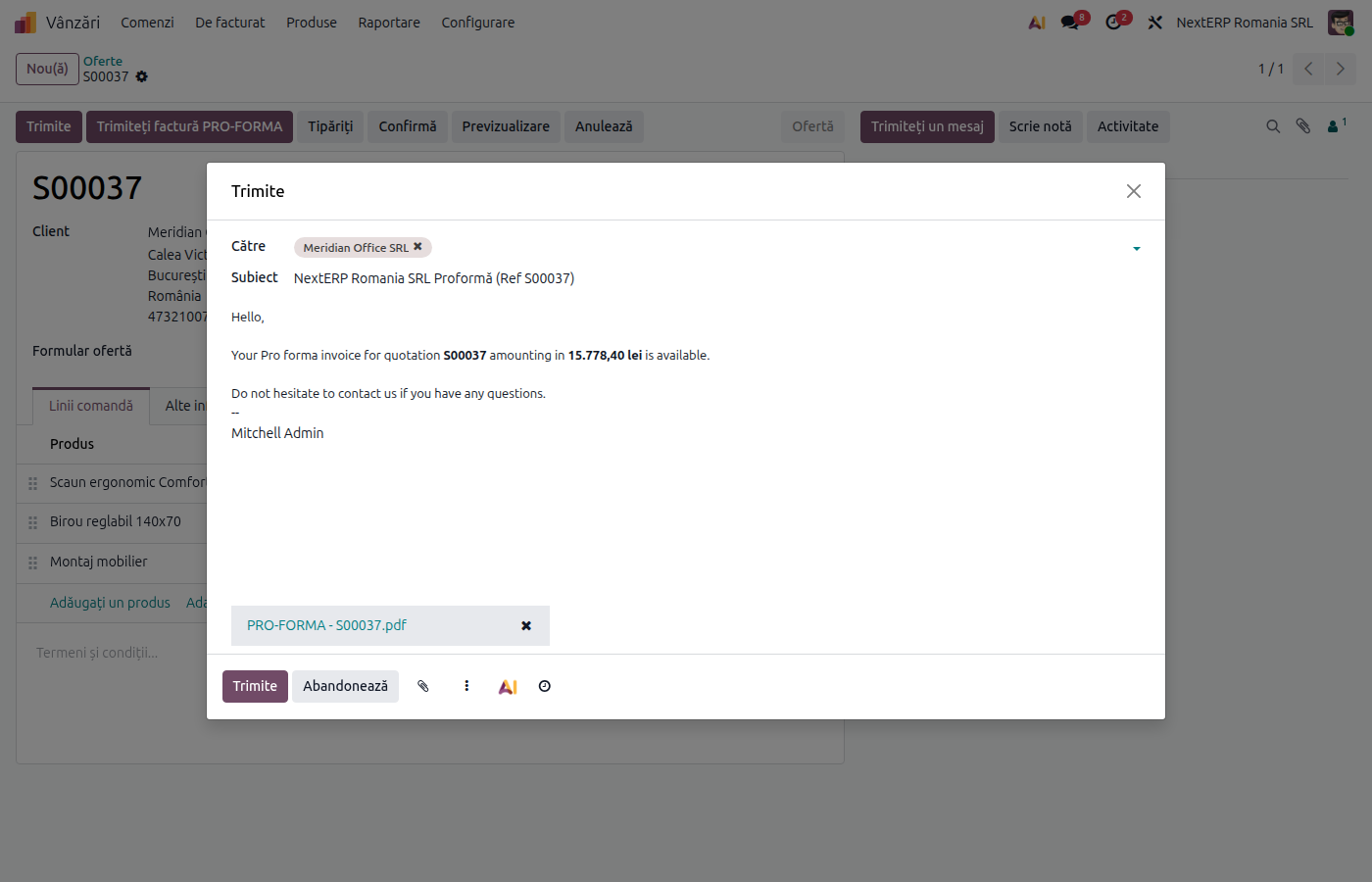
Click Send PRO-FORMA Invoice.
Odoo 20
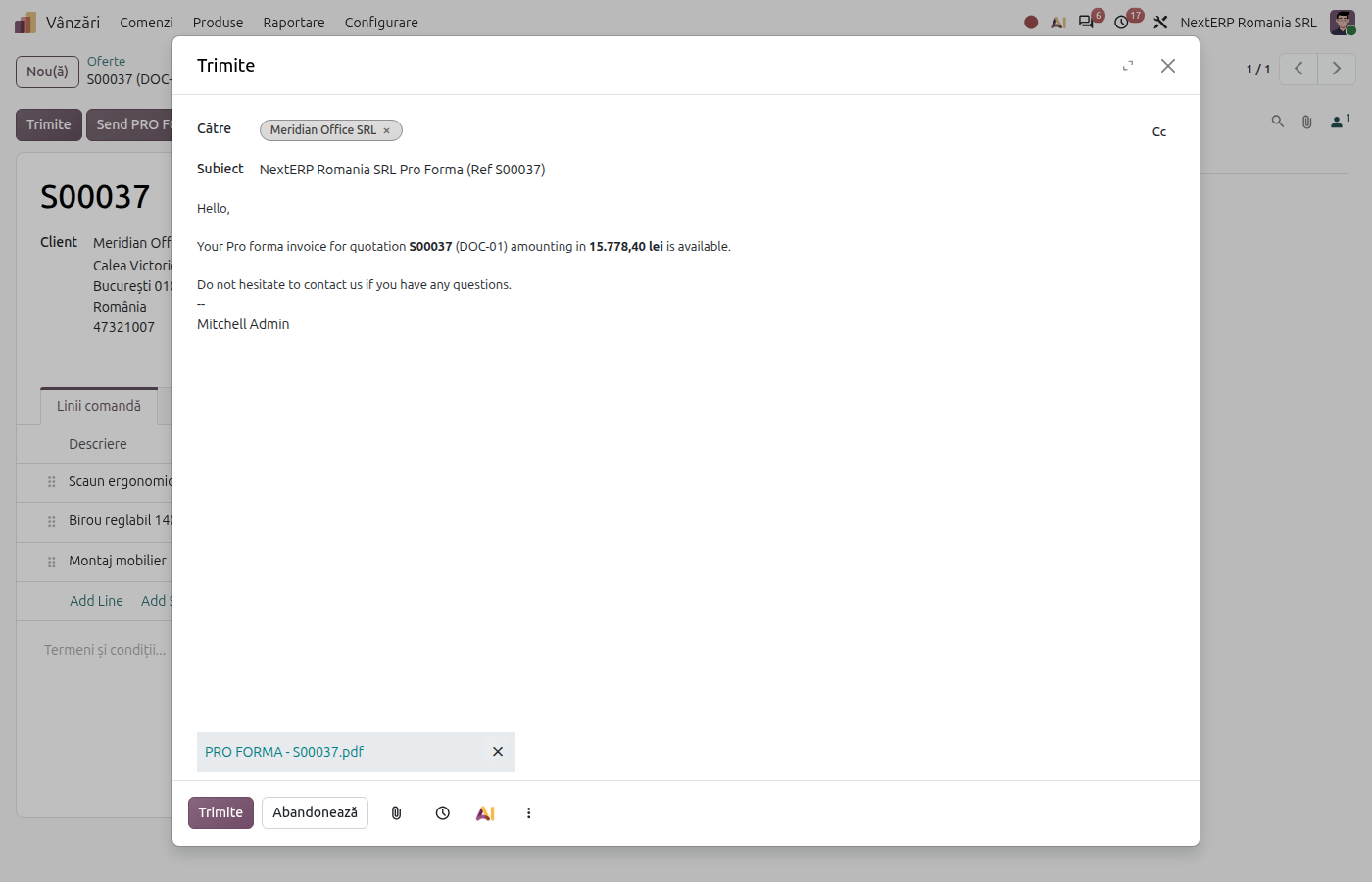
Click Send PRO FORMA Invoice.
The email window opens, with the pro forma attached as a PDF. Check the recipient and the text, then click Send.
3. Check the document
The PDF has the title pro forma invoice and the order number, with the lines, prices, VAT and total. It has no invoice number.
After the customer pays, issue the invoice from the order, as in Invoicing. If the payment comes before delivery, you can issue a down payment invoice.
Common mistakes
- Pro forma treated as an invoice. The pro forma does not support the customer's VAT deduction and does not appear in the sales journal. The invoice is issued separately, from the order.
- Pro forma number confused with the invoice number. The pro forma carries the order number. The legal number is assigned only when you post the invoice.
- The button is missing. The option in the settings is not active.
- Payment without an invoice. If the customer paid based on the pro forma, issue the invoice (down payment or final), so that you can match the payment.