Sales and invoicing · Article 05
Down payment invoice
Applies to Odoo 19 · 20
The customer pays part of the amount before delivery or before the service is performed. Issue a down payment invoice from the order, and on the final invoice Odoo deducts the down payment automatically. The flow is the same for goods and services, and for customers in Romania, in the EU or outside the EU.
When to use
- The customer pays a percentage of the order when signing the contract.
- You ask for a fixed amount before starting production or the service.
- Projects invoiced in instalments: several down payments, then the final invoice.
If the customer only wants a payment document, without accounting effect, send a pro forma invoice.
Before you start
- The sales order is confirmed: see Quotation and sales order.
- For Romanian business customers, the down payment invoice is sent to e-Factura (the ANAF electronic invoicing system), like any invoice.
Steps in Odoo
1. Choose the type of down payment
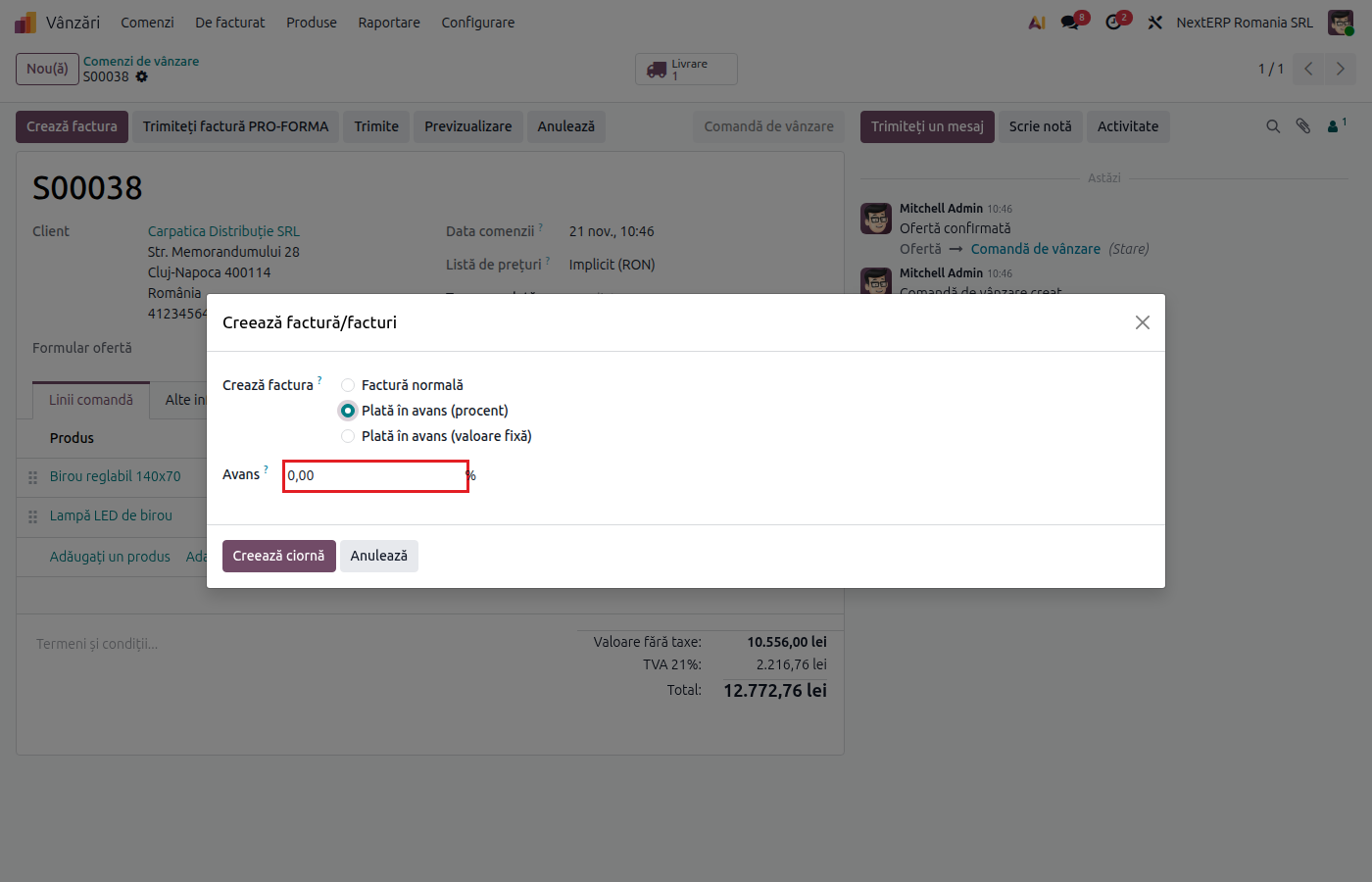
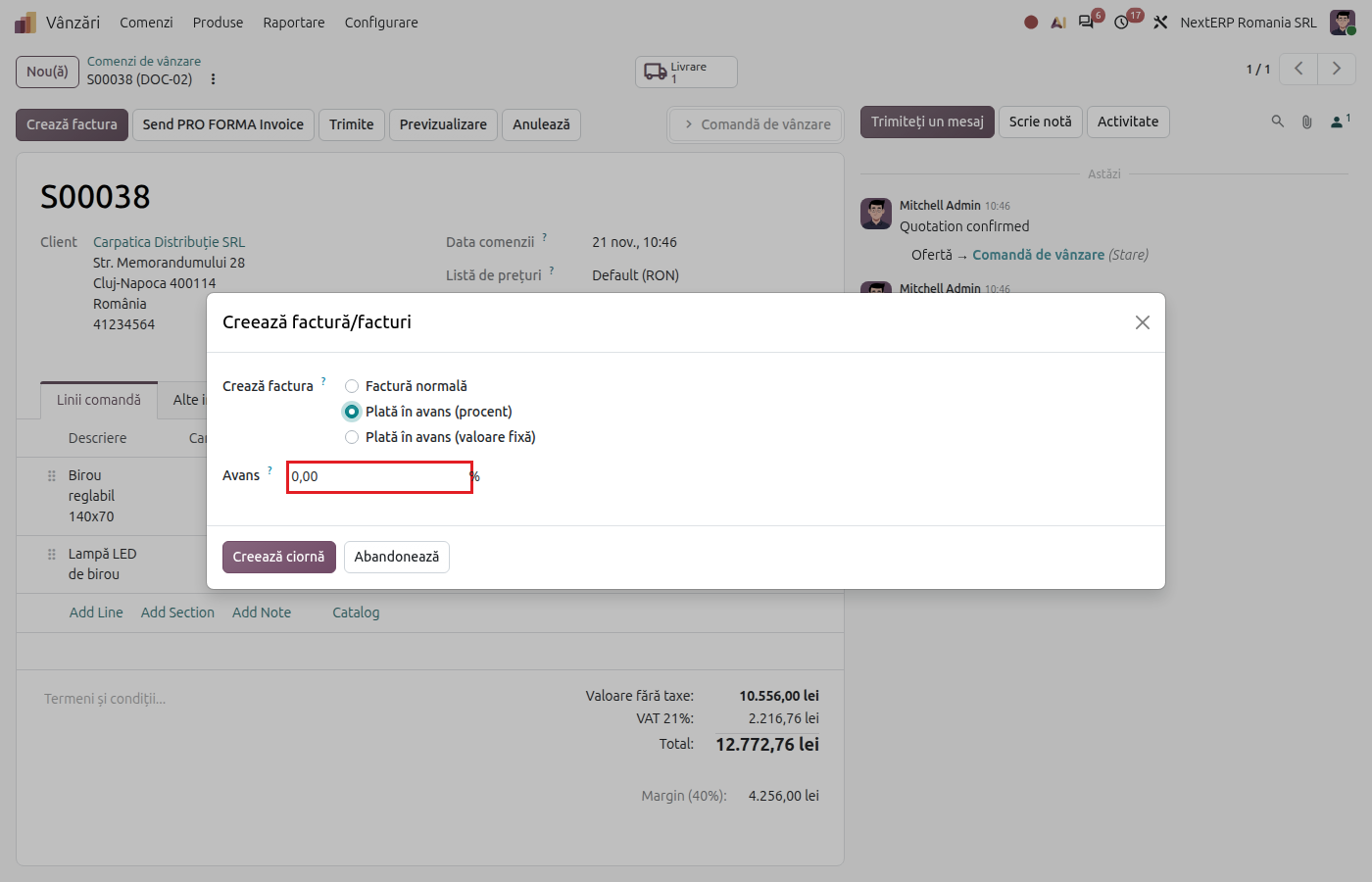
On the confirmed order (Sales › Orders › Orders), click Create Invoice and choose Down payment (percentage) (for example 30% of the order) or Down payment (fixed amount).
2. Create the down payment invoice
Fill in Down Payment and click Create Draft. A new line appears on the order in the Down Payments section.
3. Post and send the down payment invoice
Check the invoice, click Post, then Send. VAT is applied to the down payment, at the rate of the products on the order.
4. Issue the final invoice
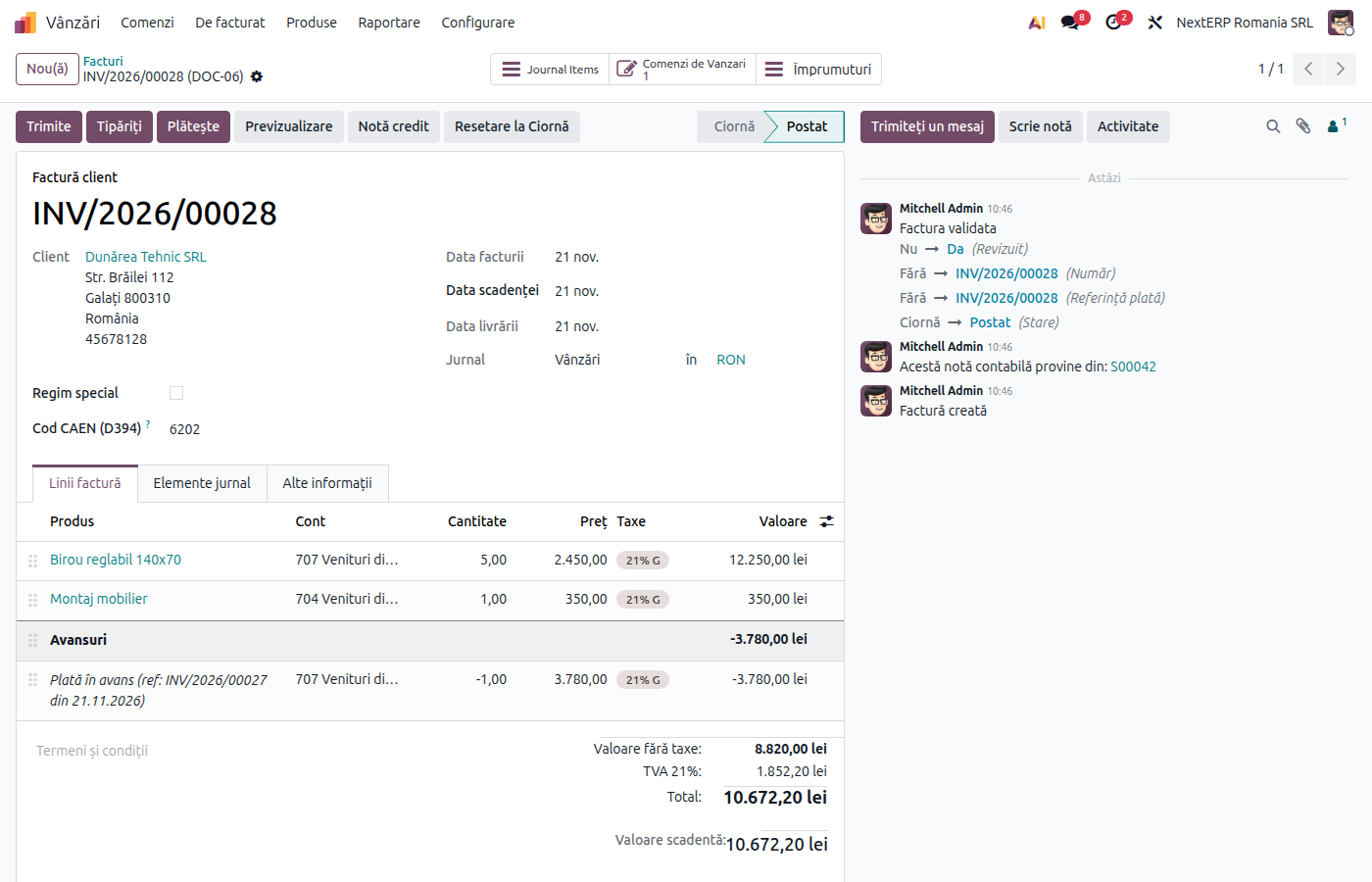
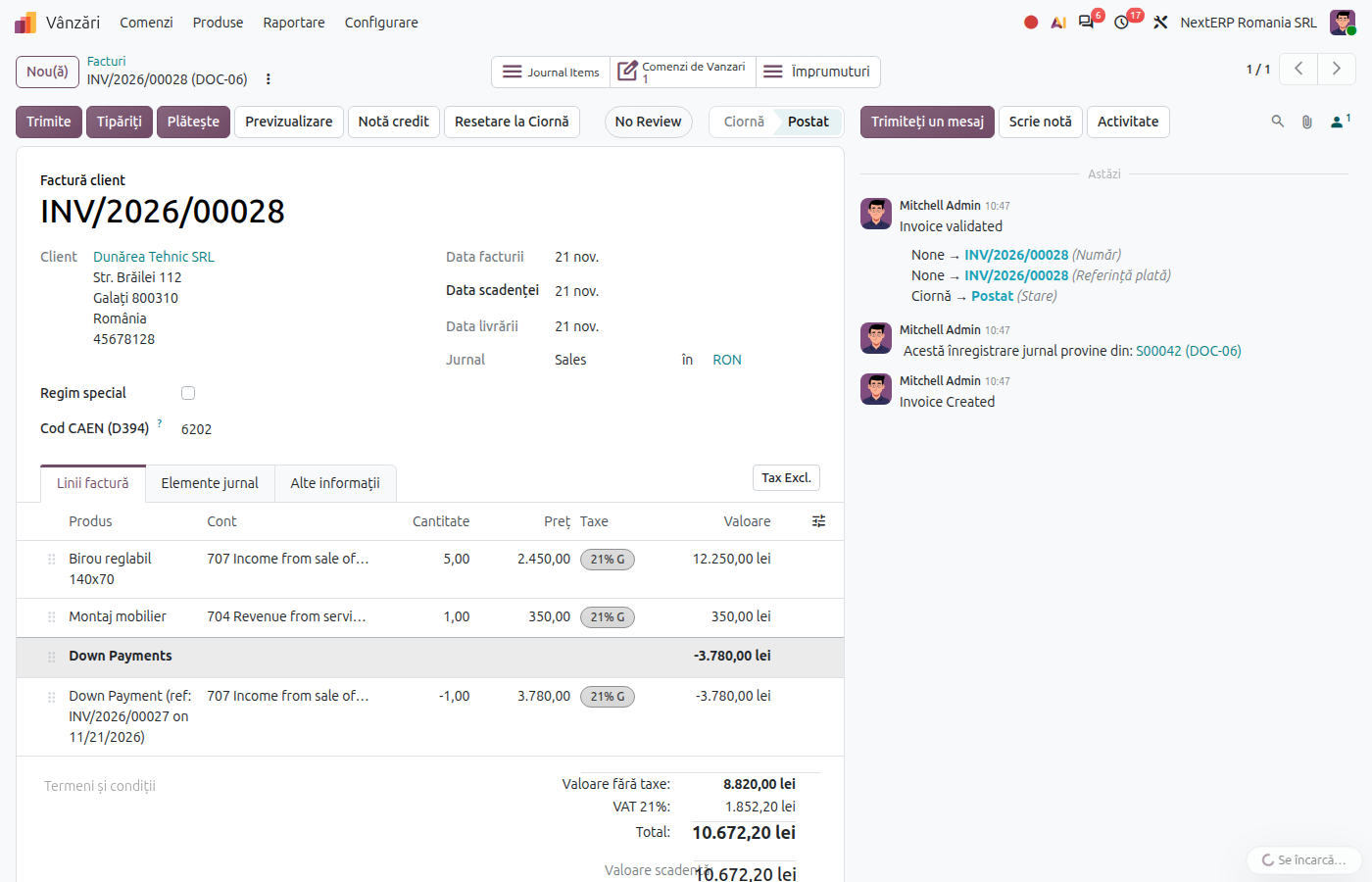
After delivery or performance, click Create Invoice on the order again, choose Regular invoice and leave Deduct down payments ticked. The final invoice contains the products of the order and, on a separate line, the down payment with a minus sign. The total to pay is the difference.
Variants
Several down payments
Repeat steps 1–3 for each instalment. On the final invoice, all invoiced down payments are deducted automatically.
Down payment in foreign currency
The down payment invoice and the final invoice are issued in the order currency, and the down payment is deducted in the same currency. The lei equivalent of the reversed down payment line must match the one on the down payment invoice. Check the exchange rate on the final invoice. The Romania - Invoice Edit Currency Rate module lets you change the rate on the invoice.
The order is cancelled after the down payment
The down payment does not disappear with the order. Issue a credit note for the down payment invoice and refund the payment, if needed: see Returns, credit notes and cancellations.
Common mistakes
- Final invoice without deducting the down payment. If you untick Deduct down payments, the customer pays twice. Correct it with a credit note for the down payment line.
- Down payment invoiced manually, outside the order. An invoice created directly in Accounting is not linked to the order and is no longer deducted automatically. Always issue the down payment from the order.
- Down payment collected without an invoice. For collected down payments, VAT becomes chargeable on collection. Issue the down payment invoice within the legal deadline.
For the accountant: legal framework, journal entries, returns
Legal framework
- Codul fiscal (Legea 227/2015) (the Romanian Fiscal Code), art. 282 para. (2) letter b) — VAT becomes chargeable when the down payment is collected.
- Codul fiscal, art. 319 para. (16) — the deadline for issuing the invoice.
Journal entries
Example: order of 1,000 lei + VAT 21%, down payment 30%.
Down payment invoice:
| DEBIT | CREDIT |
|---|---|
| 4111 — 363 | 419 — 300 4427 — 63 |
Final invoice, with the down payment reversed in red (negative amounts):
| DEBIT | CREDIT |
|---|---|
| 4111 — 847 | 707 — 1,000 419 — −300 4427 — 147 |
For services, revenue goes to 704 (or the company's services account).
Link with the ANAF returns
| Return | What it takes |
|---|---|
| D300 (Decont de TVA, the VAT return) | the VAT on the down payment invoice in the month it is issued; on the final invoice, the difference |
| D394 (the domestic sales and purchases statement) | both invoices, per customer CUI |