Sales and invoicing · Article 02
Quotation and sales order
Applies to Odoo 19 · 20
The quotation shows the customer what they get and at what price. When the customer accepts it, you confirm it and it becomes a sales order. The delivery and the invoice then start from the order, without entering the products a second time.
When to use
- The customer asks for a price quotation for goods or services.
- The customer sends an order and you want to record it.
- You want the delivery and the invoice to take the products, prices and taxes automatically.
Before you start
- Products, taxes and the invoicing policy are configured: see Configuration.
- The customer exists in Odoo, or you create it from the quotation.
Steps in Odoo
1. Create the quotation
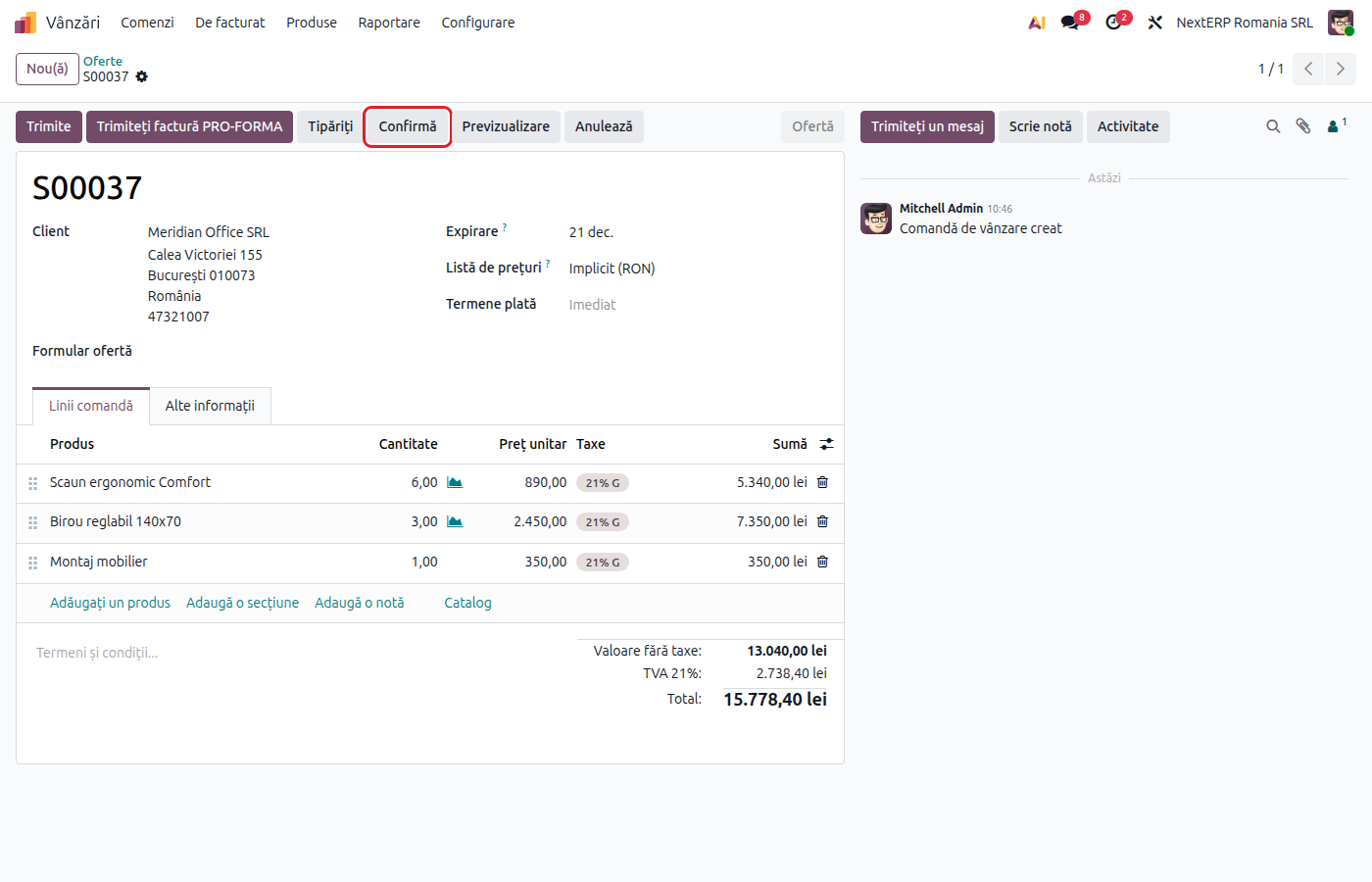
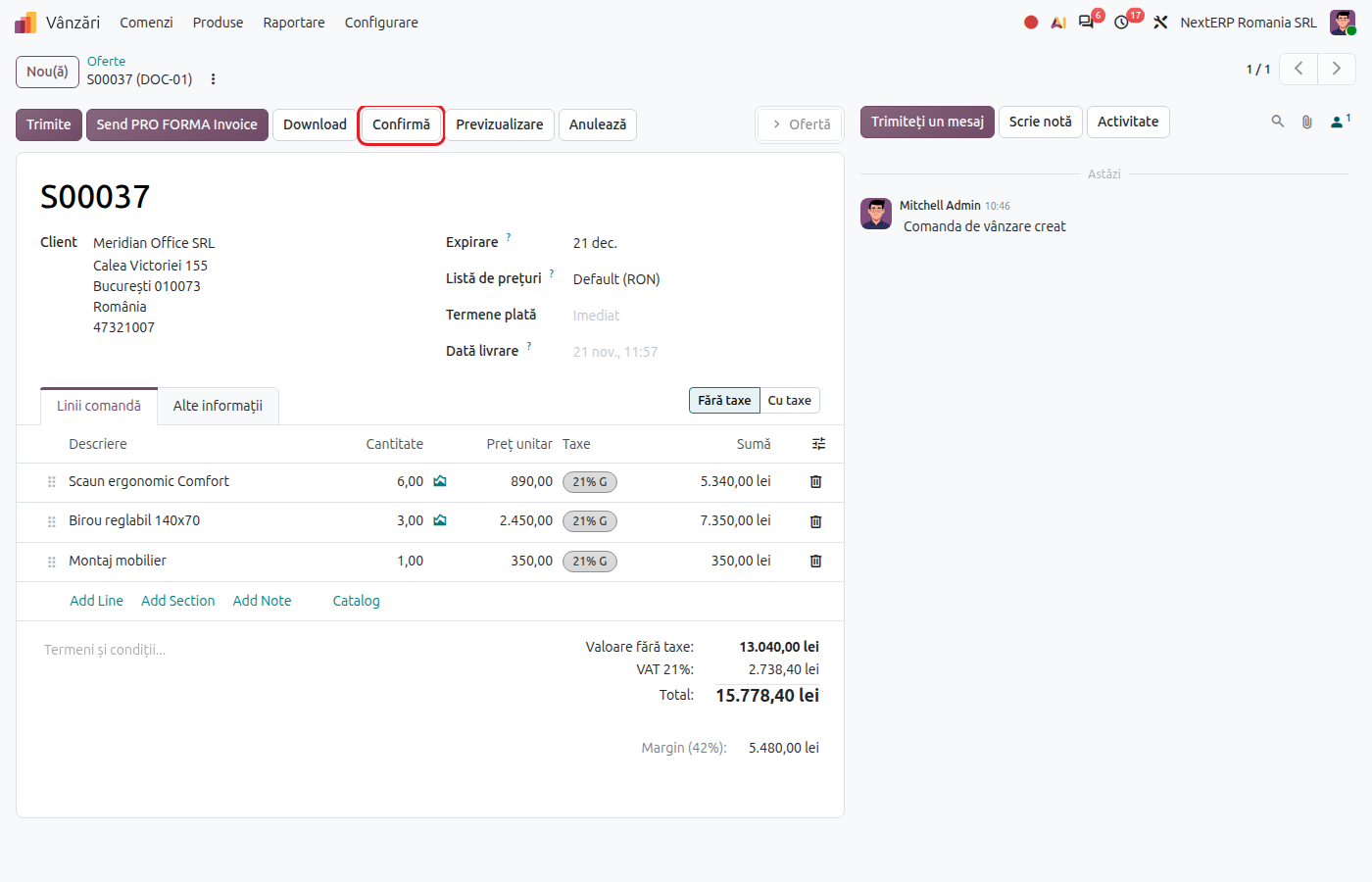
Sales › Orders › Quotations, click New. Choose the customer, then add the products with quantity and price. The tax is filled in from the product, and the Fiscal Position is chosen from the customer.
2. Send the quotation
Click Send. The email window opens with the quotation attached as a PDF. Check the recipient and click Send.
3. Confirm the order
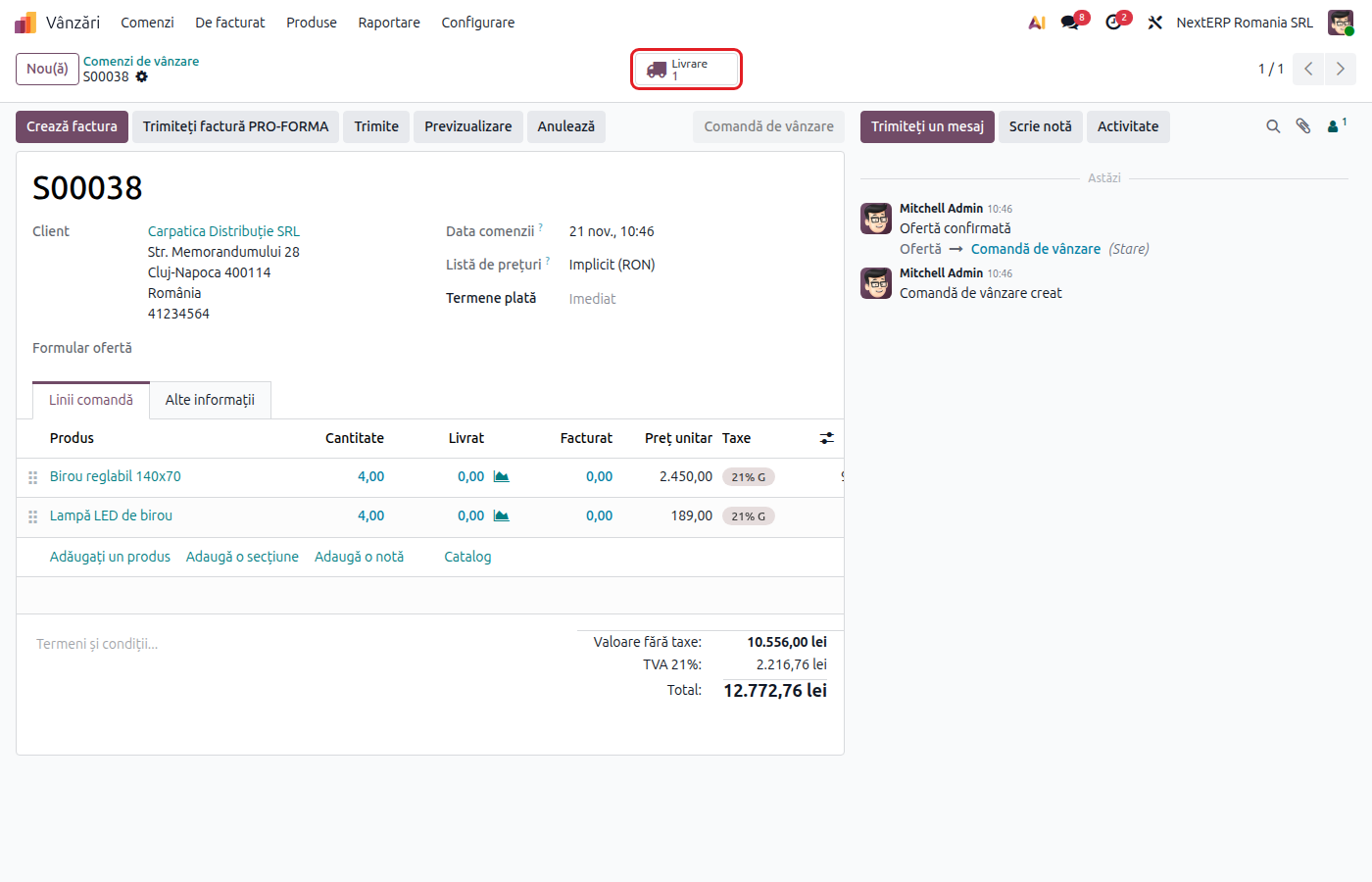
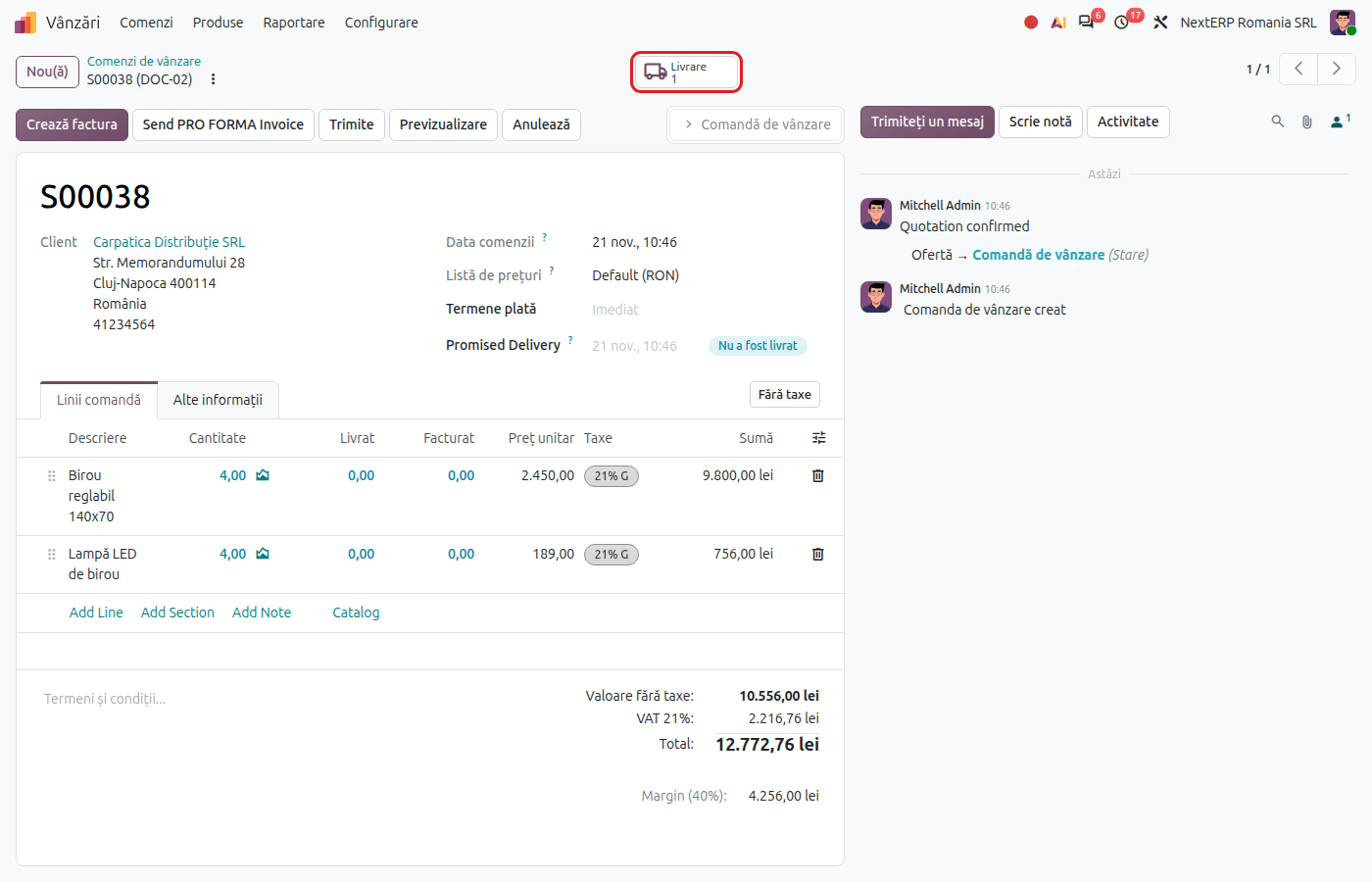
When the customer accepts, click Confirm. The quotation becomes a sales order and appears in Sales › Orders › Orders. For storable products, Odoo prepares the delivery automatically, and the Delivery button appears on the order.
Variants
Customer in the EU or outside the EU
The flow is the same. Check the Fiscal Position on the order and the tax on the lines: Tax treatment by customer.
Trade discount
Enter the discount on the product line, in the Discount (%) column. The discount reduces the taxable base, and therefore the VAT.
Pro forma before payment
If the customer wants a document with the amount to pay, send a pro forma invoice from the quotation or the order.
Purchased or made-to-order products
If the product is bought or manufactured to order, confirming the order also creates the purchase request or the manufacturing order.
Common mistakes
- Order not confirmed. As long as the document is a quotation, no delivery is created and nothing can be invoiced. Click Confirm.
- Wrong fiscal position. The tax on the lines depends on it. Correct the customer before confirming, not the invoice afterwards.
- Price changed after confirmation. Prices changed on the order are taken to the invoice only if the invoice has not been issued yet.
For the accountant: accounting effect
The quotation and the order have no accounting effect and are not included in the returns. Entries appear at delivery (Delivering goods) and on the invoice (Invoicing). Confirmed but uninvoiced orders do count towards the customer credit limit.