Sales and invoicing · Article 01
Configuration
Applies to Odoo 19 · 20
Before the first sale, check a few settings that all the other articles depend on: the accounts on product categories, the taxes, the sales journal and the invoicing policy. They are usually prepared by the consultant during implementation; this article helps you check them.
When to use
- You start selling in a new company in Odoo.
- You add a new product category or a new type of service.
- An invoice is posted with a different account or tax than you expected.
Before you start
- The company has the Romanian chart of accounts installed, with its taxes and fiscal positions.
- You have administrator rights in Accounting and in Sales.
Steps in Odoo
1. Check the product categories
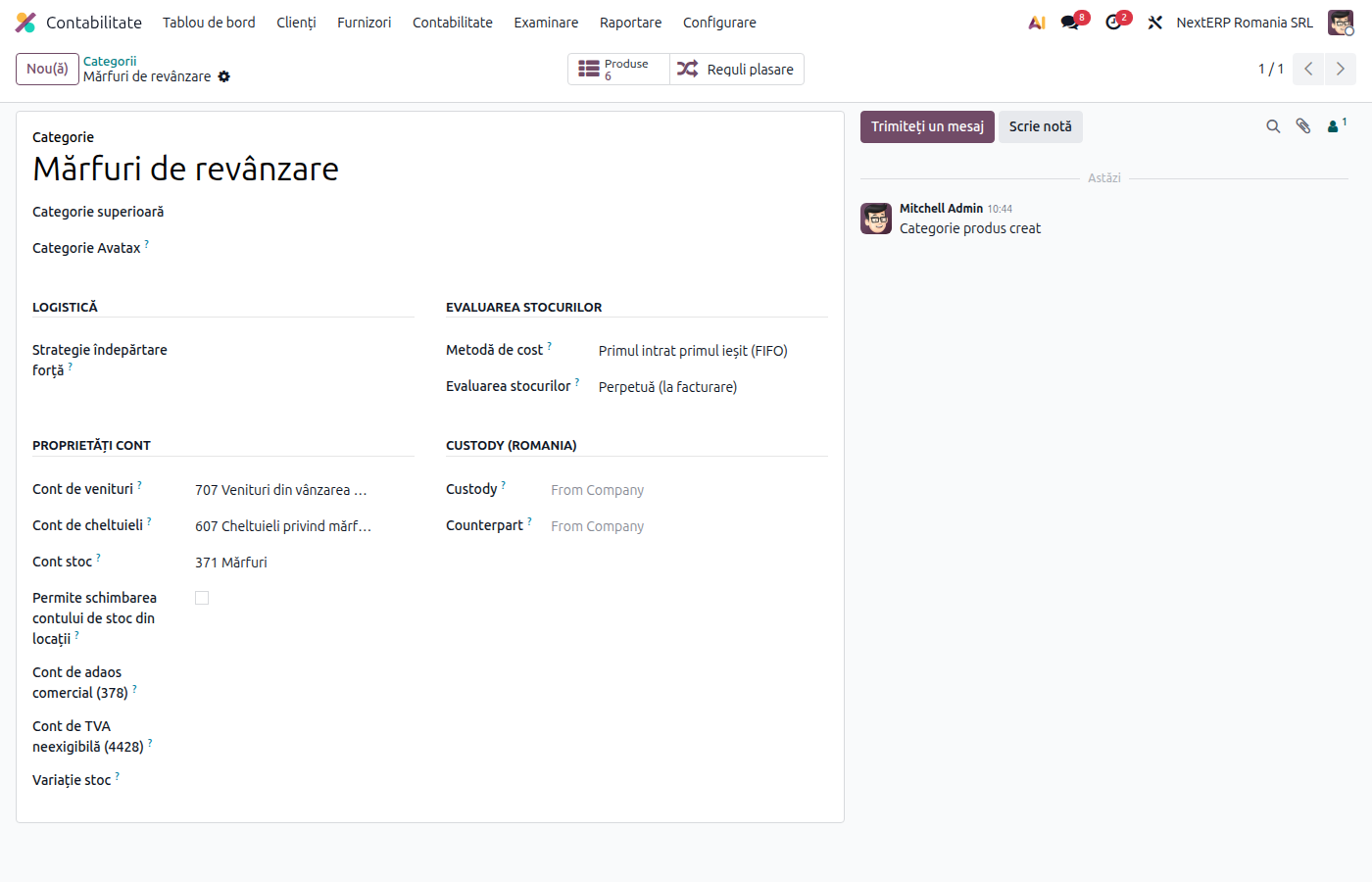
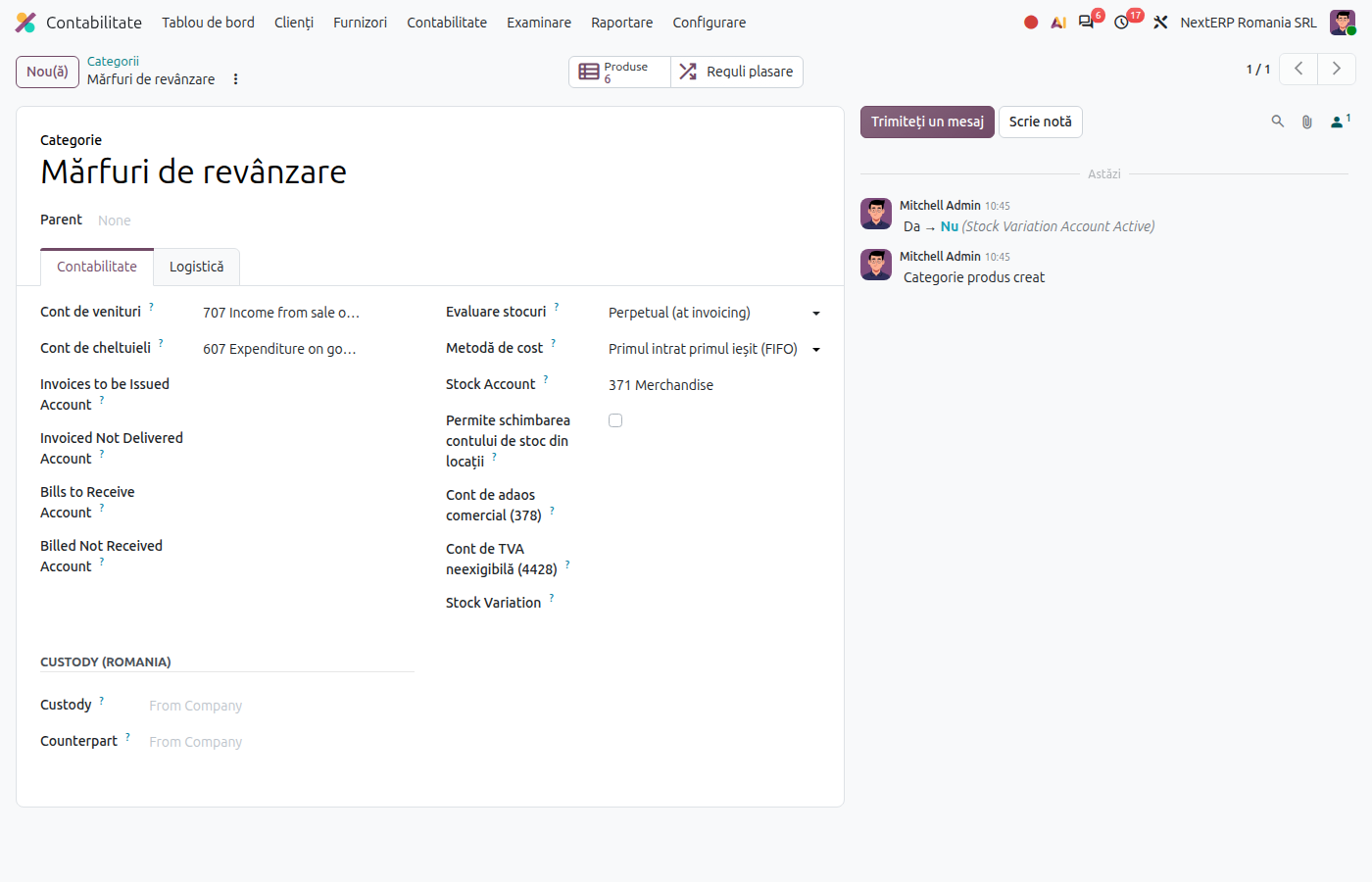
Inventory › Configuration › Product Categories. On each category fill in:
| Field | Goods for resale | Finished goods | Services |
|---|---|---|---|
| Income Account | 707 | 701 | 704 |
| Expense Account | 607 | 711 | — |
| Stock account | 371 | 345 | — |
Also choose the Cost Method (usually First In First Out (FIFO)).
2. Check the sales taxes
Accounting › Configuration › Accounting › Taxes. The sales taxes in the Romanian chart are separate for goods ("G", for example 21% G) and for services ("S", for example 21% S). Put the right tax on each product. Which tax applies to customers in the EU and outside the EU is explained in Tax treatment by customer.
3. Check the sales journal
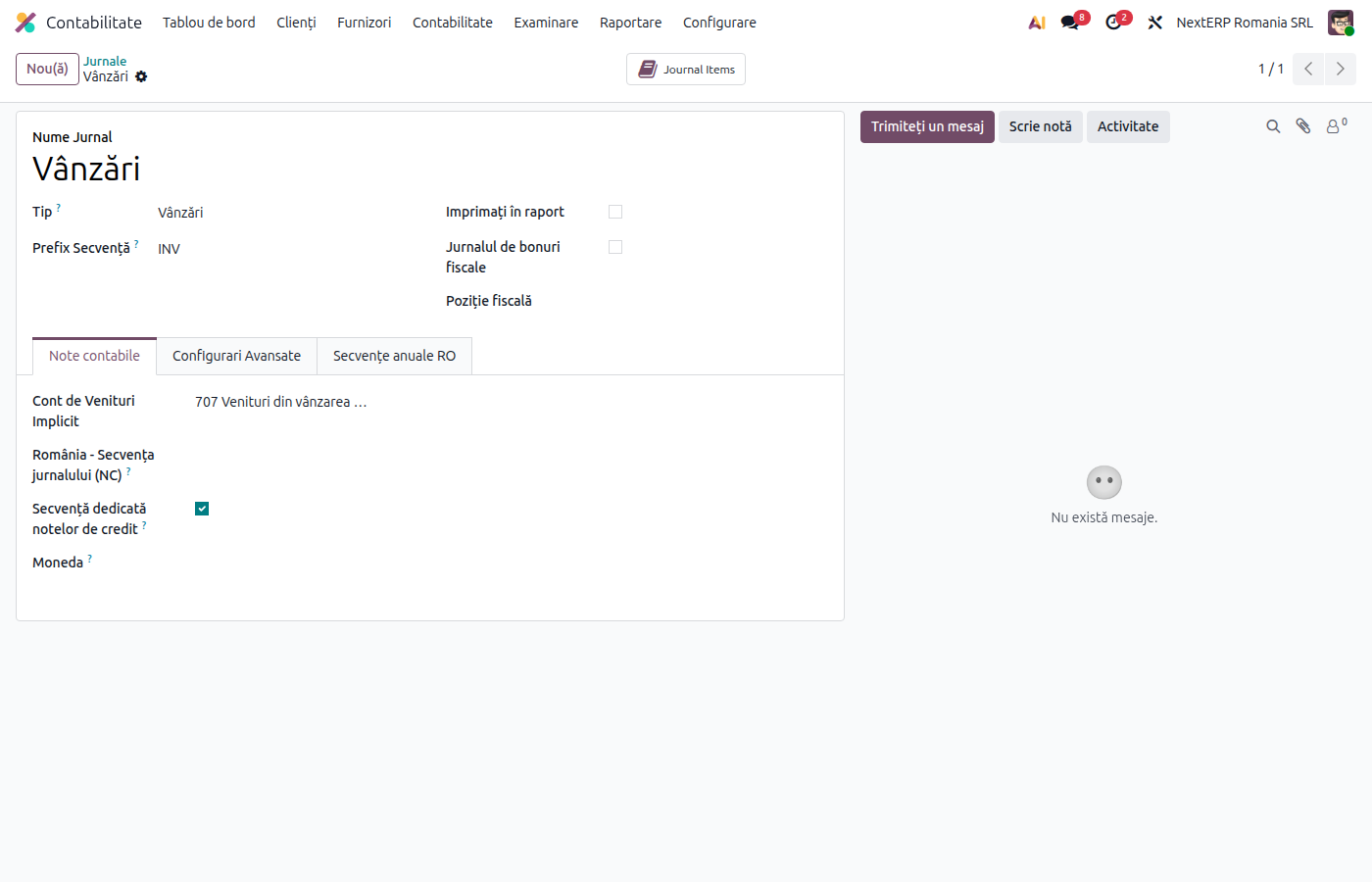
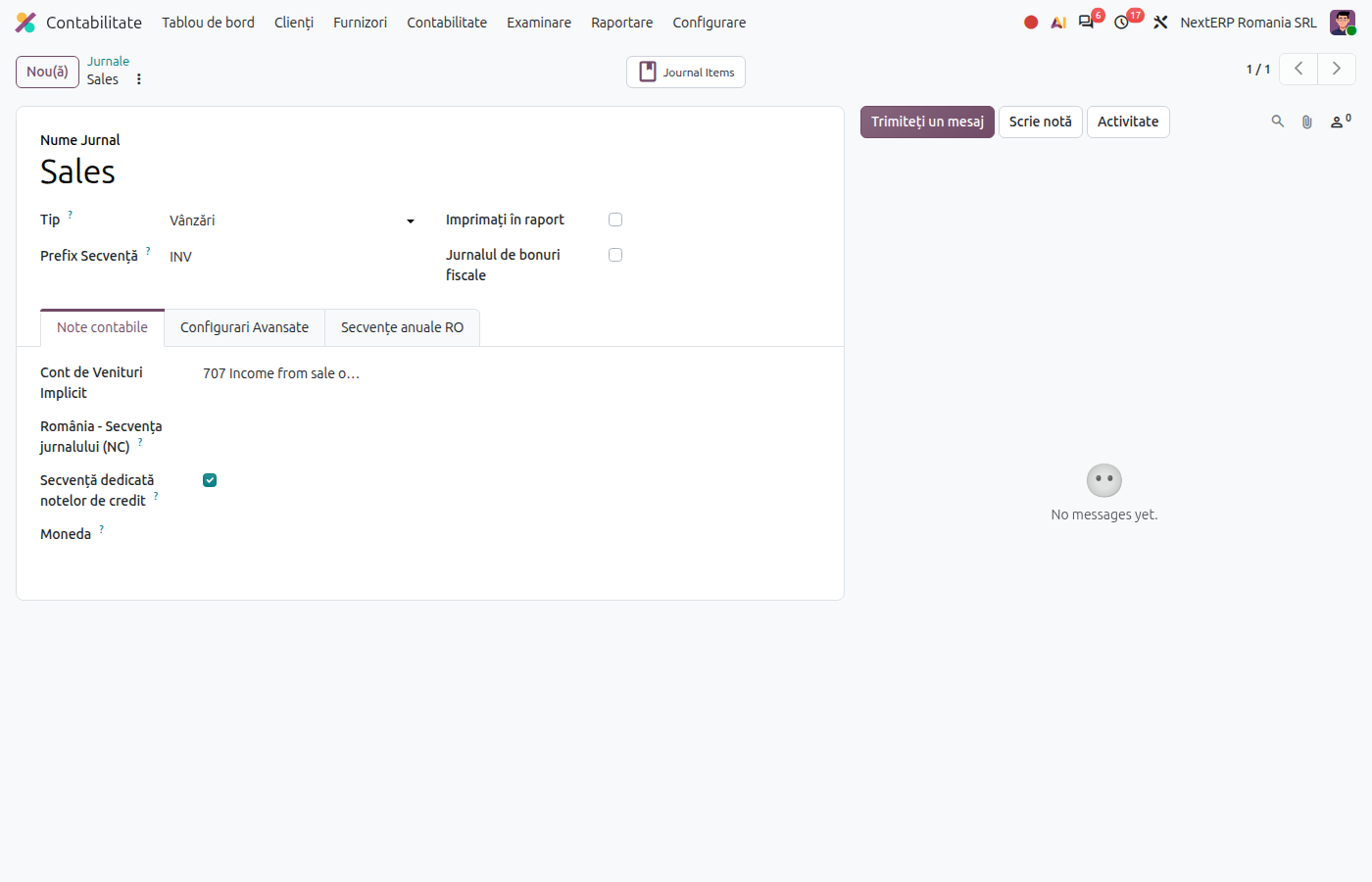
Accounting › Configuration › Accounting › Journals, open the journal of type Sales. The journal prefix gives the invoice series; numbering must be continuous, with no gaps. If you issue invoices on several series, use one journal for each series.
4. Choose the invoicing policy
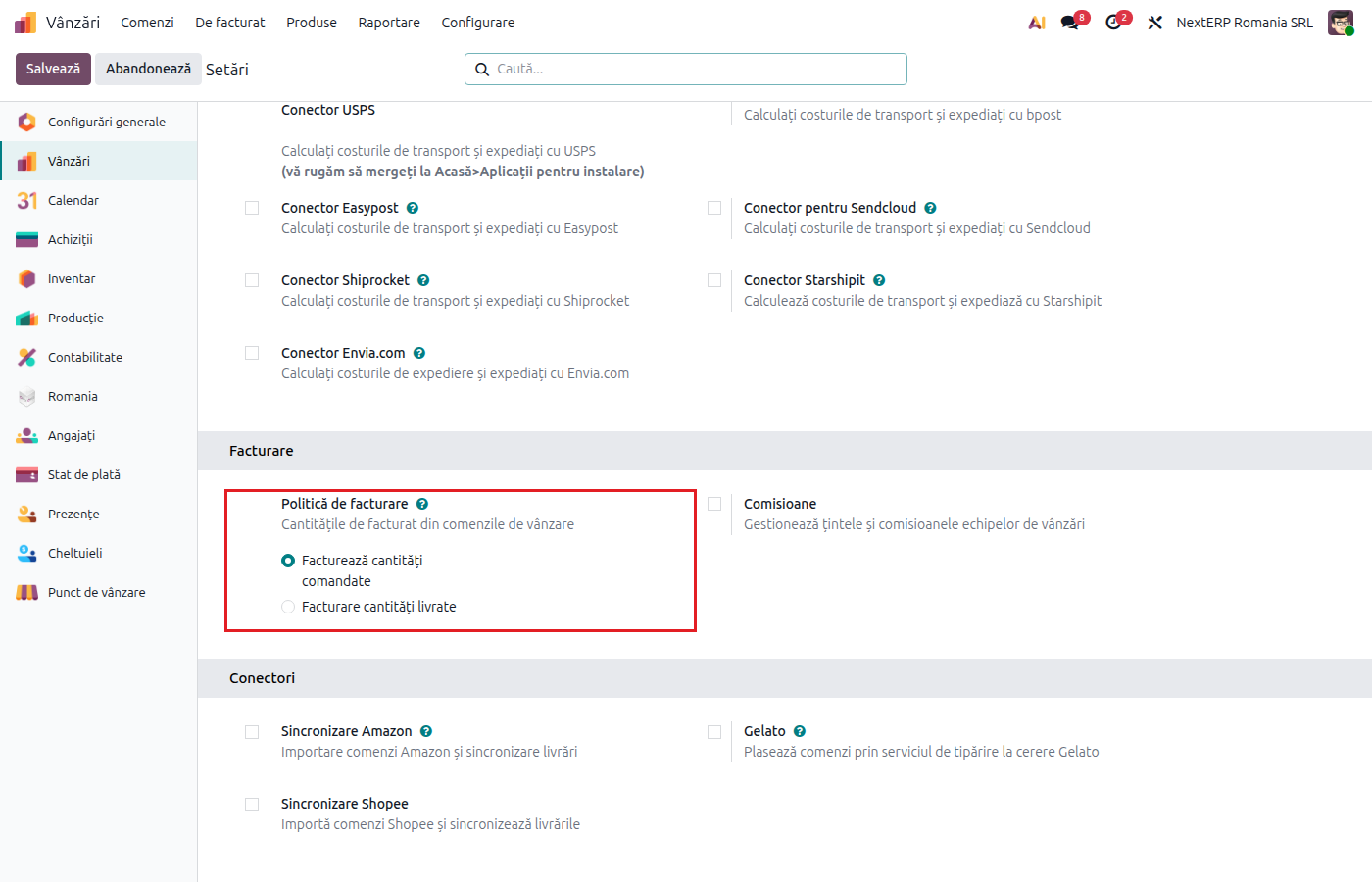
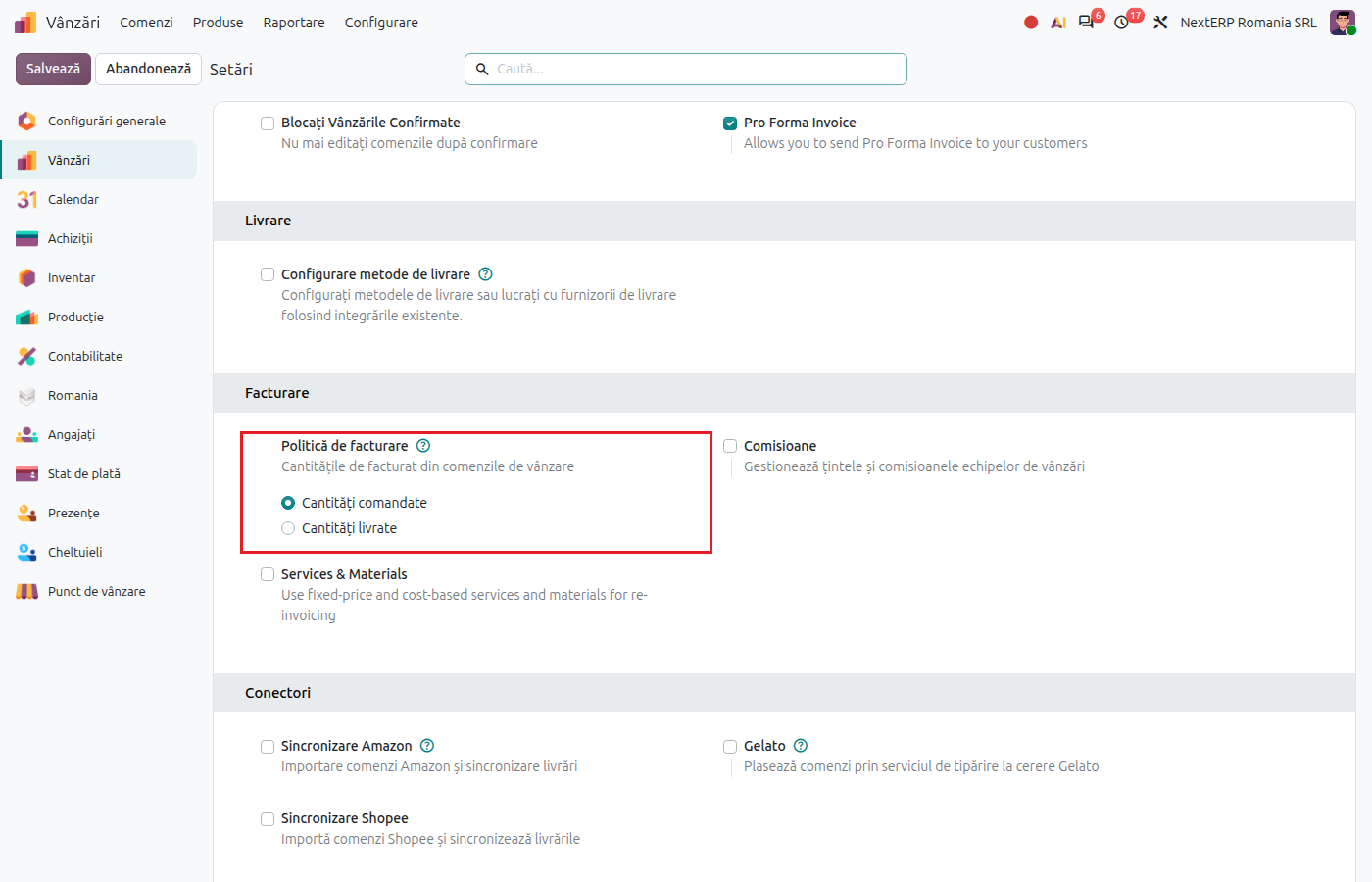
Sales › Configuration › Settings, section Invoicing: choose what is invoiced by default from orders.
Odoo 19
The options are Invoice what is ordered and Invoice what is delivered.
Odoo 20
The options are Ordered quantities and Delivered quantities.
The value applies to products created from now on. You can change it on each product in the Invoicing Policy field. The difference between the two is explained in Invoicing.
Variants
Pricelists
If you have different prices per customer or per quantity, activate pricelists in the Sales settings and put the right pricelist on the customer. The order takes the price from the pricelist automatically.
Customers created from the CUI
With the Romania - Partner Create by VAT module, a Romanian customer is created from the CUI (the Romanian tax identification code), with the data taken from ANAF.
Common mistakes
- Wrong income account. The account comes from the product category. Correct the category, not each invoice.
- Goods tax on a service. Services use the "S" taxes; otherwise they appear on a different line in the returns.
- Service defined as goods. A goods product tries to create deliveries and stock moves. Define services as services.
- Invoices on the same series from different journals. Each series has its own journal, so that numbering stays continuous.
For the accountant: legal framework, returns
Legal framework
- OMFP 1802/2014 (the Romanian accounting regulations) — income accounts (class 70) and inventory accounts.
- Codul fiscal (Legea 227/2015) (the Romanian Fiscal Code), art. 319 — invoice numbering on one or more series, in ascending order.
Link with the ANAF returns
The lines of D300 (Decont de TVA, the VAT return), D390 (the EU recapitulative statement) and D394 (the domestic sales and purchases statement) are filled in from the taxes on the invoices. The correct tax on the product and the correct fiscal position on the customer are the condition for correct returns. The mapping tax → return is in Tax treatment by customer.