Sales and invoicing · Article 10
Customer credit limit
Applies to Odoo 19 · 20
The credit limit is the maximum amount a customer can owe the company. When the customer exceeds it, Odoo shows a warning on the sales order and on the invoice, so that you know before selling more on credit. The warning does not block anything: the order can be confirmed, and the delivery and the invoice go ahead. The limit has no accounting effect.
When to use
- You want to know immediately when a customer goes over the amount you accept on credit.
- You have a common limit for all customers and different limits for some customers.
- Sales must check with Accounting before new orders for customers with overdue amounts.
Before you start
- You have administrator rights in Accounting, to change the settings.
Steps in Odoo
1. Activate credit limits
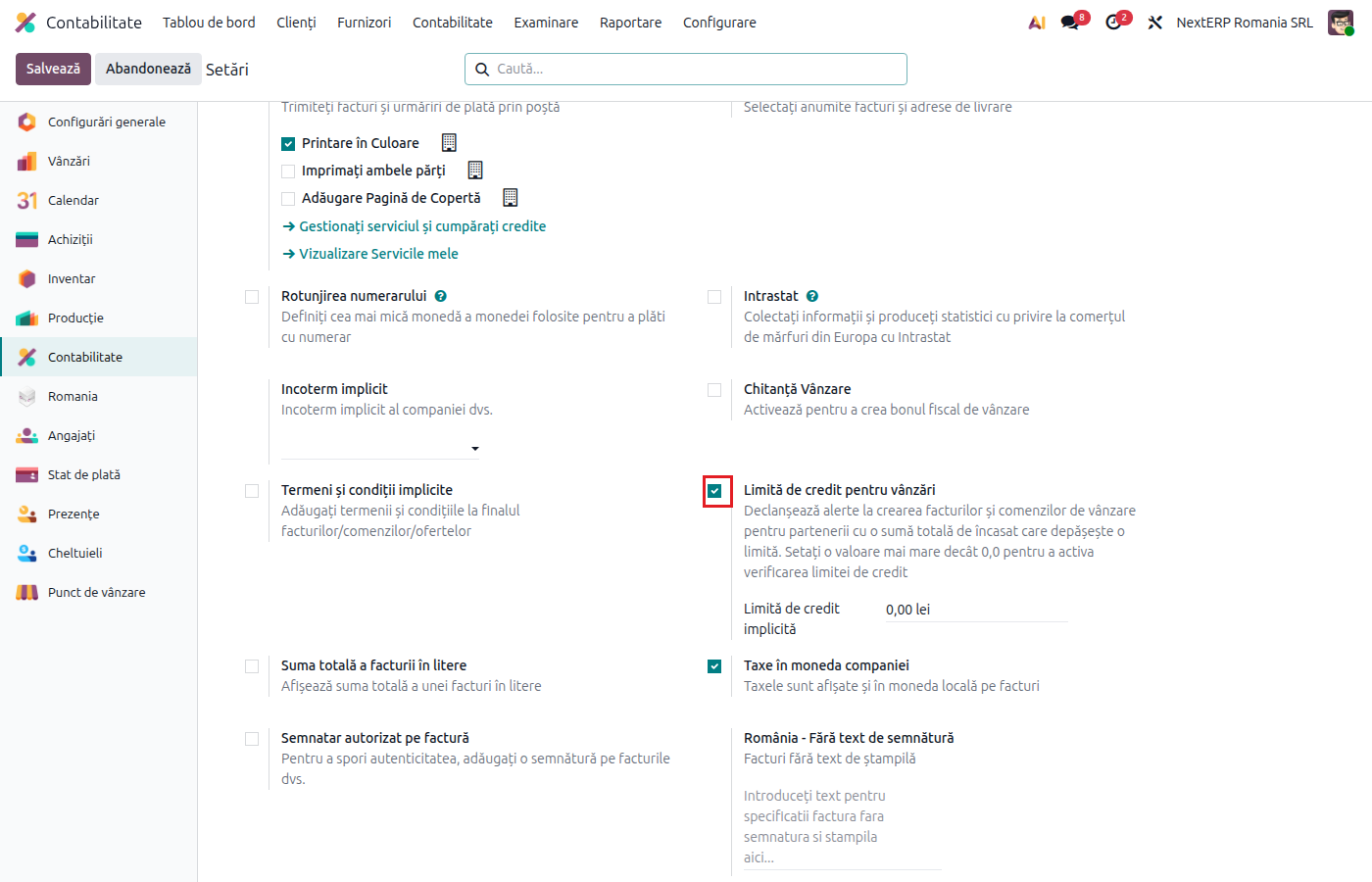
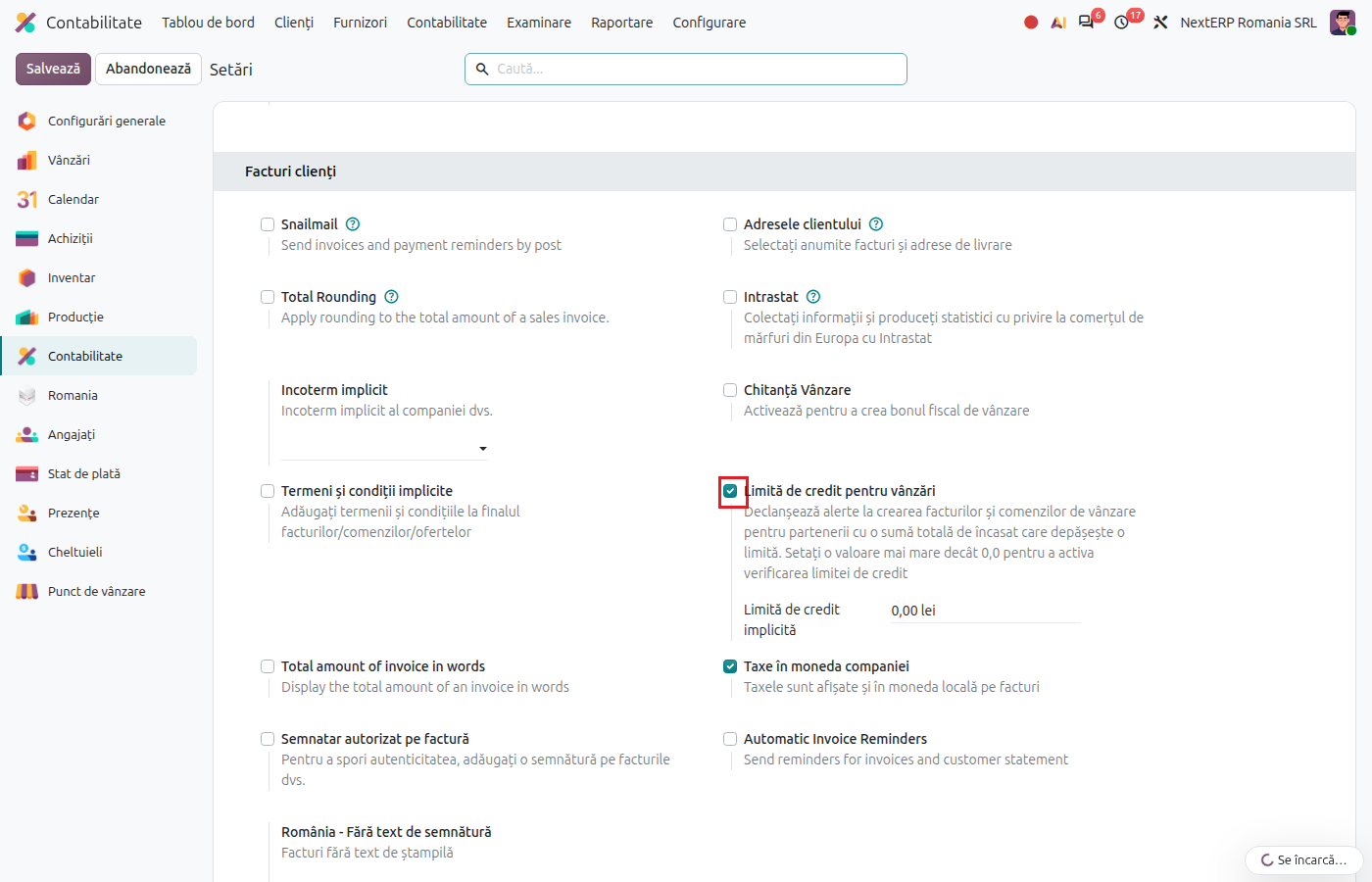
Accounting › Configuration › Settings, section Customer Invoices: tick Sales Credit Limit. Optionally fill in Default Credit Limit, which applies to all customers without their own limit. Save.
2. Set the limit on the customer
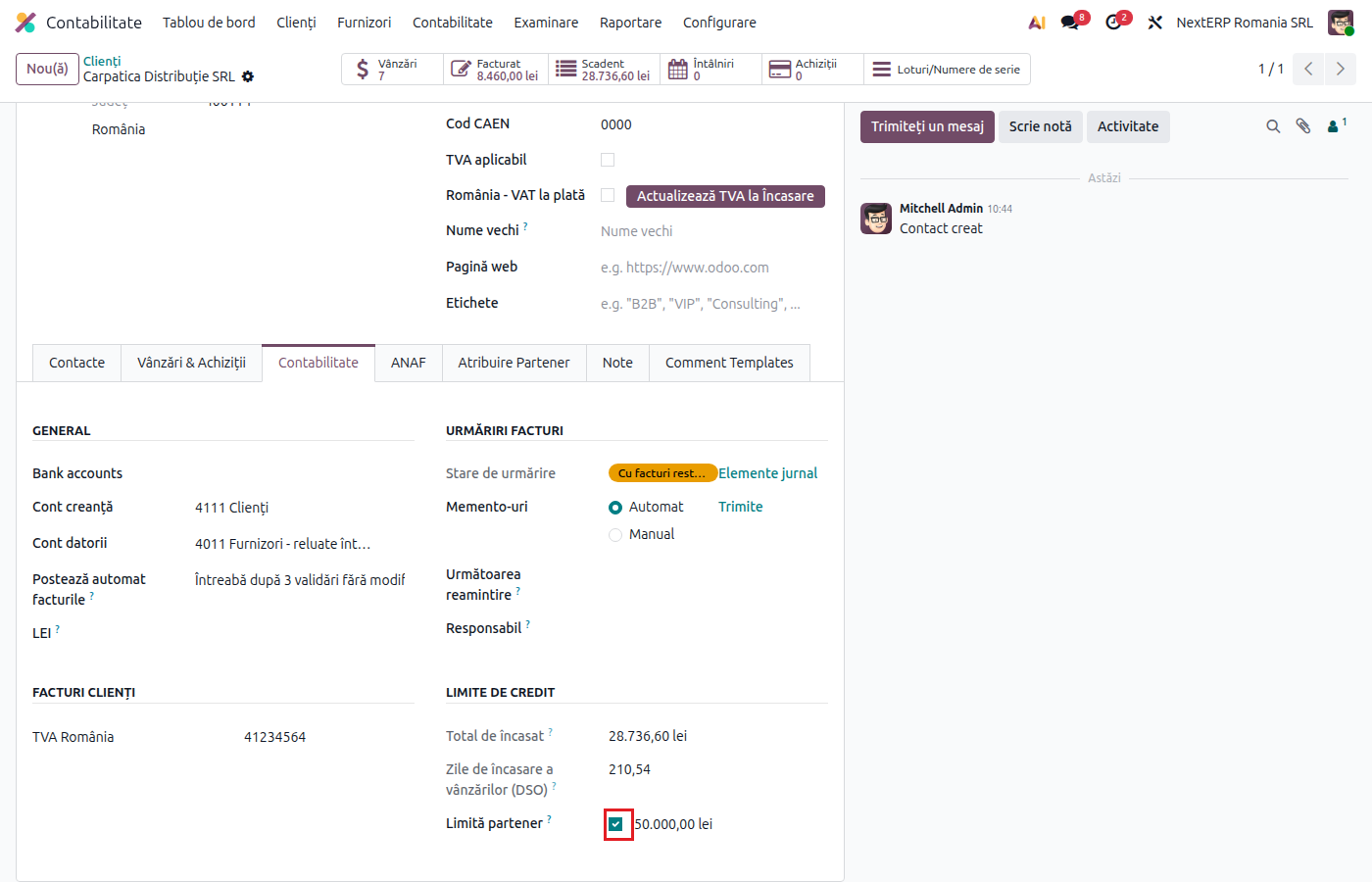
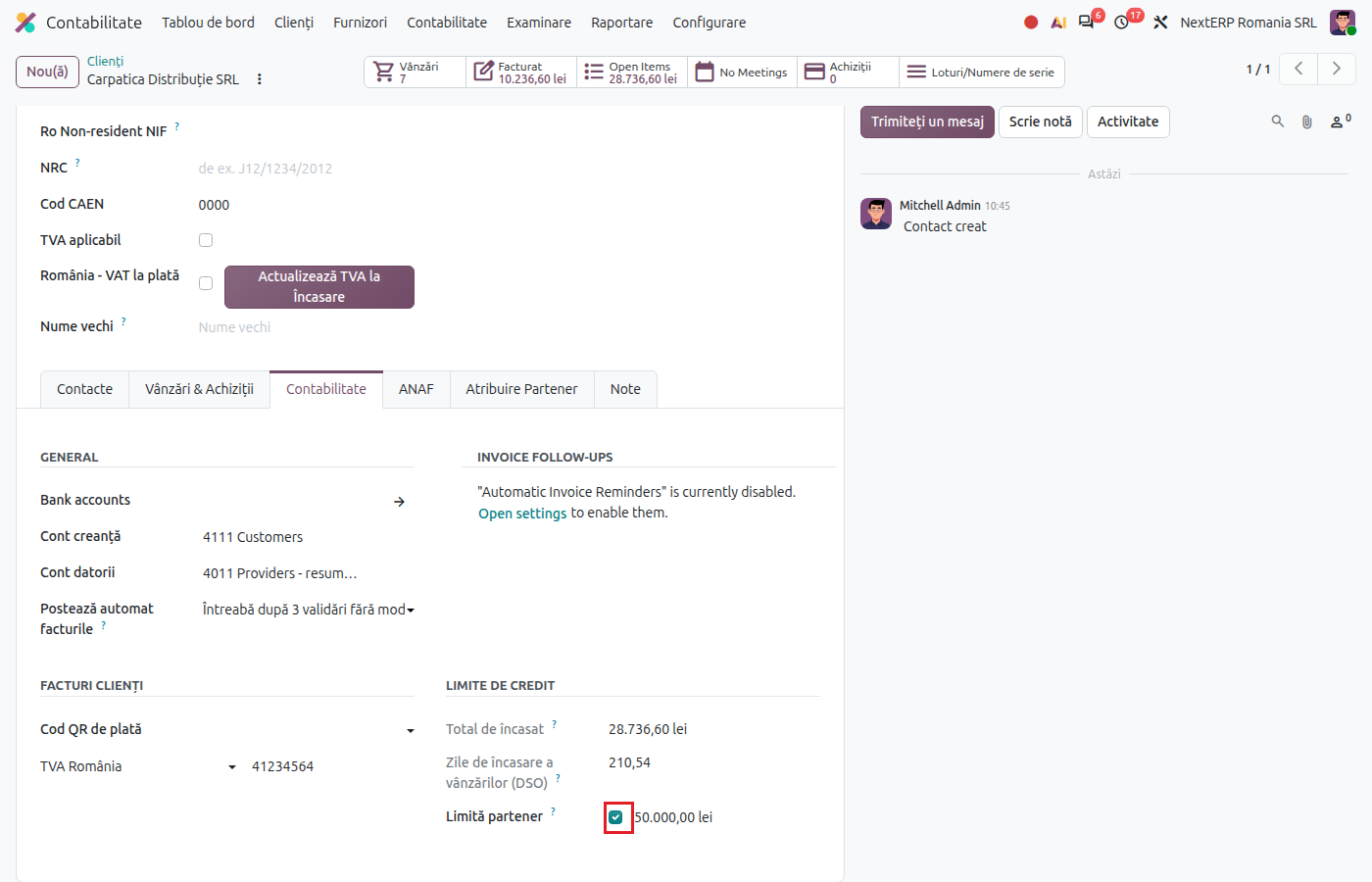
Accounting › Customers › Customers, open the customer, Invoicing tab. In the Credit Limits group, tick Partner Limit and fill in the amount. The customer's limit takes priority over the default one.
3. Watch the warning on the order and the invoice
When the total amount owed exceeds the limit, a yellow banner with the customer's limit and the total amount owed appears on the order and on the invoice. The total includes:
- posted, unpaid invoices;
- confirmed orders not yet invoiced;
- the current document.
Example: the customer has a limit of 10,000 lei, owes 8,000 lei from invoices, and you make an order of 2,420 lei. The total reaches 10,420 lei and the warning appears.
Common mistakes
- Expecting a block. The credit limit only warns. Neither the order, nor the delivery, nor the invoice is stopped. If you want to stop sales to a customer, set an internal rule (for example the accountant's approval).
- Default limit too low. The default limit applies to all customers without their own limit, including new ones. Check the value before activating it.
- Limit set on the contact person. The limit is read from the customer company, not from the contact person.
- Several companies in the same database. The setting and the limit are made separately for each company.