Sales and invoicing · Article 11
Reminders for unpaid invoices
Applies to Odoo 19 · 20
Payment reminders help you follow up overdue invoices and remind customers to pay. Define reminder levels (for example at 15, 30 and 45 days after the due date), each with an email, an SMS or an activity for a colleague. Odoo shows you the customers who need a reminder and lets you send it with the list of overdue invoices. Reminders have no accounting effect.
The feature is part of the Payment Follow-up Management module, available in Odoo Enterprise.
When to use
- Some customers pay late and you want to send them a reminder with the overdue invoices.
- You want a tone that escalates gradually: first a friendly reminder, then a firm one, then a phone call.
- You want reminders to be sent automatically.
Before you start
- Invoices have payment terms, and therefore a due date.
- Customers have an email address and the Romanian language on their form, so that they receive the message in Romanian.
- The outgoing mail server is configured.
Steps in Odoo
1. Define the reminder levels
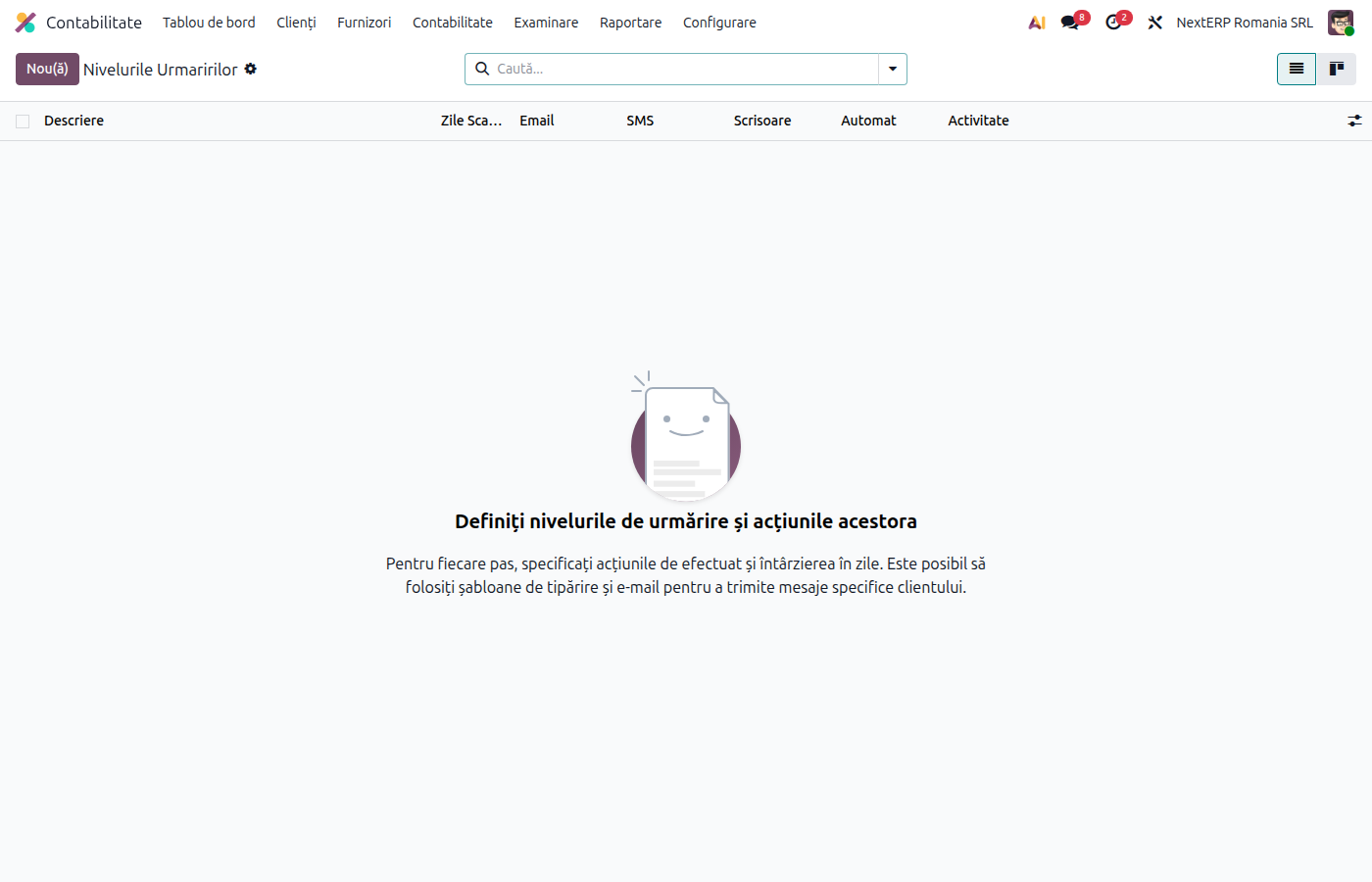
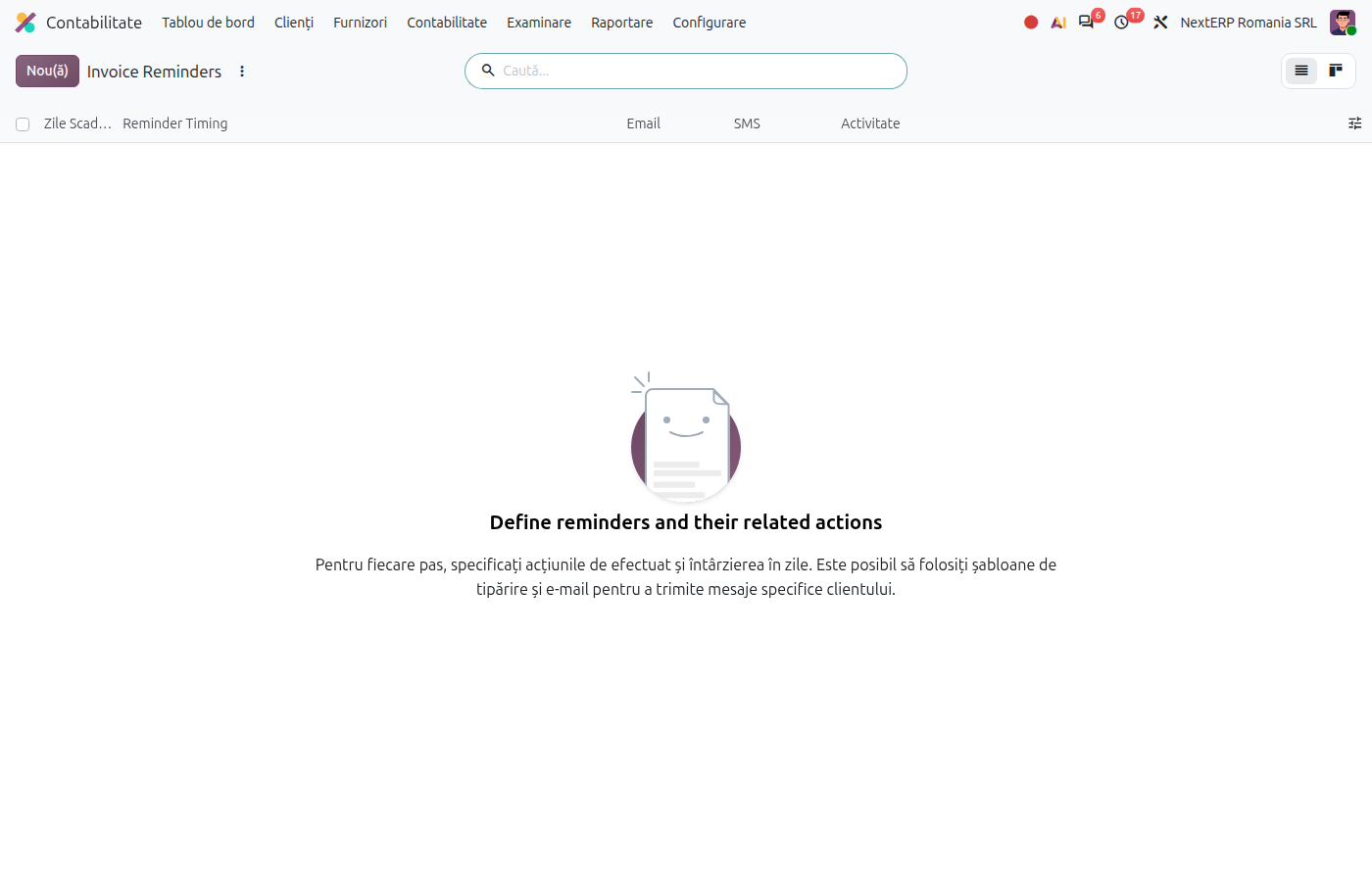
Accounting › Configuration › Invoicing › Follow-up Levels. For each level fill in:
| Field | Meaning |
|---|---|
| Description | the name of the level, for example "First reminder" |
| Due Days | how many days after the due date the level applies |
| Email (with Attach Invoices), SMS, Schedule Activity | what the level does: sends the invoices as PDF, an SMS, or schedules an activity for a colleague |
| Automatic | the reminder is sent on its own, without you sending it manually |
2. Adapt the messages
On each level, choose the email template. You can use a friendly text on the first level and a firm one on the last.
3. Find the customers with overdue invoices
Accounting › Customers › Customers, filter Requires Follow-up. On the customer form, Invoicing tab, the Invoice Follow-ups group shows the current level and the Follow-up Status (In need of action or With overdue invoices).
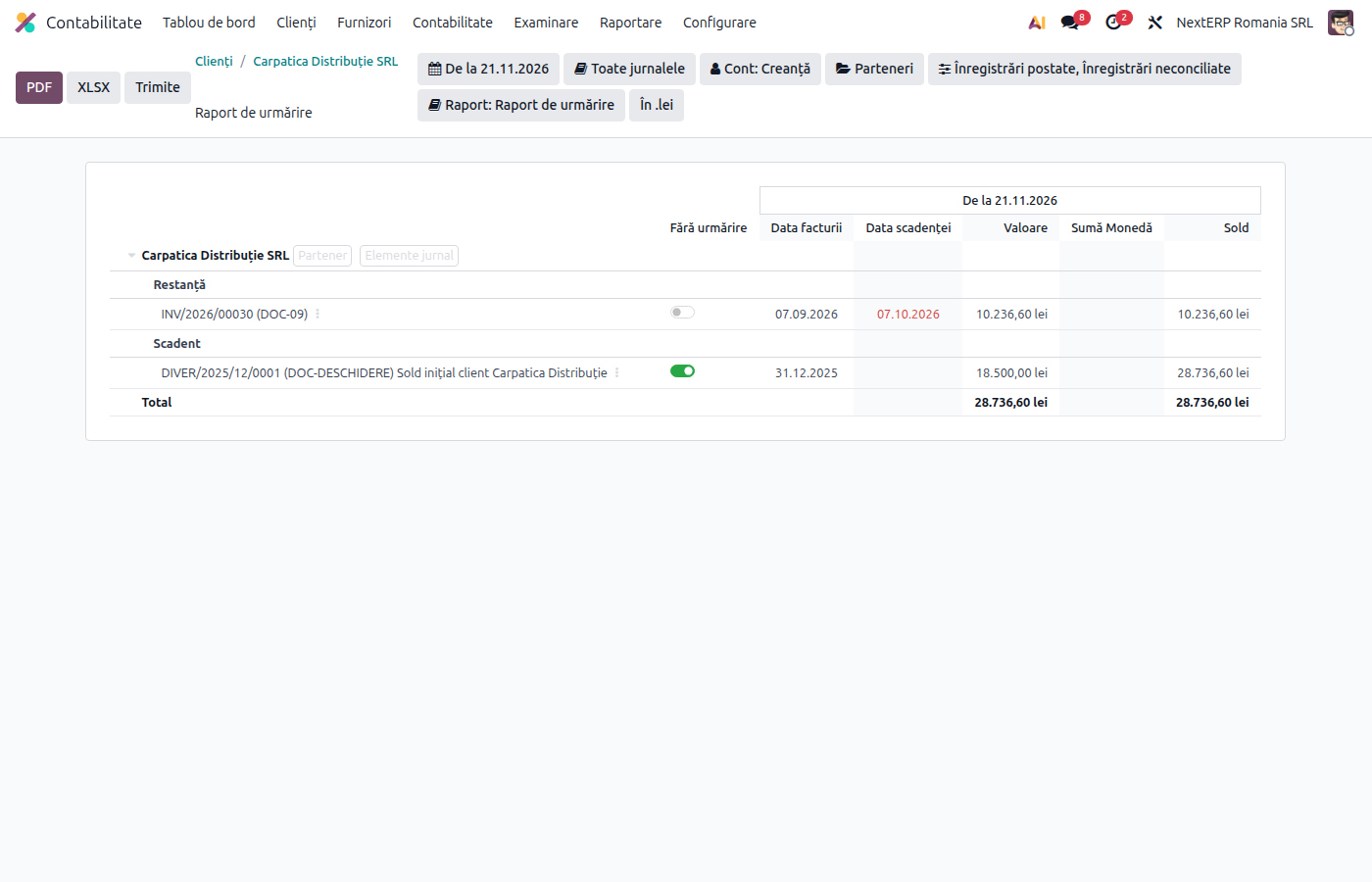
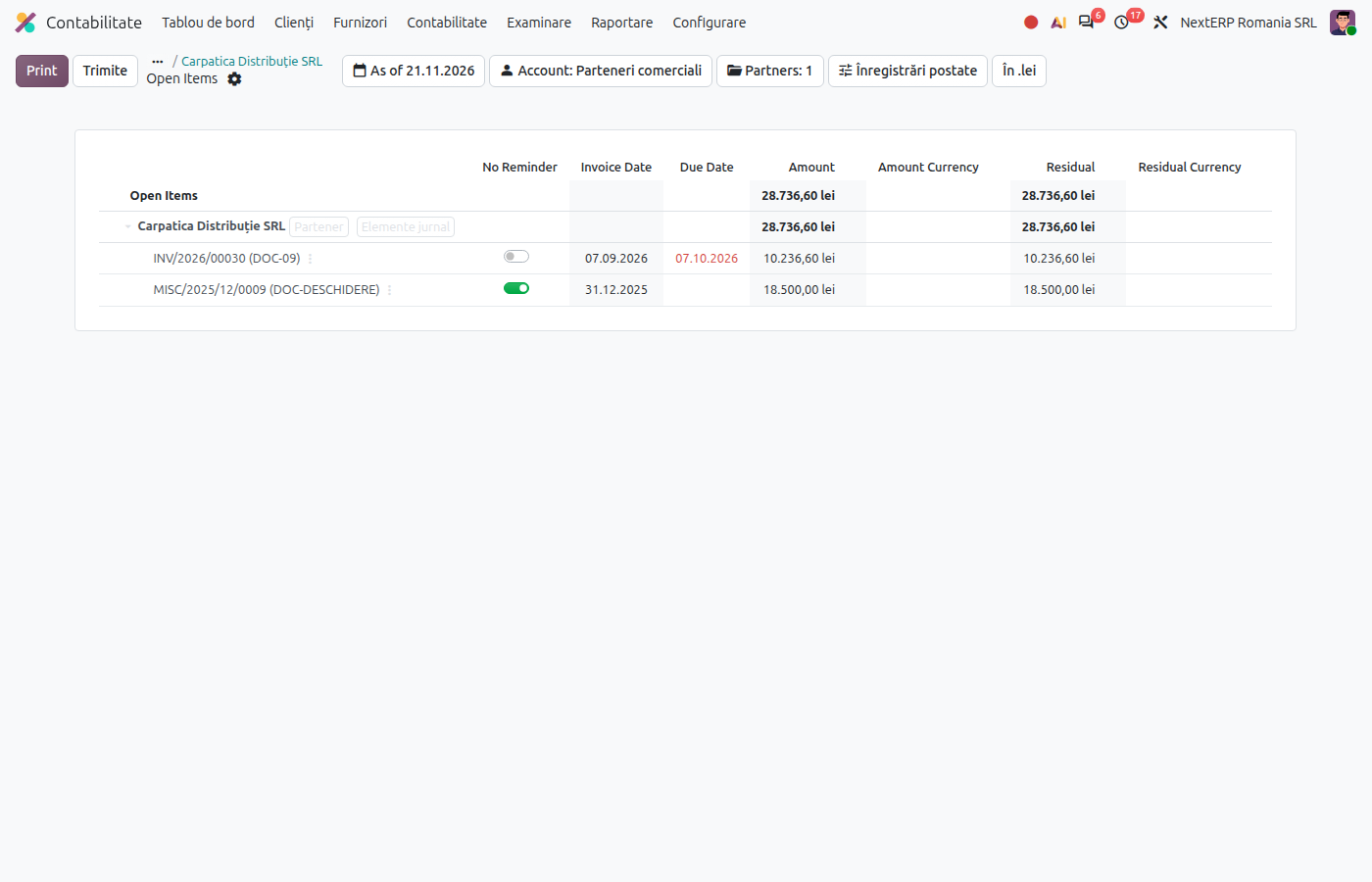
The Due button at the top of the form opens the statement of the customer's overdue invoices.
4. Send the reminder
Send the reminder from the customer's statement. In the window that opens, check the message and click Send, Print or Send & Print. Odoo logs the reminder on the customer form, and at the next delay the customer moves to the next level.
Variants
Several customers at once
Select the customers in the list and use the Process Follow-ups action.
Common mistakes
- The email is not sent. Check the mail server and the customer's address.
- Message in English. The language on the customer form is not Romanian, or the template has no Romanian translation.
- Invoice without a due date. Without payment terms, the invoice does not appear as overdue on the expected date.
- Reminder for an invoice already paid. The payment was not reconciled with the invoice. Reconcile them and the invoice disappears from the reminder.
- Late payment penalties. The reminder does not invoice penalties. The penalty invoice is issued separately.