Month-end closing · Article 02
Currency revaluation
Applies to Odoo 19 · 20
At month end, receivables, payables and cash in foreign currency are measured at the BNR (National Bank of Romania) rate of the last banking day of the month. Odoo calculates the difference for each unpaid invoice or bill and for each foreign currency bank account, and records the exchange gain or loss.
When to use
- You have vendor bills or customer invoices in foreign currency, unpaid at month end.
- You have bank or cash accounts in foreign currency.
- You have advances, bank loans or guarantees in foreign currency.
Before you start
- BNR rates are updated daily in Odoo, including the rate of the last banking day of the month.
- On each account to be revalued (for example 401, 4111, 409, 419, 1621), Allow Currency reevaluation is ticked, in Accounting › Configuration › Accounting › Chart of Accounts.
- The exchange difference accounts are set in Accounting › Configuration › Settings, under Gain (765) and Loss (665).
Steps in Odoo
1. Open the revaluation
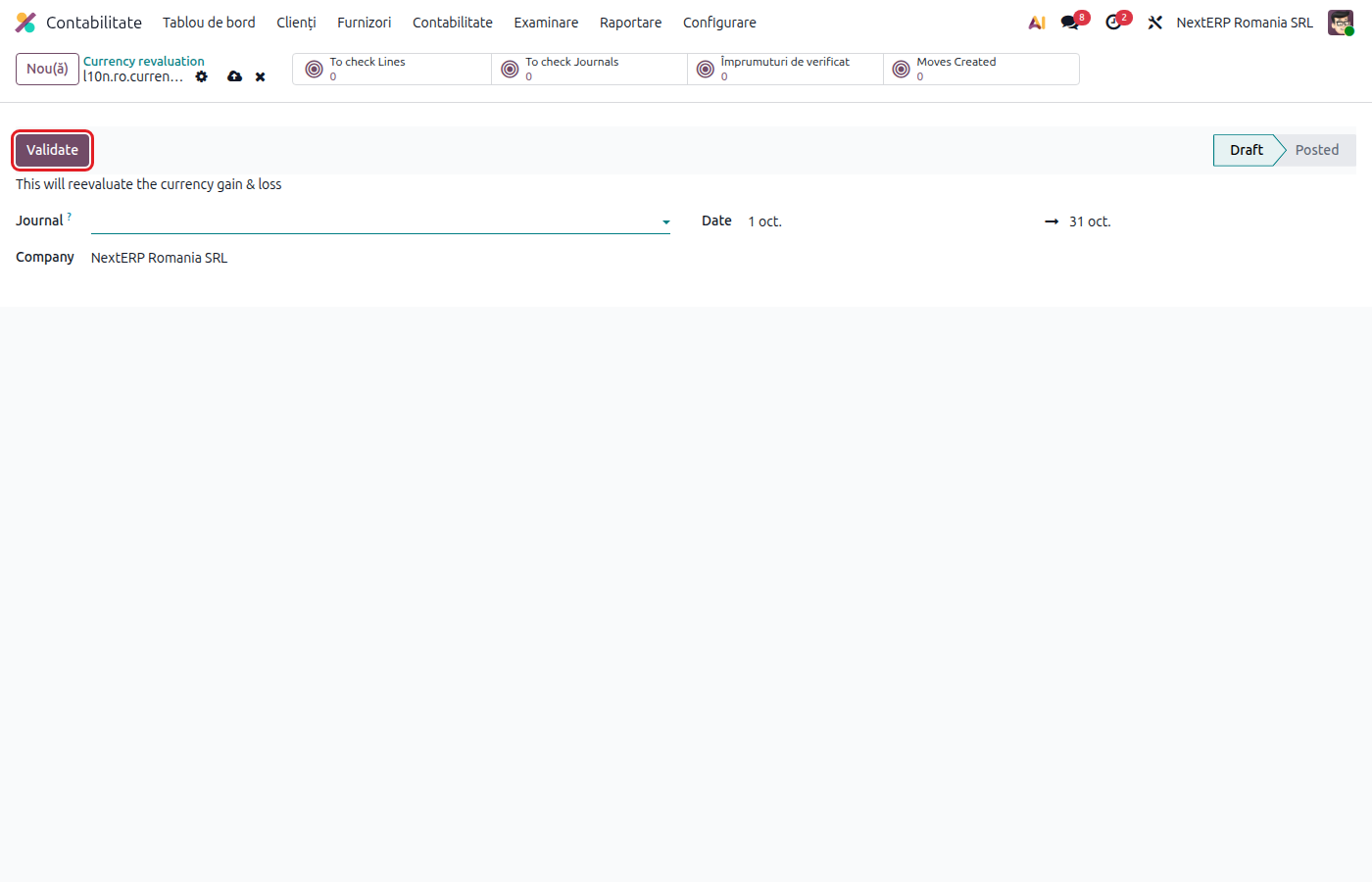
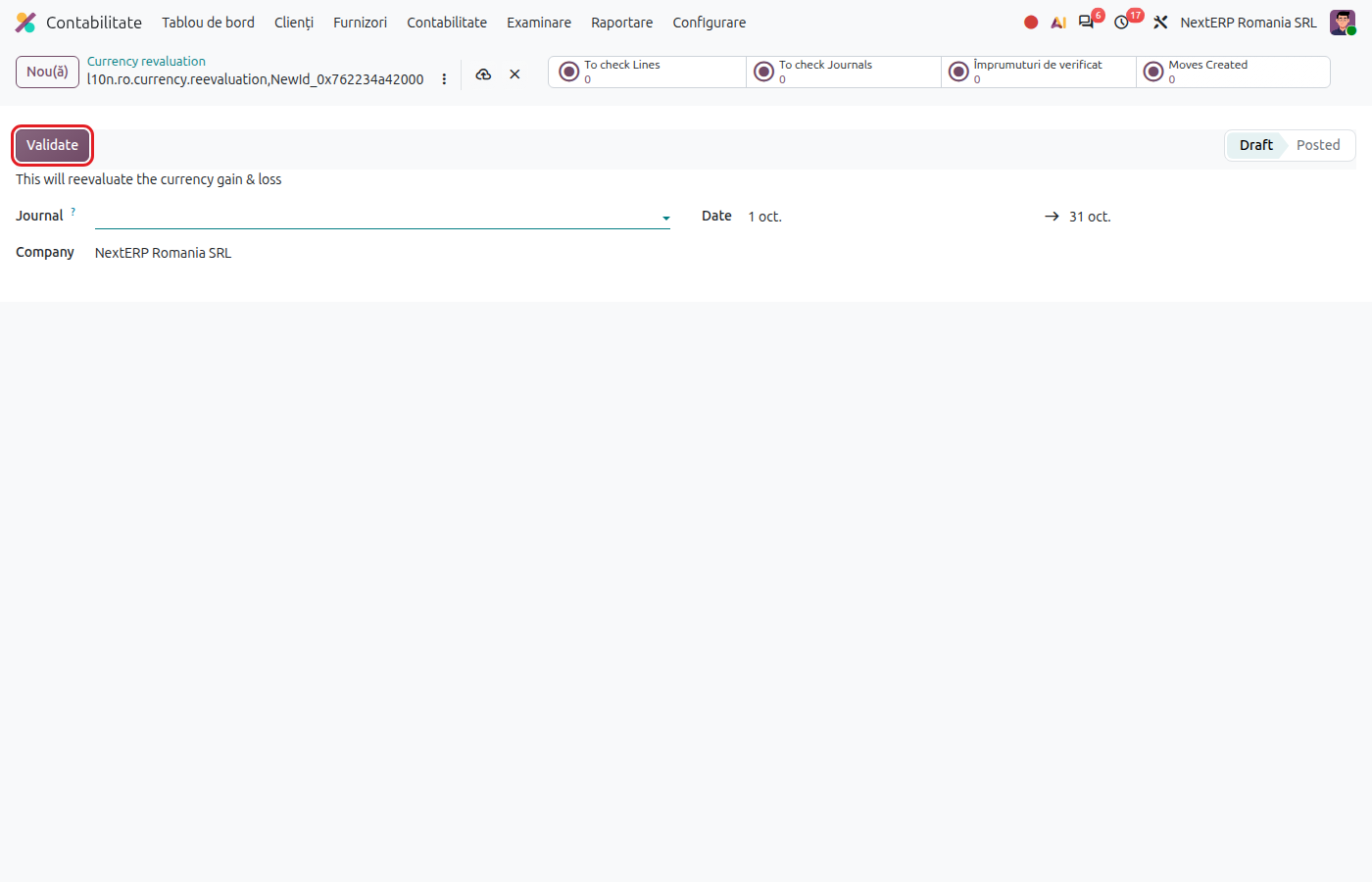
Go to Accounting › Accounting › Romania › Currency revaluation and click New.
2. Fill in the journal and the period
Choose the journal (usually Miscellaneous) and the period: the first and the last day of the month. The end date is the date of the revaluation entries.
3. Run the revaluation
Click Validate. Odoo searches all unreconciled foreign currency lines up to the end date, in the accounts marked for revaluation, and the foreign currency bank accounts, and creates a revaluation entry for each.
4. Check the result
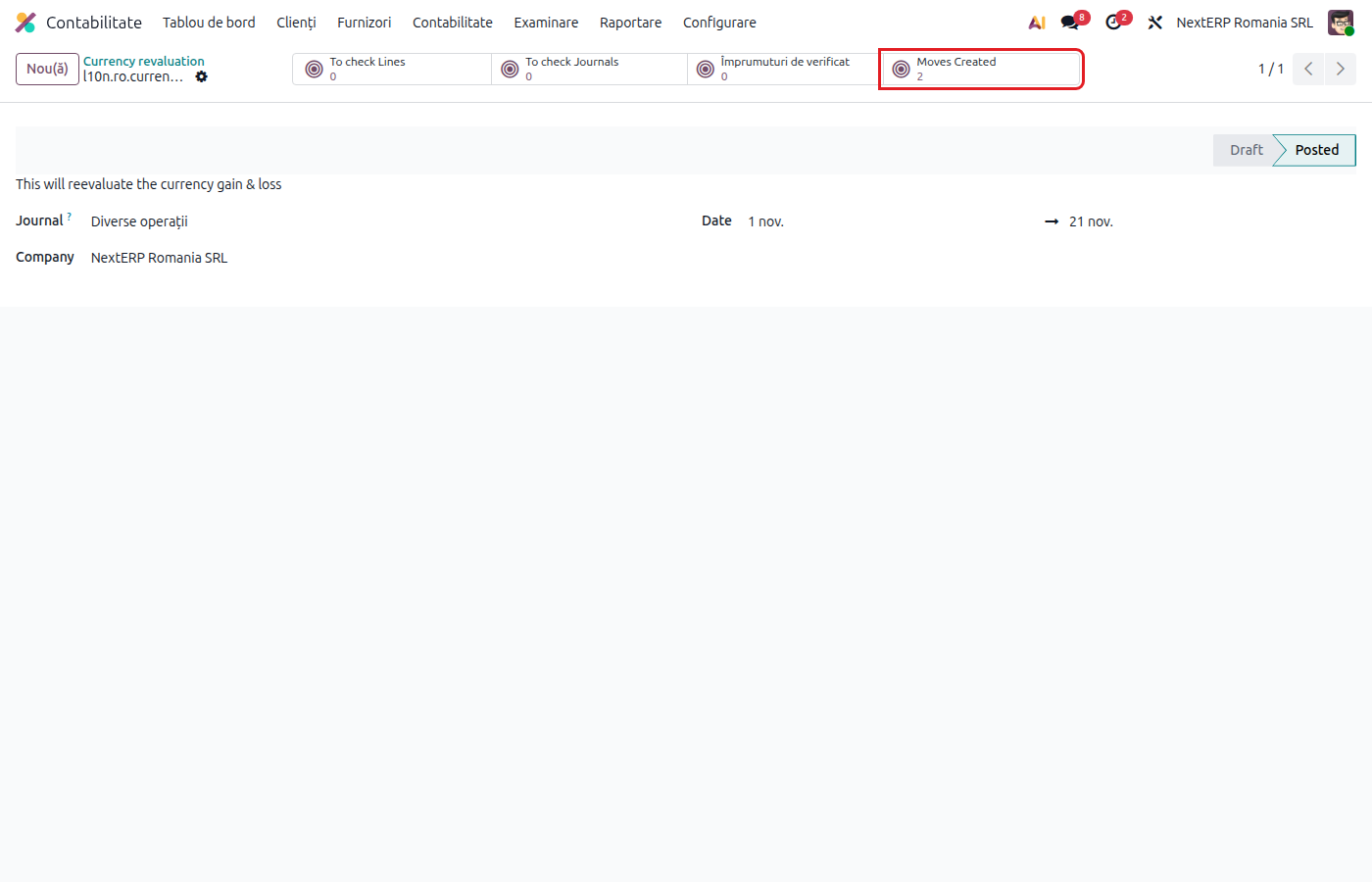
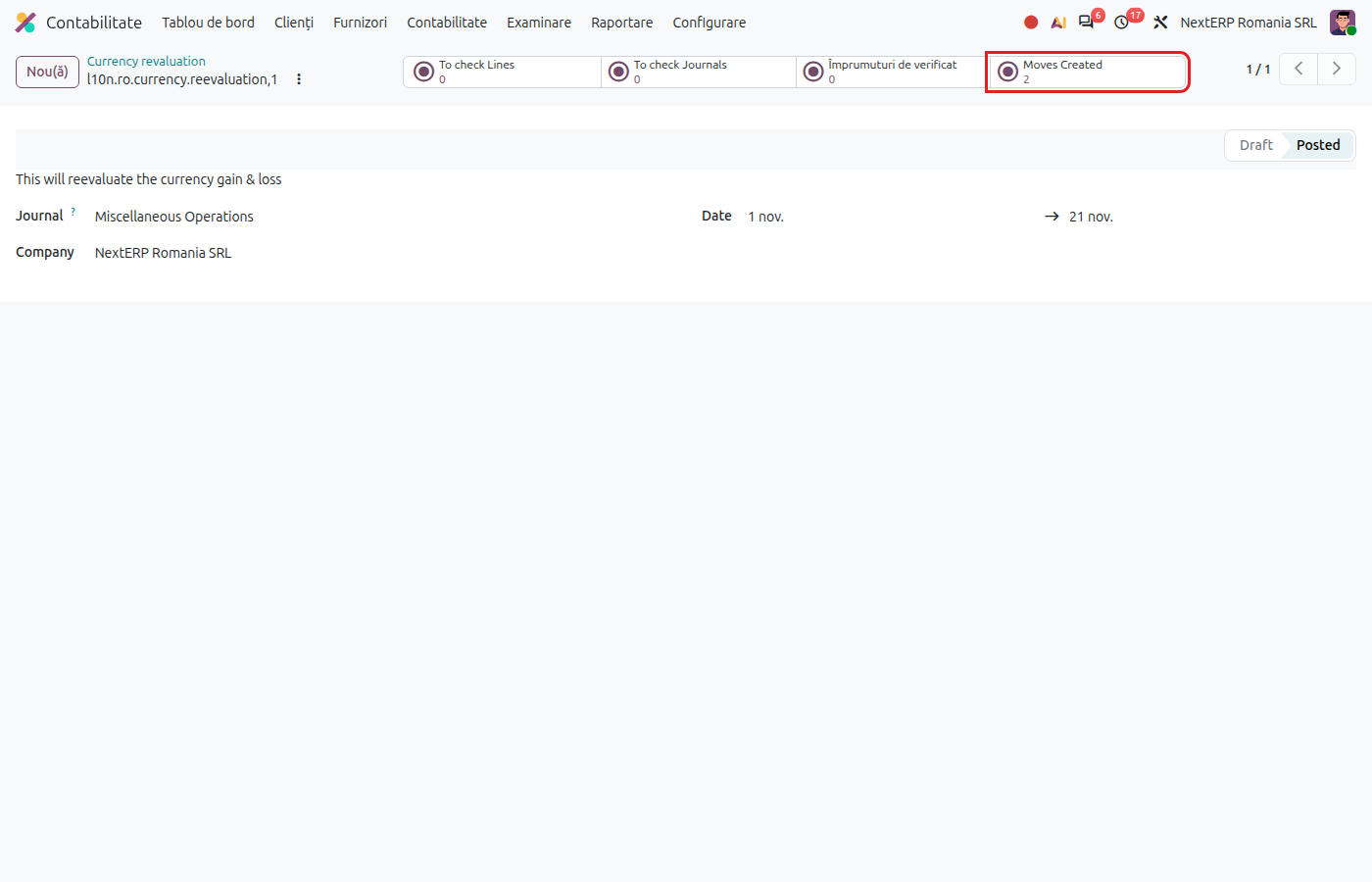
The Moves Created button opens the generated entries. The To check Lines and To check Journals buttons show the lines and journals to check manually, for example invoices paid after the revaluation date.
Variants
Payment comes the following month
At payment, Odoo calculates the exchange difference against the already revalued amount, not against the invoice rate. Do not reverse the revaluation manually.
Bank loans in foreign currency
Loans managed in Loans are revalued in the same operation: see Loans.
Items in lei settled based on an exchange rate
Contracts in lei with payment based on a foreign currency rate are not revalued automatically. The differences go to 668 and 768, through a manual entry.
Common mistakes
- The rate of the last day of the month is missing. Odoo uses the last available rate. Update the rates before the revaluation.
- Account not marked for revaluation. Lines in that account are not revalued. Tick the account and run the revaluation again for the month.
- Revaluation run twice for the same month. Odoo marks the revalued lines, but check Moves Created before running it again.
For the accountant: legal framework, accounting entries, returns
Legal framework
- OMFP 1802/2014 (the Ministry of Finance order with the accounting regulations), items 316–321 — measurement of foreign currency monetary items at the month-end rate.
- Codul fiscal (the Romanian Fiscal Code), art. 25 — exchange differences are taxable income and deductible expenses.
The rate used
Odoo converts at the rate valid on the first day of the following month, that is the rate published by BNR on the last banking day of the closed month.
Accounting entries
Example: vendor bill of 1,000 EUR at a rate of 4.95 (4,950 lei), unpaid; the month-end rate is 5.00.
Foreign currency vendor, unfavorable difference:
| DEBIT | CREDIT |
|---|---|
| 665 — 50 | 401 — 50 |
Foreign currency customer, favorable difference (invoice of 1,000 EUR at 4.95, closing rate 5.00):
| DEBIT | CREDIT |
|---|---|
| 4111 — 50 | 765 — 50 |
Foreign currency bank account, falling rate (balance 10,000 EUR, from 5.00 to 4.98):
| DEBIT | CREDIT |
|---|---|
| 665 — 200 | 5124 — 200 |
Link with the ANAF returns
| Return | What it takes |
|---|---|
| D101 (Declarația privind impozitul pe profit, the corporate income tax return) | 665 as a deductible expense, 765 as taxable income |
| D406 (SAF-T) | the revaluation entries, as journal entries |
The revaluation does not affect VAT.