Inventory · Article 02
Receipt and delivery in multiple steps
Applies to Odoo 19 · 20
In a large warehouse, goods do not go straight onto the shelf and do not leave straight from the shelf. On receipt they pass through a receiving area and, possibly, through quality control; on delivery they are picked, packed and only then loaded. Odoo can track each stage as a separate transfer. Journal entries are not multiplied: they are created only when goods enter the warehouse and when they leave it.
When to use
- Received goods stay in a receiving area until they are checked.
- You run quality control before putting goods away.
- Orders are picked from shelves and prepared in a shipping area.
- Packing is done separately from picking.
Before you start
- In Inventory › Configuration › Settings, Storage Locations and Multi-Step Routes are ticked.
- The warehouse is created: see Configuration.
Steps in Odoo
1. Choose the number of steps
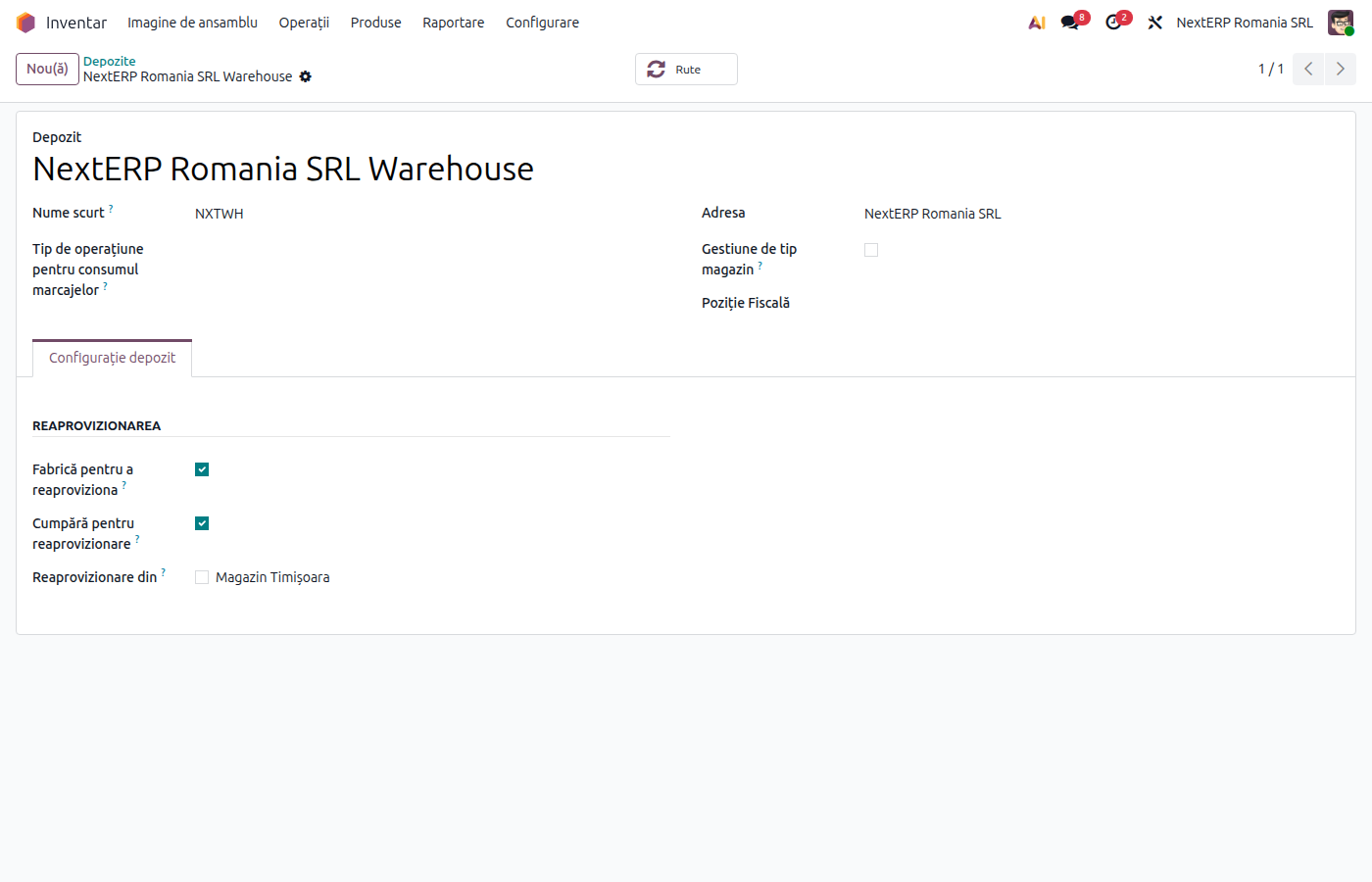
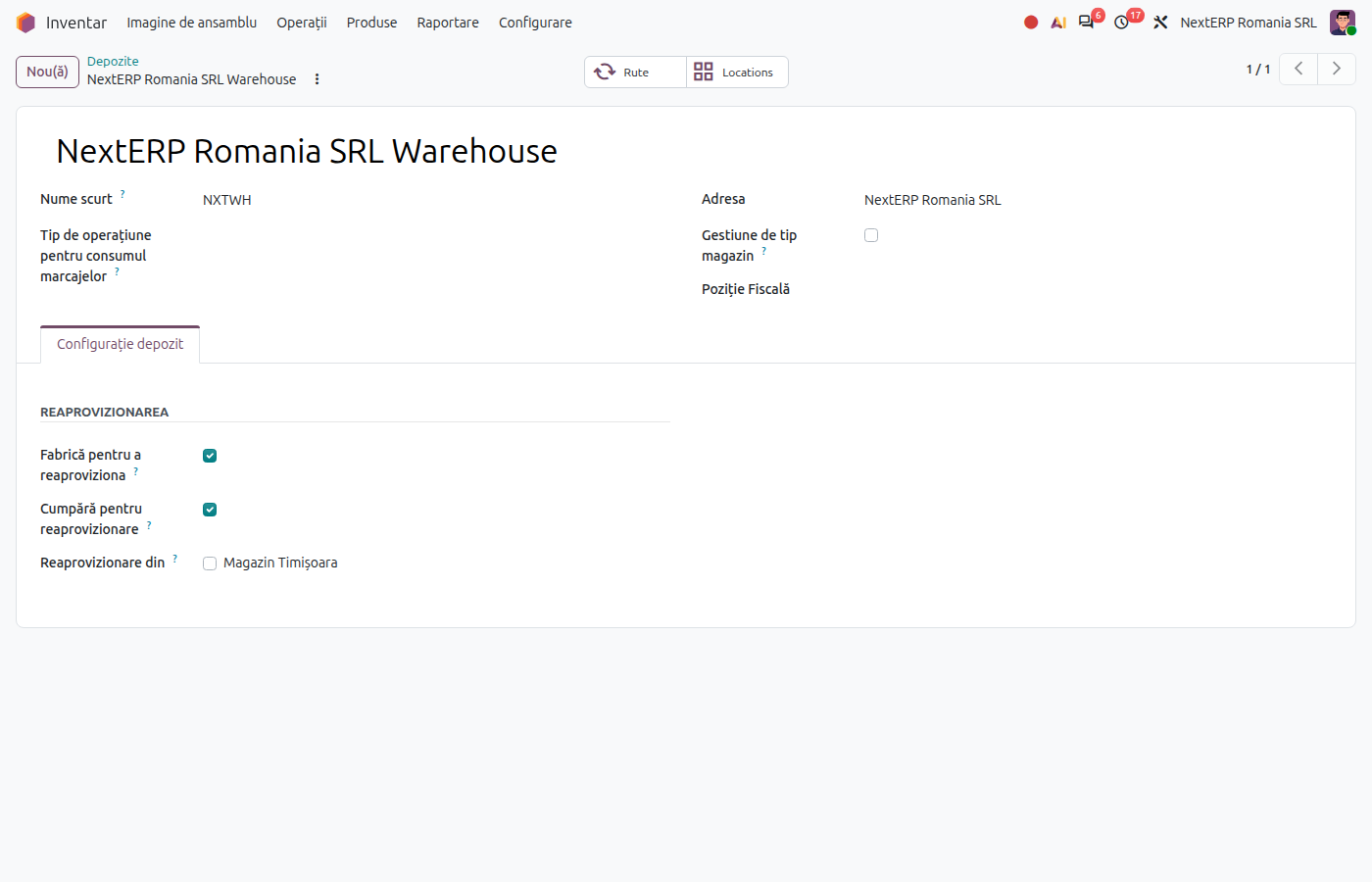
In Inventory › Configuration › Warehouse Management › Warehouses, open the warehouse. Under Incoming Shipments choose Receive then Store (2 steps) or Receive, Quality Control, then Store (3 steps). Under Outgoing Shipments choose Pick then Deliver (2 steps) or Pick, Pack, then Deliver (3 steps). Save.
2. Validate the receipt
When the goods arrive, open the receipt from Inventory › Operations › Transfers › Receipts and click Validate. The goods enter the receiving area, and Odoo automatically creates the next transfer.
3. Validate the put-away
In Inventory › Operations › Transfers › Internal, open the transfer created by the receipt, check the destination location and click Validate. With 3 steps, the first internal transfer is quality control and the second is the put-away.
4. Pick the goods for delivery
With delivery in 2 or 3 steps, confirming the sales order first creates the picking transfer. Validate it when the goods have reached the shipping area (with 3 steps, the packing transfer follows).
5. Validate the delivery
Open the delivery from Inventory › Operations › Transfers › Deliveries and click Validate. Only now do the goods leave the stock unit and are written off from stock.
Variants
Receiving and shipping areas as separate stock units
If the receiving area has a different stock account than the warehouse (on the location, with the tick on the category), the internal transfer to the shelf creates a transfer entry through account 482. Usually the intermediate areas have the same account as the warehouse and internal transfers create no entries.
Receipt with a delivery note
A receipt without an invoice is made from the purchase order and is described in the Purchases chapter.
Common mistakes
- Internal transfer left unvalidated. The goods appear in stock, but in the receiving area, not on the shelf, and cannot be reserved for deliveries. Validate the put-away.
- Delivery validated without picking. Odoo does not make the delivery available until the picking is validated. Validate the transfers in order.
- Changing the number of steps with open transfers. Transfers already created stay on the old route. Finish them before the change.
For the accountant: journal entries
Example: goods costing 1,000 lei, receipt and delivery in 2 steps.
| Stage | Journal entry |
|---|---|
| Receipt into the receiving area | no stock entry: the entry to 371 is recorded from the vendor bill (or 371 = 408 for a receipt with a delivery note) |
| Transfer receiving area → shelf | none, if the locations have the same stock account |
| Picking shelf → shipping area | none, if the locations have the same stock account |
| Delivery to the customer | 607 = 371 — 1,000 |
If the areas have different stock accounts, the internal transfer goes through the transfer account:
| DEBIT | CREDIT |
|---|---|
| 482 — 1,000 | 371 (source location) — 1,000 |
| 371 (destination location) — 1,000 | 482 — 1,000 |