Receipts, payments and bank · Article 03
Recording a payment or receipt
Applies to Odoo 19 · 20
You can record the payment directly from the invoice, before the statement arrives: the invoice then shows that it is being paid, and when the statement is imported Odoo proposes the match on its own. The same flow serves to collect a customer invoice and to pay a vendor bill, in full, partially or for several invoices at once.
When to use
- You sent the payment order to the vendor and want to know which bills are already paid.
- The customer tells you they paid, and the statement comes later.
- A customer pays only part of the invoice.
- You pay or collect several invoices of the same partner with a single amount.
Before you start
- The invoice is posted: see the Sales and invoicing chapter (or Purchases, for vendors).
- The bank or cash journal is configured: see Configuration.
Steps in Odoo
1. Open the invoice
Accounting › Customers › Invoices for receipts or Accounting › Vendors › Bills for payments. Open the posted invoice.
2. Click Pay
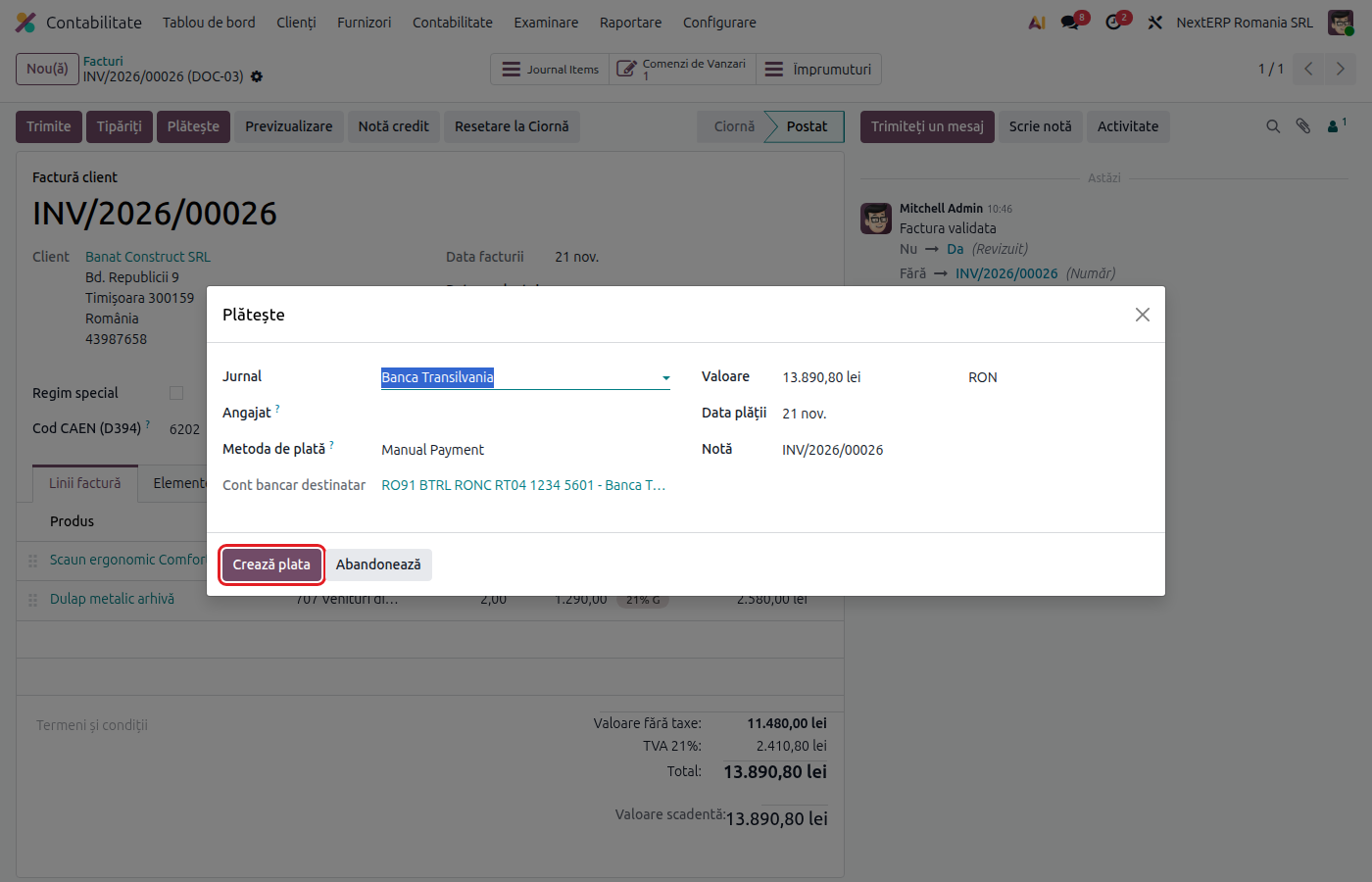
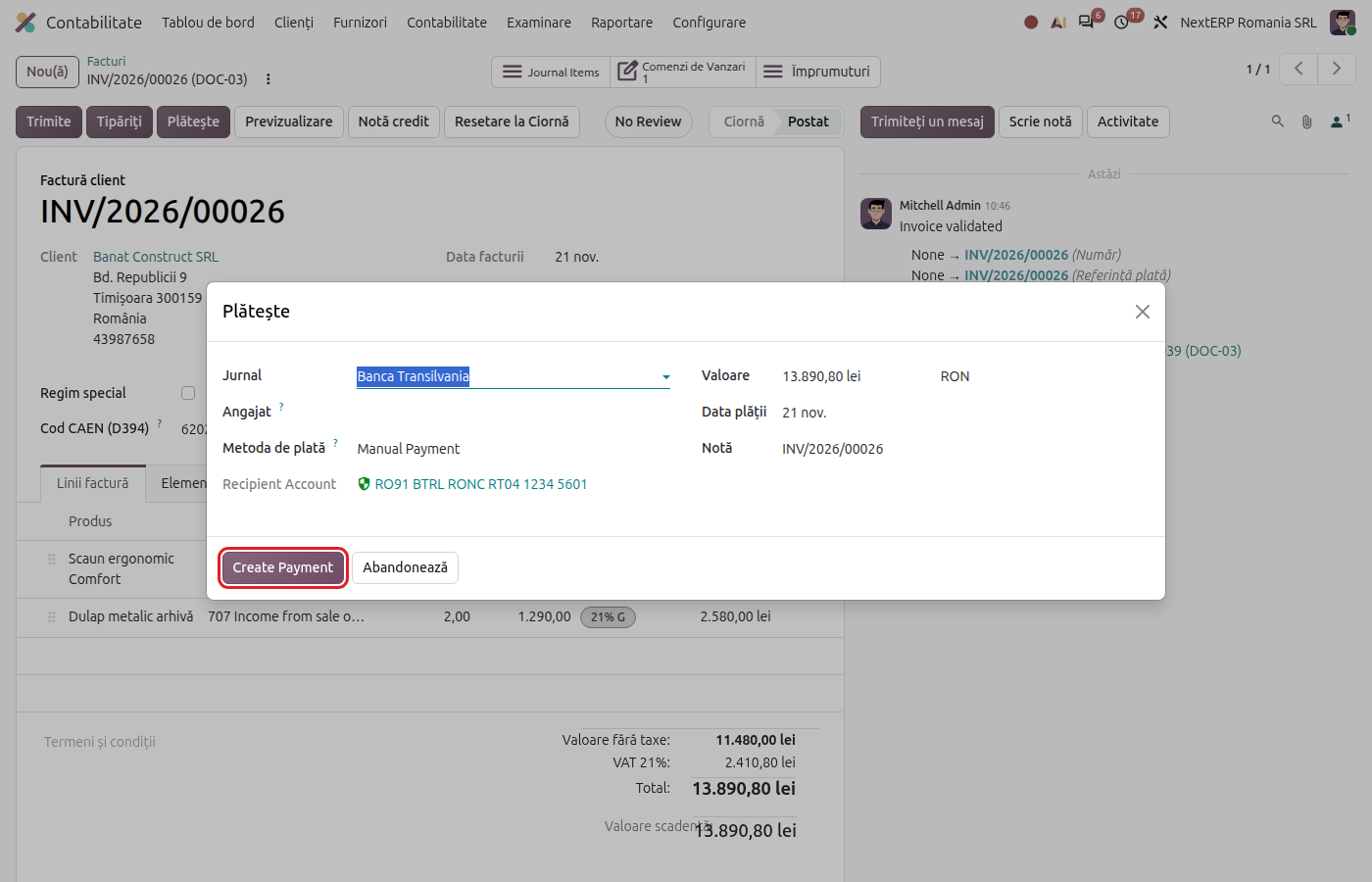
Click Pay. The payment window opens, with the amount still due.
3. Fill in the payment
Choose the Journal (bank or cash), the Payment Method, the Payment Date and check the Amount. For vendors, also check the Recipient Bank Account. Memo takes the invoice number; you can change it.
4. Create the payment
Click Create Payment. The invoice moves to the In Payment status and stays there until it is reconciled with the statement, when it becomes Paid: see Bank statements: import and reconciliation. Cash payments have a few extra settings: see Cash desk: receipts and cash vouchers.
Variants
Partial payment
Enter the paid amount in Amount. Below the amount, Payment Difference appears: choose Keep open, and the invoice keeps the remaining amount due. If the difference is a small one you no longer follow up, see Payment differences.
Several invoices at once
In the invoice list, select the invoices, then click Pay above the list. The Group Payments checkbox creates a single payment per partner for all of their invoices; without it, Odoo creates one payment per invoice. Click Create Payments.
Payment without an invoice (advance)
Accounting › Customers › Payments (or Accounting › Vendors › Payments), click New, choose the partner, the amount and the journal, then confirm. The payment stays unallocated; when you post the invoice, you add it from the invoice, under Outstanding credits or Outstanding debits.
Payment in a foreign currency
The payment is made in the invoice currency, at the rate of the payment date. The difference from the invoice rate is recorded automatically as an exchange difference.
Common mistakes
- Payment recorded both from the invoice and from the statement. At reconciliation accept the payment Odoo proposes; do not match the transaction directly with the invoice a second time.
- Wrong journal. A payment put on the cash desk instead of the bank no longer appears in the bank reconciliation. Cancel the payment and redo it on the right journal.
- Payment on a draft invoice. The Pay button appears only on posted invoices.
- The invoice stays "In Payment" for months. The payment was not reconciled with the statement. Check the bank's transactions to reconcile.
For the accountant: journal entries, returns
Journal entries
Example: receipt of an invoice of 1,000 lei + VAT 21% = 1,210 lei.
With a payment method without a clearing account (the default setting), the payment creates no journal entry; the entry appears at reconciliation with the statement:
| DEBIT | CREDIT |
|---|---|
| 5121 — 1,210 | 4111 — 1,210 |
With a clearing account on the payment method (for example 5125), the entry is made in two steps.
When the payment is recorded:
| DEBIT | CREDIT |
|---|---|
| 5125 — 1,210 | 4111 — 1,210 |
At reconciliation with the statement:
| DEBIT | CREDIT |
|---|---|
| 5121 — 1,210 | 5125 — 1,210 |
Paying a vendor bill gives the mirror entries (401 on debit, the bank on credit). A cash receipt is described in Cash desk: receipts and cash vouchers.
Exchange differences on foreign currency payments go to 6651 / 7651.
Link with the ANAF returns
| Return | What it takes |
|---|---|
| D300 (Decont de TVA, the VAT return) | for companies on cash-basis VAT, the VAT on 4428 becomes due on the payment date |
| D394 (the informative return on domestic supplies and purchases) | for cash-basis VAT, the invoices collected or paid in the period |
| D406 (SAF-T) | the payment |