Receipts, payments and bank · Article 02
Bank statements: import and reconciliation
Applies to Odoo 19 · 20
The bank statement enters Odoo as a list of transactions. Each transaction is then matched with the invoice, payment or expense account it belongs to; only after matching does the invoice show as paid and the bank balance in Odoo equal the one at the bank. Odoo proposes the matches it recognizes on its own, by amount, partner and reference.
When to use
- You receive the bank statement daily or monthly.
- You want to mark invoices as collected or paid based on the money that actually came in.
- The statement shows fees, interest, salaries or transfers between your own accounts.
- At the end of the month you check that the balance in Odoo equals the one on the statement.
Before you start
- The bank journal exists: see Configuration.
- You have the statement in electronic format (CAMT.053, CSV, OFX or QIF), downloaded from internet banking.
Odoo 19
On Odoo 19, the Romanian localization also accepts MT940 statements from BCR, BRD, ING, Raiffeisen, Exim and Alpha Bank, if the module of that bank is installed (MT940 BCR Format Bank Statements Import and the others).
Steps in Odoo
1. Import the statement
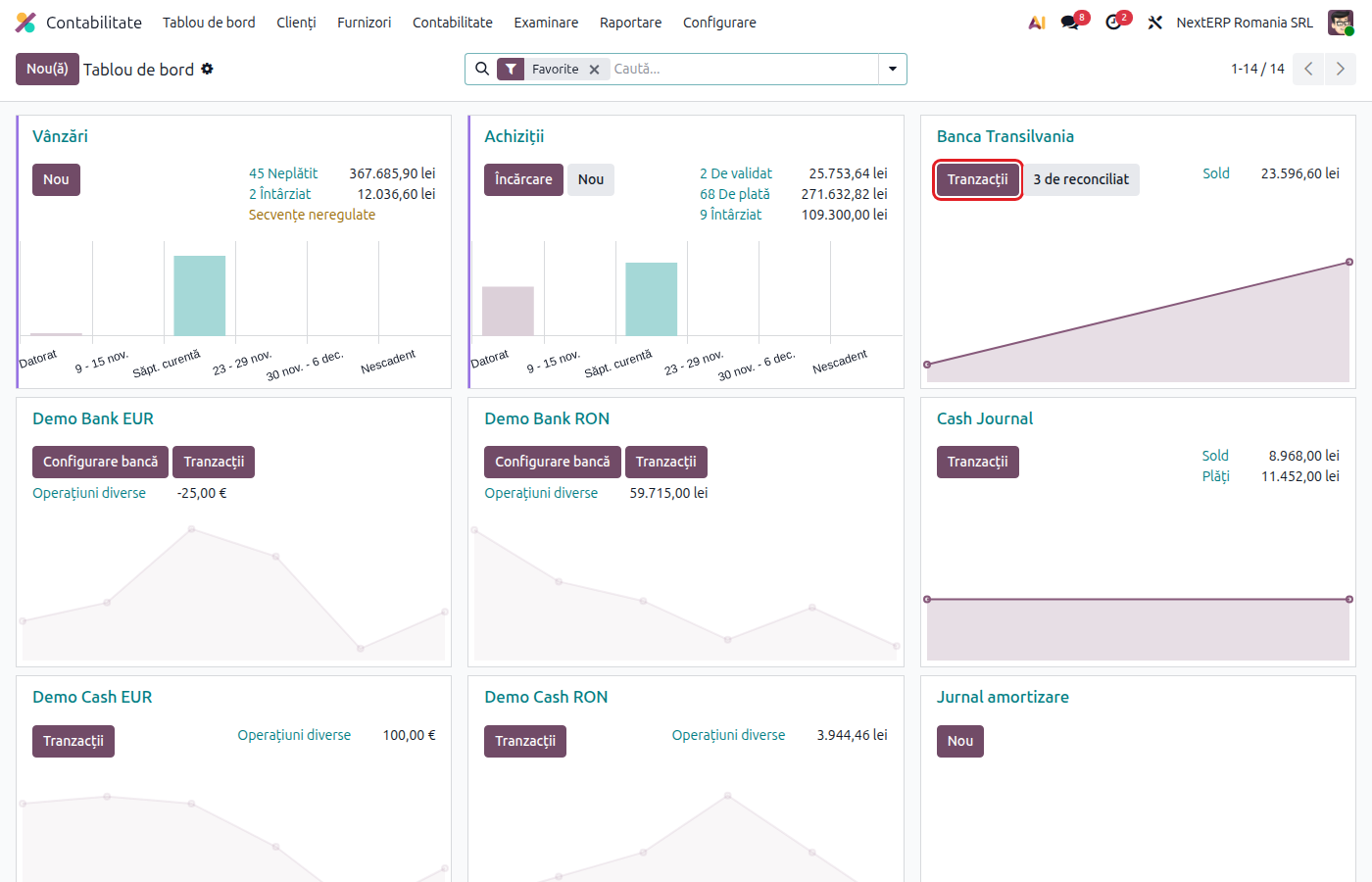
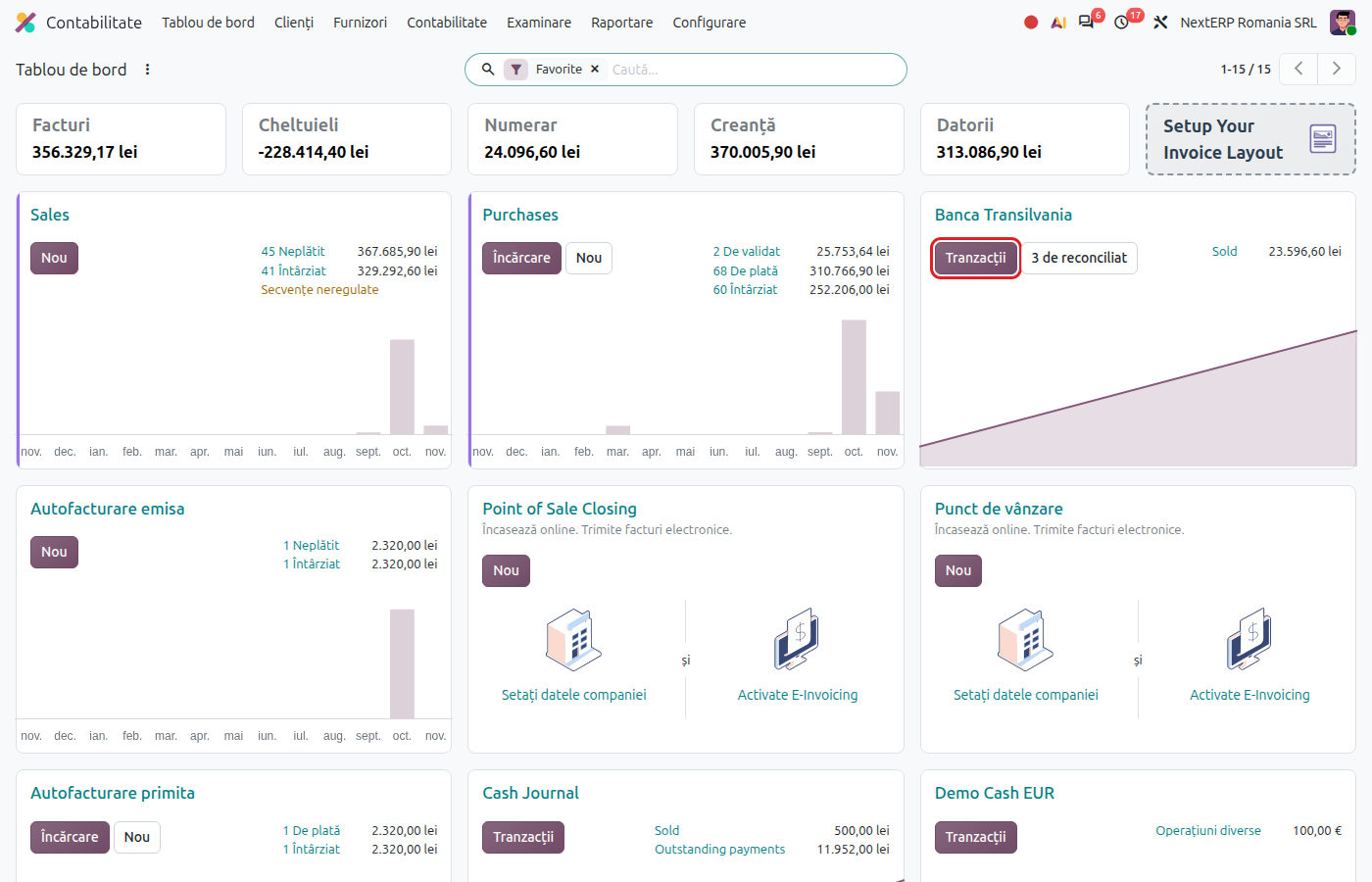
Accounting › Dashboard, on the bank card open the card menu and choose Import File. Select the file downloaded from the bank. Odoo creates the transactions and takes you to the reconciliation window.
2. Open the transactions to reconcile
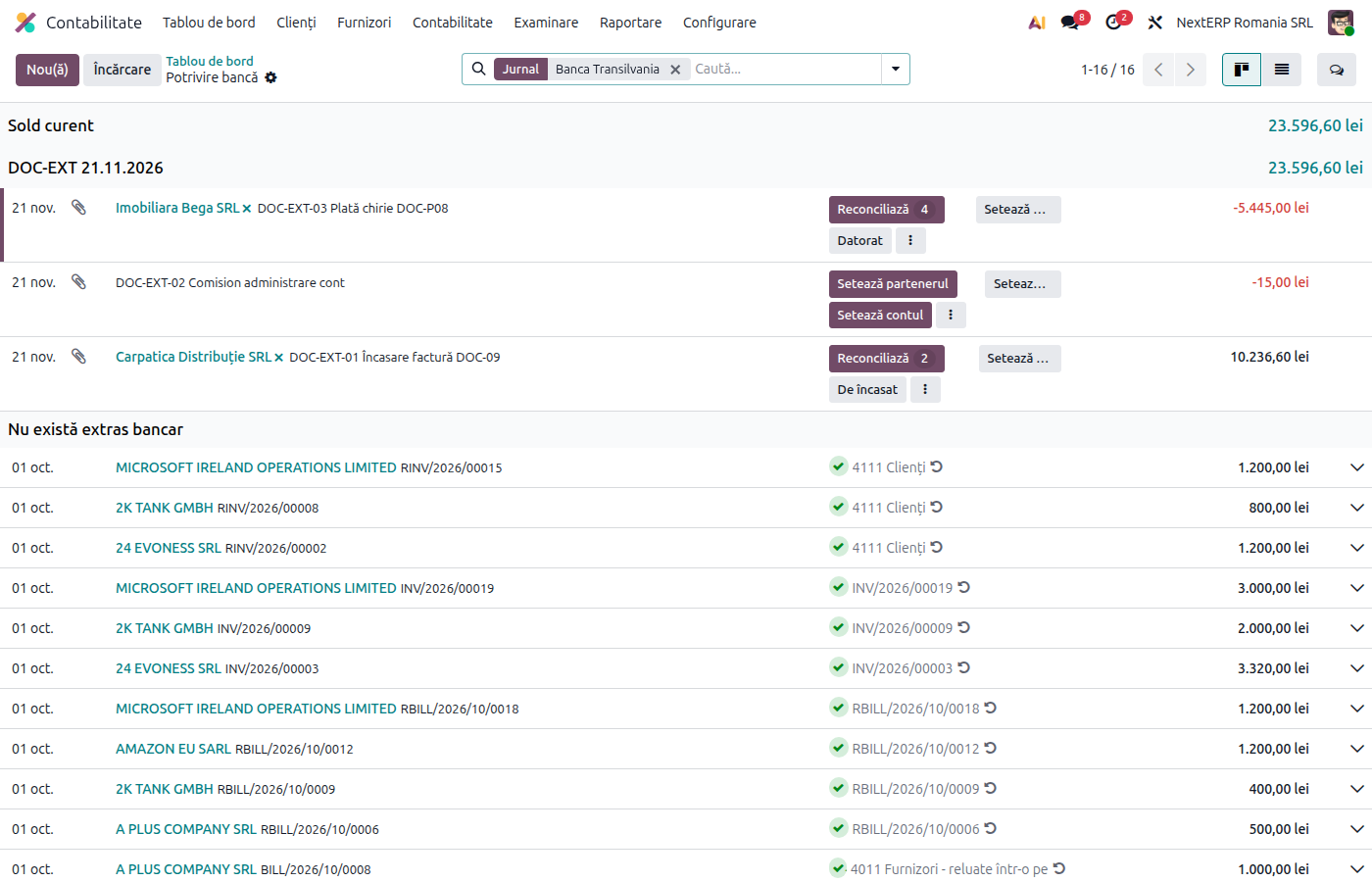
At any later time, on the bank card click Transactions or the button N to reconcile. Transactions not yet matched are marked; for each one, Odoo shows the matches it finds (usually the invoice with the same amount and the same partner).
Odoo 19
Transactions appear as cards, one below the other, with the action buttons on each card.
Odoo 20
Transactions appear in a list, with the action buttons on each row.
3. Match the transaction with the invoice
If the proposal is correct, accept it. Otherwise click Set Partner, then Reconcile and choose the invoice or invoices from the list. One transaction can settle several invoices, and one invoice can be settled by several transactions.
4. Transactions without an invoice
For fees, interest or other operations without a document in Odoo, click Set Account and choose the account (for example 627 for bank fees). For advance receipts or payments use Receivable or Payable, which put the amount on the partner's customer or vendor account.
5. Mark the transaction as checked
Odoo 19
Click Reviewed after you have checked the transaction.
Odoo 20
Click Review after you have checked the transaction.
The matched invoice moves to the Paid status, and the transaction disappears from those to reconcile.
Variants
Reconciliation models
For recurring operations (monthly fee, interest), use the models: on the bank card, card menu, Models. The Romanian chart comes with models for bank fees (627), advances from customers (419), advances to vendors, interest (766), internal transfers (581), salaries (421) and items being clarified (473). The model then appears as a button in the reconciliation window.
Transfer between own accounts
Money moved from one company account to another appears on both statements. On each transaction choose the internal transfer model (account 581); the balance of account 581 must reach zero.
Payments recorded before the statement
If you recorded the payment from the invoice (see Recording a payment or receipt), Odoo proposes it at reconciliation. Accept it; do not create another match with the invoice.
Common mistakes
- The same statement imported twice. Transactions are duplicated. Delete the duplicate transactions before reconciling them.
- Transaction put directly on an expense account instead of the invoice. The vendor invoice stays unpaid. Undo the match and redo it with the invoice.
- Transactions left unreconciled at month end. They stay on the suspense account 5125, and the trial balance does not show the real balances of customers and vendors.
- Balance in Odoo different from the statement. Usually a statement day is missing or a transaction was deleted. Compare the ending balance of each imported statement with the one at the bank.
For the accountant: journal entries, returns
Legal framework
- Legea contabilității nr. 82/1991 (the Romanian Accounting Law), art. 6 — the account statement is a supporting document.
- OMFP 1802/2014 (the Romanian accounting regulations order) — accounts 5121 / 5124, 5125 (amounts in course of settlement), 581.
Journal entries
Example: receipt of 1,210 lei for an invoice of 1,000 lei + VAT 21%.
At statement import (transaction not yet matched):
| DEBIT | CREDIT |
|---|---|
| 5121 — 1,210 | 5125 — 1,210 |
At reconciliation with the invoice (the suspense account is replaced by the customer account):
| DEBIT | CREDIT |
|---|---|
| 5121 — 1,210 | 4111 — 1,210 |
Bank fee of 10 lei put on an account:
| DEBIT | CREDIT |
|---|---|
| 627 — 10 | 5121 — 10 |
If the payment was recorded earlier with a clearing account on the payment method, reconciliation settles that account (5121 = 5125), not the customer account.
Link with the ANAF returns
| Return | What it takes |
|---|---|
| D300 (Decont de TVA, the VAT return) | only for companies on cash-basis VAT: the VAT becomes due on the collection date |
| D406 (SAF-T) | bank transactions and payments |