Receipts, payments and bank · Article 09
Offsetting between partners
Applies to Odoo 19 · 20
When a partner is both your customer and your vendor, the receivable and the payable with that partner can settle each other, with no money movement. Odoo brings the partner's open documents into an offsetting document, and on posting it creates the journal entry and closes the offset invoices. The remaining difference is paid or collected normally.
When to use
- The partner owes you 6,000 lei, you owe them 10,000 lei, and you agreed to offset 6,000 lei.
- You sign an offsetting report (proces-verbal de compensare) with the partner.
- You offset an advance received from a partner against one of their invoices.
Before you start
- The invoices to offset are posted and open (unpaid or partially paid).
- You have the partner's agreement (an offsetting report signed by both parties).
- There is a Miscellaneous journal for offsetting (it can be the general Miscellaneous Operations journal).
Steps in Odoo
1. Create the offsetting document
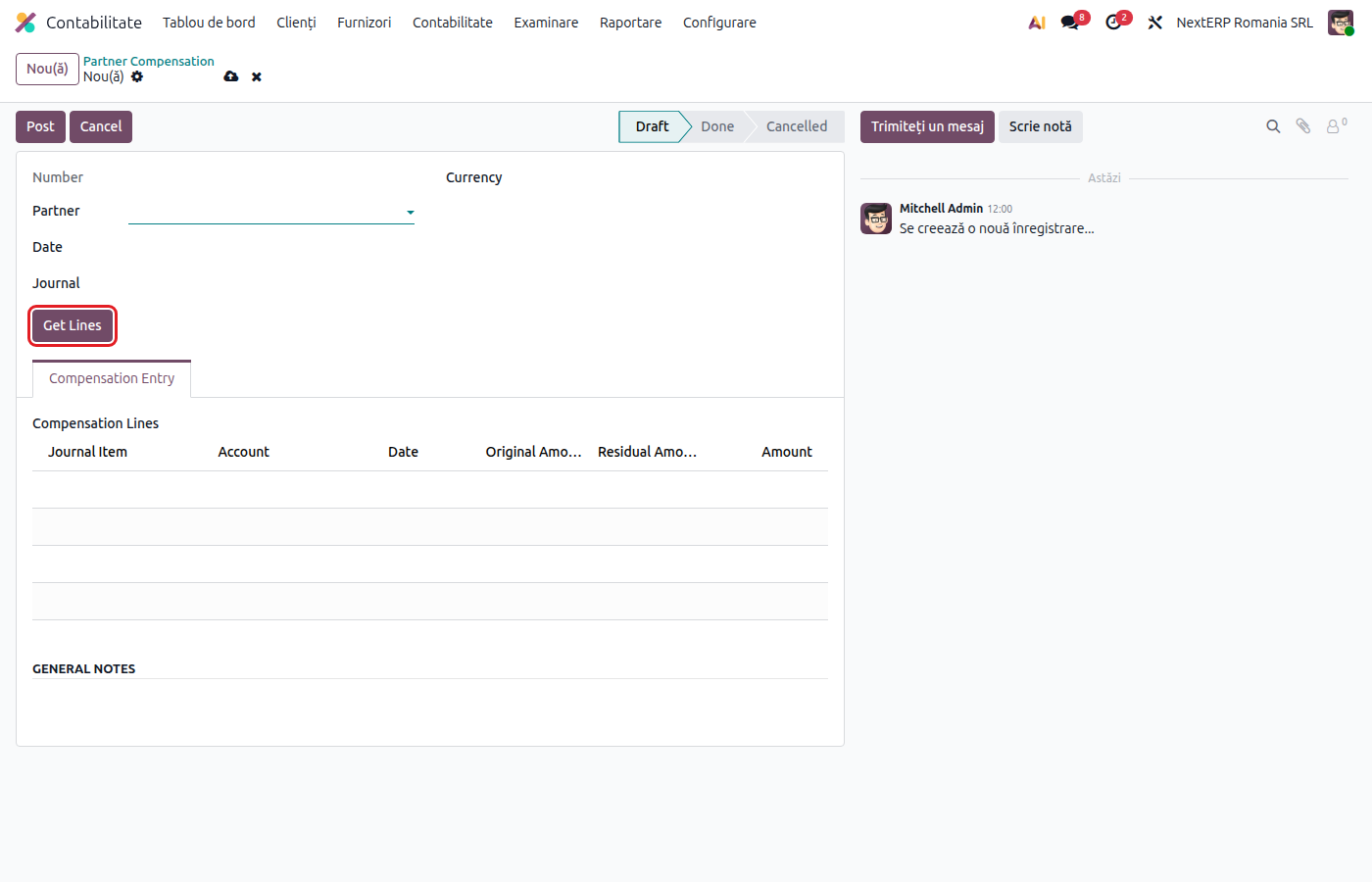
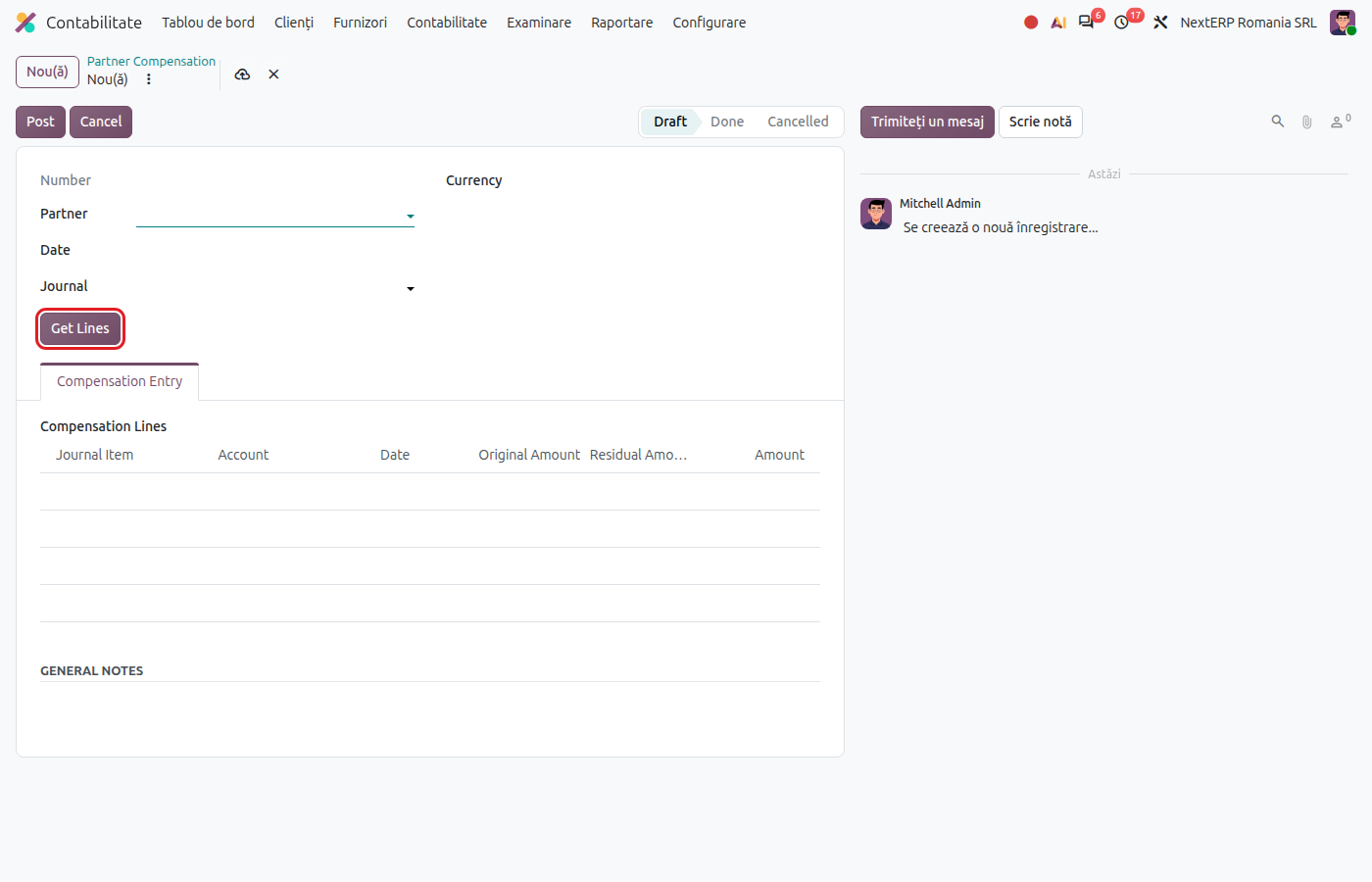
Accounting › Accounting › Romania › Partner Compensation, click New. Fill in the partner, the date and the journal.
2. Bring in the open documents
Click Get Lines. Odoo brings all of the partner's open amounts, as customer and as vendor, at the chosen date, with the original amount and the remaining amount.
3. Choose the amounts to offset
On each line to offset, enter the amount in the allocation column: positive on receivables, negative on payables, at most the remaining amount. The total of the allocations must be zero. Lines you do not offset stay at zero.
4. Post the offsetting
Click Post. Odoo creates the offsetting journal entry and closes the offset documents, in full or partially. The entry is visible in the Journal Items tab.
Variants
Offsetting in a foreign currency
Choose the currency on the offsetting document. The remaining amounts are converted at the rate of the offsetting date, and the difference from the invoice rate is recorded as an exchange difference.
Wrong offsetting
Click Cancel: the journal entry is cancelled and the documents become open again. You can correct and post again.
The remaining balance
The difference left after offsetting is paid or collected like any invoice: see Recording a payment or receipt.
Common mistakes
- Allocation total different from zero. Odoo does not post the offsetting. The offset receivables must equal the offset payables.
- Amount larger than the document's remaining amount. Odoo rejects it; an invoice can be offset only up to its remaining amount.
- Offsetting without a signed report. The document in Odoo does not replace the partner's written agreement; keep the report on file.
- Offsetting made with a manual journal entry. The invoices stay open. Use the offsetting document, which also closes them.
For the accountant: legal framework, journal entries, returns
Legal framework
- OMFP 1802/2014 (the Romanian accounting regulations order) — offsetting receivables and payables with the same partner.
- Codul fiscal (Legea 227/2015) (the Romanian Fiscal Code) — VAT is determined on the original invoices; offsetting does not change the tax base.
Journal entries
Example: a customer with an open invoice of 6,000 lei; the same company as a vendor, with an open bill of 10,000 lei. 6,000 lei are offset.
On posting the offsetting:
| DEBIT | CREDIT |
|---|---|
| 401 — 6,000 | 4111 — 6,000 |
The customer invoice is closed in full, and the vendor bill keeps 4,000 lei to pay.
Payment of the rest, at reconciliation with the statement:
| DEBIT | CREDIT |
|---|---|
| 401 — 4,000 | 5121 — 4,000 |
The offsetting also brings in the sundry debtor and creditor accounts tracked by partner, not only customers and vendors.
Link with the ANAF returns
| Return | What it takes |
|---|---|
| D300 / D394 (the VAT return / the informative return on domestic supplies and purchases) | nothing new: VAT was declared on the original invoices |
| D300, companies on cash-basis VAT | offsetting settles the invoice, so the offset VAT becomes due |
| D406 (SAF-T) | the offsetting entry |