Returns setup · Article 10
How to file a return
Applies to Odoo 19 · 20
All ANAF returns are prepared in Odoo the same way. Odoo keeps a calendar of the company's returns and their deadlines; for each period you open the return, calculate it from accounting, check the values and generate the XML file. The file is validated automatically against the ANAF rules (the DUK validator), so errors show up before filing. After you file the file with ANAF (the Romanian tax authority), record the registration number from the receipt and the return is closed.
When to use
- The deadline of a monthly, quarterly or annual return is approaching.
- You want to see which returns are still to be filed and which are late.
- You have filed a return and want to close it in Odoo with the registration number.
- You must file a corrective return for a period already filed.
Before you start
- The company's NextERP subscription is active: without it, Odoo does not calculate or generate returns.
- The company's fiscal profile is filled in under ANAF Declarations › Configuration › General › Fiscal Profile: profit tax or income tax, VAT and tax periodicity, SAF-T data. From the profile, Odoo knows which returns you owe.
- Who signs the returns is defined in ANAF Declarations › Configuration › General › Signatures (name, position, CNP (personal numeric code) or CUI (tax ID)).
- The list of returns to file is confirmed in ANAF Declarations › Configuration › General › Declarations and Registers: click Propose from Fiscal Profile, check the list, then Confirm. The steps, periodicity, start date and deadlines are in Declarations and Registers.
- ANAF Declarations › Configuration Checklist shows what is still missing from the setup. Resolve the flagged items before the first return.
Steps in Odoo
1. Open the returns calendar
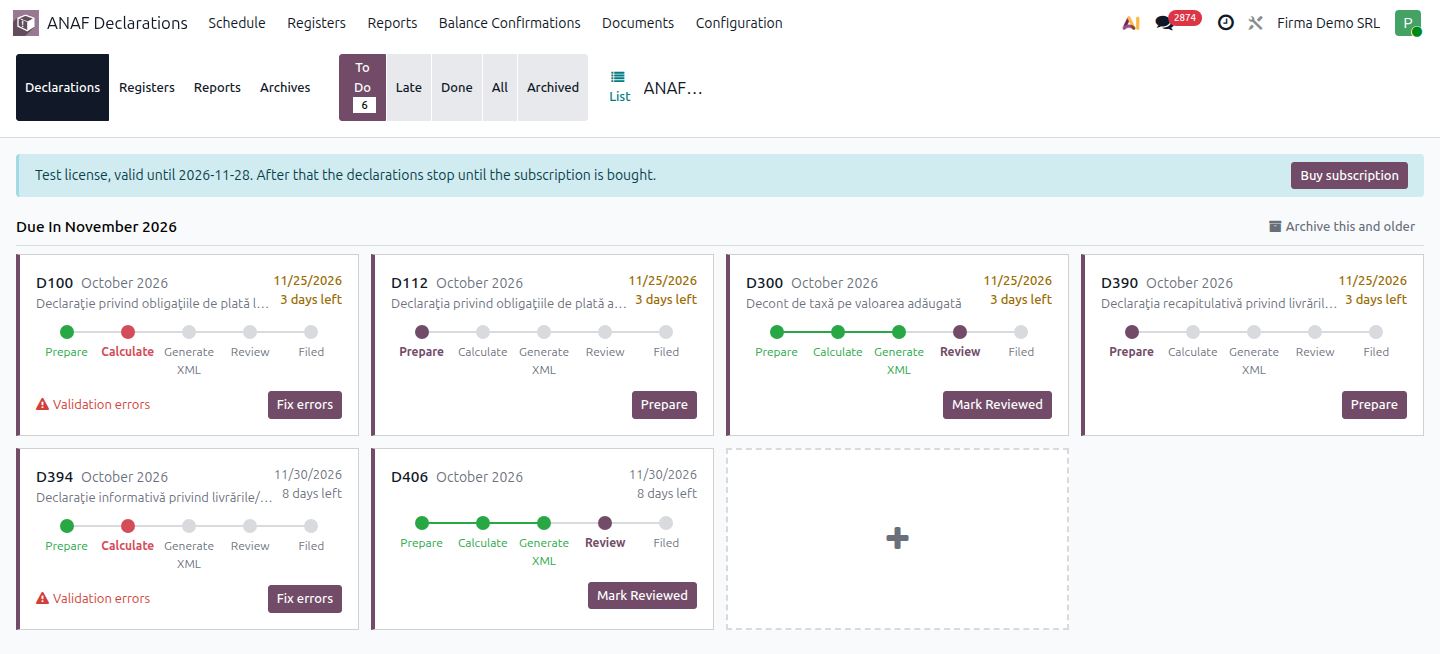
ANAF Declarations › Schedule. Returns are grouped by month, with the deadline and status of each: to prepare, to review, filed or late. Odoo creates the returns for new periods by itself from the list confirmed in the setup. A missing return, or one filed only on demand, is added manually with the + card in the calendar; see Declarations and Registers.
2. Open the period's return
Click the return, then the Declaration button. The return document opens, with the company, the period, the form version valid for the period and the company's default signature. If someone else should sign, change the Signature field.
3. Calculate the return
Click Calculate on Server. Odoo sends the period's accounting data (posted entries only) to the NextERP returns service, which applies the form rules and returns the values. They appear by section in the Declaration Content area; open each section to see its rows.
4. Check and correct the values
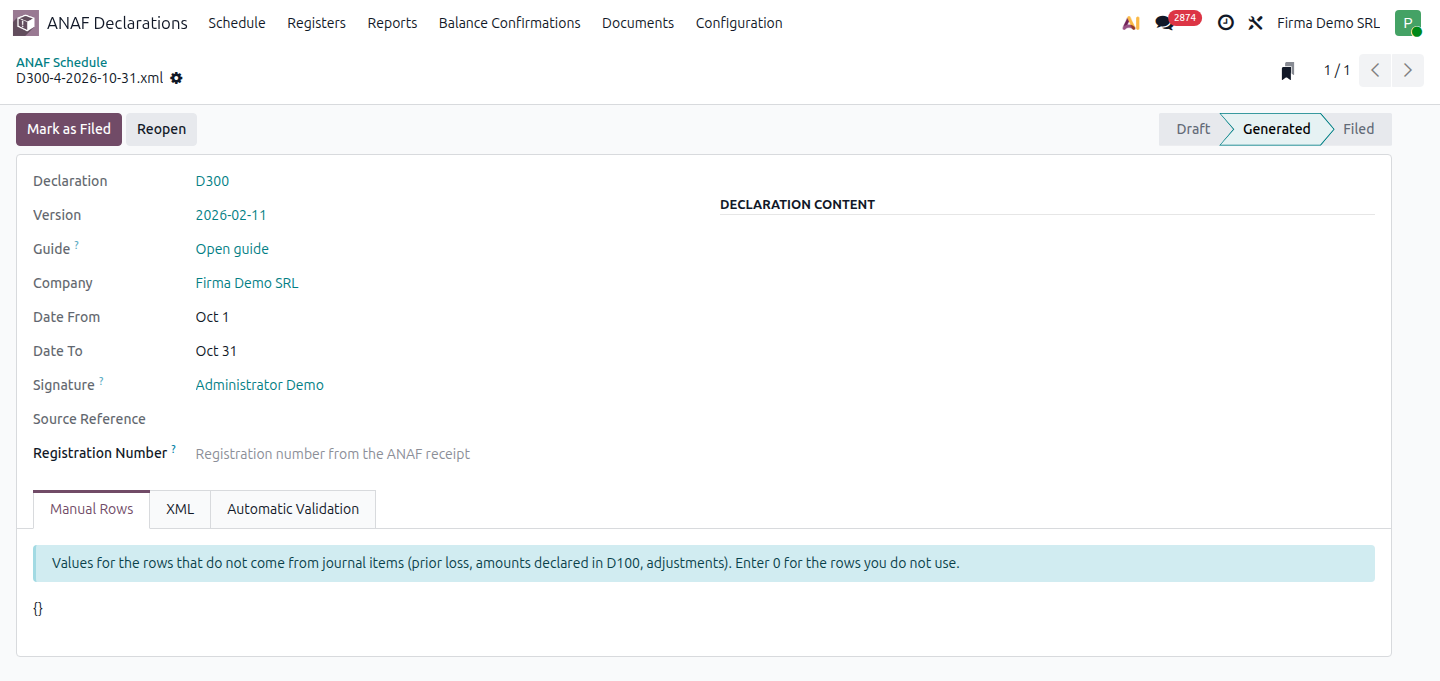
Compare the values with accounting (trial balance, VAT report, depending on the return). If a row must be corrected manually, edit it in its section while the return is in progress; the originally calculated value is kept alongside. Rows that do not come from accounting (losses from previous years, amounts declared earlier) are filled in on the Manual Rows tab, with 0 for unused rows.
5. Generate the XML file
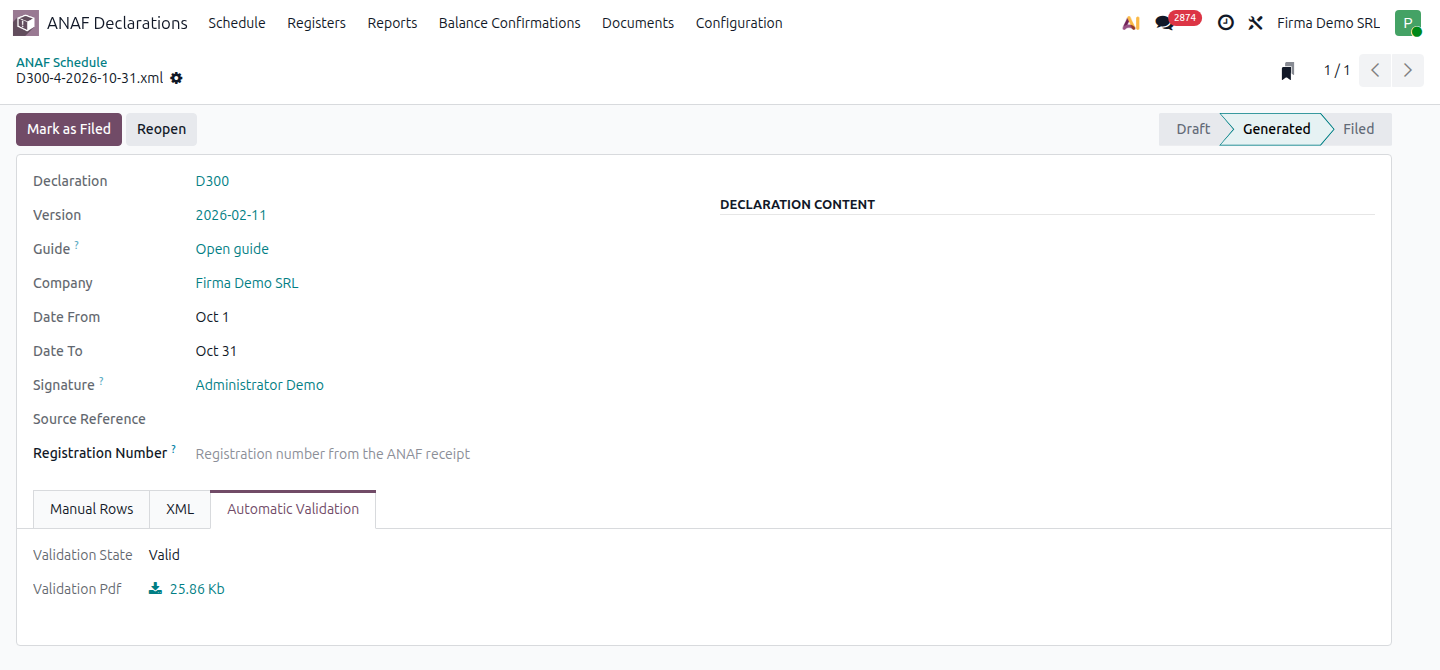
Click Generate XML. Odoo generates the file and validates it automatically with the ANAF validator. The result is on the Automatic Validation tab: Valid, Invalid or DUK Validation Skipped, together with the PDF validation report. If validation found errors, they also appear in the red box at the top of the document.
6. File the file with ANAF
Download the file from the XML tab and file it through the usual channel (SPV, the Virtual Private Space, or the e-guvernare portal), signed with the digital certificate. Odoo does not send the return to ANAF by itself.
7. Mark the return as filed
When you receive the receipt, fill in Registration Number with the registration number and click Mark as Filed. The return is locked and appears as filed in the calendar. Filed returns can then be found in ANAF Declarations › Documents.
Variants
Validation found errors
Click Reopen, fix the cause (usually in accounting: an invoice, a partner, a tax), then calculate again and generate the file again. An invalid or unvalidated return cannot be marked as filed.
You changed accounting after the calculation
The calculated values stay as they were at calculation time. Click Calculate on Server again: the new calculation replaces the values, including manual corrections (Odoo asks for confirmation). If you want to keep the old document, use New Calculation Document on the return in the calendar: a new document is created and the old one stays in the history.
Corrective return
Open the filed return and click Corrective Declaration. Odoo creates a new return for the same period, linked to the filed one, which you calculate, generate and file the same way. The filed return stays unchanged. For returns that are corrected on another form (for example through D710), the corrective return is created on the correct form.
Working with Tax Returns in Accounting
If you use Accounting › Accounting › Closing › Tax Returns, the card of an ANAF return has the ANAF Filing button. It opens the same return from the calendar; continue from there with the steps above. The status in Tax Returns is not updated automatically on filing.
Review before sending to the chief accountant
From the calendar, the return can be moved to the review state with Send to Review, so someone else can see it before filing. Reset to Prepare brings it back into progress.
Common mistakes
- Return calculated before the month is closed. Invoices posted after the calculation do not appear in the return. Calculate again after you have finished the period's entries.
- File filed without validation. A file with the status DUK Validation Skipped was not checked. Generate it again when the validation service is available.
- Return marked as filed without having been sent. Mark as Filed only records the filing in Odoo. The actual filing is done with ANAF.
- Manual corrections lost. A new calculation also replaces manual corrections. Note them down or use New Calculation Document.
- Filed return reopened. A filed return can no longer be reopened. For a mistake found after filing, use Corrective Declaration.
For the accountant: where the data comes from and what stays in Odoo
- The calculation uses only the company's posted journal entries within the period (including closing entries). Drafts are not included.
- Each document keeps a snapshot of the calculation: the form version, the rules applied, the amounts from accounting and the resulting values. A later change to the setup does not modify a return already calculated.
- The form version is the one approved for the return's period; Odoo syncs it automatically with the returns service. The form versions and what changed in each: the "
— versions" pages in this chapter. - Manual corrections are visible in the document alongside the calculated value, and every recalculation is recorded in the document history.