Returns setup · Article 01
Configuration assistant
Applies to Odoo 19 · 20
The configuration assistant compares the returns the company already filed (D300, D100 and the others) with the journal items of the same period. The declarations server recalculates the returns from the accounting and proposes the tags and account settings that make the recalculated values equal to the filed ones. The proposals are applied only after you review them, with history, and can be undone.
When to use
- You take over in Odoo a company that filed returns from another program and want the D300 and D100 calculated by Odoo to match.
- A recalculated return does not match the filed one and it is not clear which tax or account is missing.
- After a configuration change, you check that the months already filed still match.
Before you start
- The NextERP subscription is active: the comparison runs on the declarations server.
- You have the XML files of the returns filed for the chosen period (from the SPV or from the previous program).
- The journal entries of the period are posted.
- You work as accounting administrator. Only they can change journal items of locked periods.
Steps in Odoo
1. Open the assistant
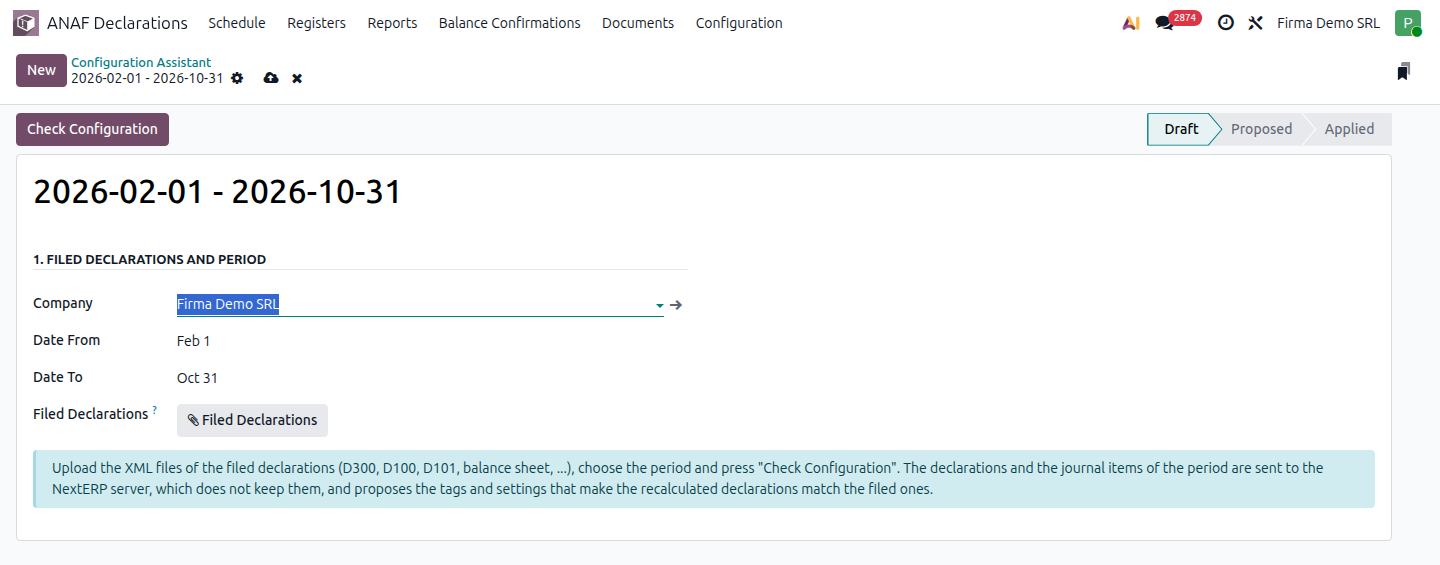
ANAF Declarations › Configuration › Configuration Assistant. The list shows the previous runs; create a new one.

2. Upload the filed returns and choose the period
In the 1. Filed declarations and period group fill in the start and end dates and upload the XML files in Filed Declarations. The period must cover the periods of the uploaded returns.
3. Click Check Configuration
Click Check Configuration. Odoo sends the uploaded returns and the journal items of the period to the server. Result shows a summary, and the Periods tab shows, per return, period and row, the filed value, the current value in Odoo, the value after applying the proposals and the difference.
4. Review the proposals
- Journal Item Changes: tags to add to or remove from specific journal items, with the Confidence level and the reason. Lines in locked periods are marked Locked.
- Rules for the Future: settings on taxes and accounts, so future entries get the right tags by themselves.
- Questions: cases the server cannot decide alone; the accountant answers them.
Check low-confidence proposals on the accounting document before applying them.
5. Apply the proposals
Click Apply. Odoo changes the proposed tags and settings and records them in the History tab (who, when, the field, the old and new value). Then click Recalculate: the summary shows how many rows still differ from the filed values, or that all recalculated rows match.
6. Undo, if needed
Undo restores all applied changes to the old values, from the history. To run a new check on the same run, undo the applied changes first, then click Check Again.
Variants
D394 checks
For D394 the assistant proposes no changes: the Checks tab lists the partners and invoices where the recalculated return differs from the filed one (partner type, tax ID, operation type, series). The Journal Items button opens the lines concerned. Fix the partner or the invoice, then tick Verified; Odoo records who verified and when.
Locked periods
Months already filed are usually locked in the accounting. Only the accounting administrator can apply changes to journal items of locked periods: the assistant lifts the lock only for the proposed lines and only while applying. If you apply without this right, the changes on locked periods are skipped and the summary says how many.
Common mistakes
- Missing files. Check Configuration stops with the message that the XML files of the filed returns must be uploaded.
- Period too long. The check can take too long; choose a shorter period.
- Changes applied without review. The proposals change journal items in periods already filed. Review them and keep the history; if needed, use Undo.
For the accountant: what the assistant changes
- The assistant changes only the VAT report and return tags on journal items, taxes and accounts; it does not change the recorded amounts.
- Returns already filed are not changed: the comparison serves to make the Odoo calculation equal to what was filed.
- Each change has history and can be undone.