Manufacturing · Article 02
Manufacturing order
Applies to Odoo 19 · 20
The manufacturing order states which product you manufacture, in what quantity and from which components. When it is completed, Odoo removes the components from stock and brings the finished product into stock at their cost, plus the cost of the time worked on the work centers.
When to use
- You manufacture a product for stock.
- You manufacture to a customer order.
- You assemble a product from components.
- You pack or repack goods into a new product.
Before you start
- The product has a bill of materials: see Configuration.
- The components are in stock. If they are missing, the order waits.
Steps in Odoo
1. Create the order
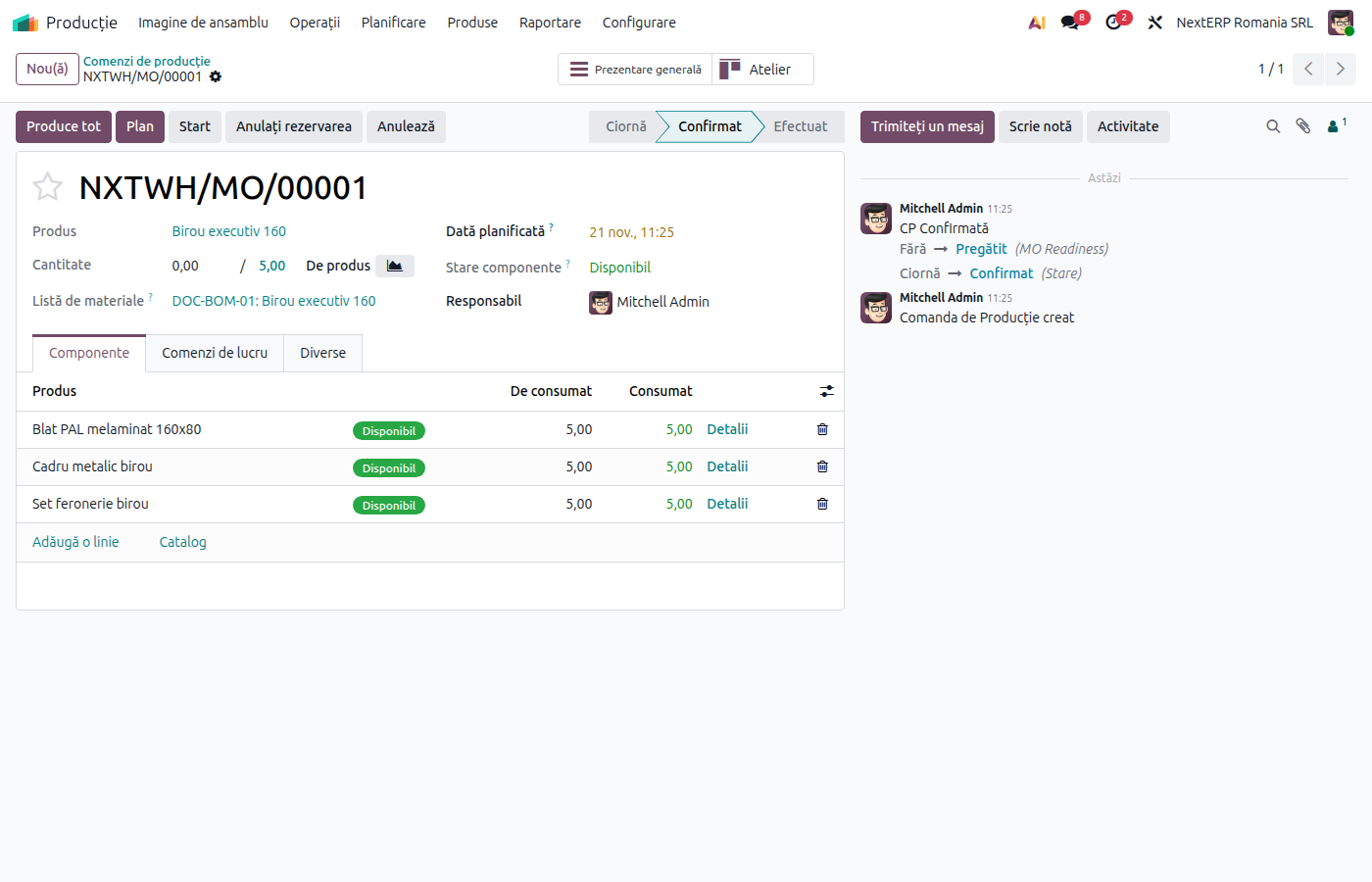
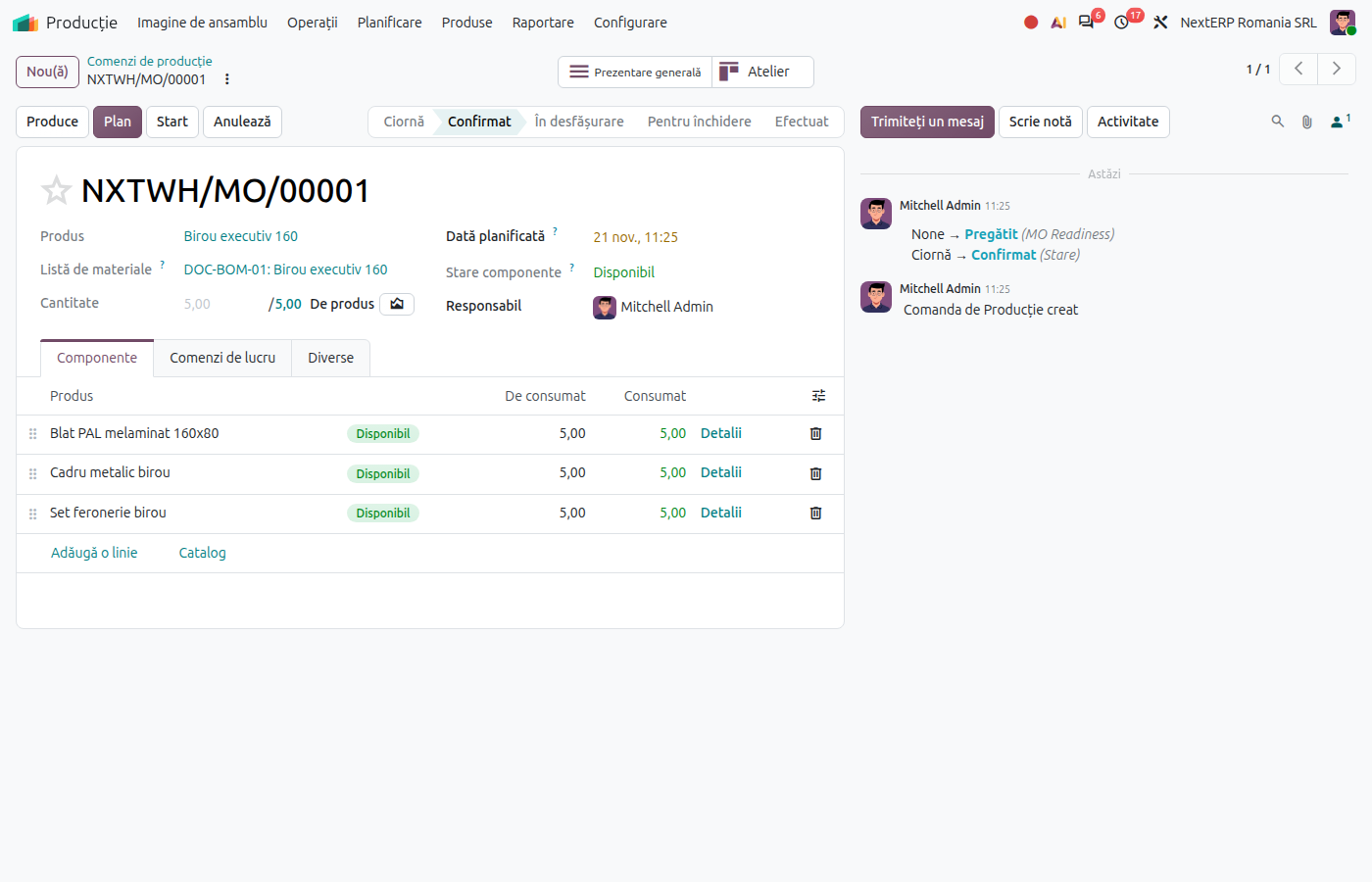
In Manufacturing › Operations › Manufacturing Orders, click New. Choose the product and quantity; Odoo fills in the components and operations from the bill of materials.
2. Confirm the order
Click Confirm. Odoo reserves the components in stock and creates the work orders, if the bill has operations.
3. Record the work
From the operations tab or from Manufacturing › Operations › Work Orders, start and stop each operation. Odoo records the actual time on the work center.
4. Check the consumed quantities
In the Components tab, correct the consumed quantity if it differs from the bill (losses, substitutions).
5. Complete production
Odoo 19
Click Produce All (or Produce, if you entered a partial quantity).
Odoo 20
Click Produce.
The components leave stock, the finished product enters stock, and Odoo creates the entries: component consumption (601 = 301) and the finished product receipt (345 = 711).
Variants
Partial production
If you produce less than the order quantity, Odoo asks whether to keep the rest in a new order (backorder). Each completed batch has its own entries.
Order from the sales order
If the product has the Manufacture route and is made to order, confirming the sales order creates the manufacturing order automatically.
Unbuild
To break a finished product down into its components, use Manufacturing › Operations › Unbuild Orders.
Common mistakes
- Order left open after manufacturing. The components remain in book stock and the finished product does not appear. Complete the order on the day of manufacturing.
- Consumption not corrected. Odoo removes the bill quantities, not the actual ones. Correct the Components tab before completion.
- Time not recorded on operations. Labour in the product cost is zero or only the planned amount. Start and stop the operations.
For the accountant: accounting entries
Example: components costing 500 lei, labour on work centers 100 lei; the finished product enters at 600 lei.
Component consumption, on completion:
| DEBIT | CREDIT |
|---|---|
| 601 — 500 | 301 — 500 |
Finished product receipt, on completion:
| DEBIT | CREDIT |
|---|---|
| 345 — 600 | 711 — 600 |
Delivery of the finished product (chapter Sales and invoicing):
| DEBIT | CREDIT |
|---|---|
| 711 — 600 | 345 — 600 |
Finished product cost = value of the components consumed + time on work centers multiplied by the cost per hour + the extra unit cost, if filled in. This applies to finished products with the FIFO or average cost method; with standard cost, the product enters at the standard price.
The actual salary and overhead expenses remain in the expense accounts from payroll and from bills (class 6); 711 takes over the production cost of the products obtained.
FIFO components are removed from the layers of the location they leave: see the Inventory chapter, article Stock valuation in the Romanian localization.