Start here · Article 02
Company setup
Applies to Odoo 19 · 20
The first step in a new Odoo database is the company form: the name, the tax ID (CIF), the address and, above all, the country. For a Romanian company, setting the country to Romania on the company makes Odoo install the Romanian localization and chart of accounts. Here you also activate the currencies you work with and, if needed, add the other companies of the group.
When to use
- You start a new Odoo database.
- You add a second company to the same database.
- You start working with a new currency (EUR, USD).
- The registered office, share capital or CAEN code (the Romanian activity classification code) changes.
Before you start
- You have administrator rights in Odoo.
- You have the company data: CIF, Trade Register number, address, IBANs.
Steps in Odoo
1. Open the company form
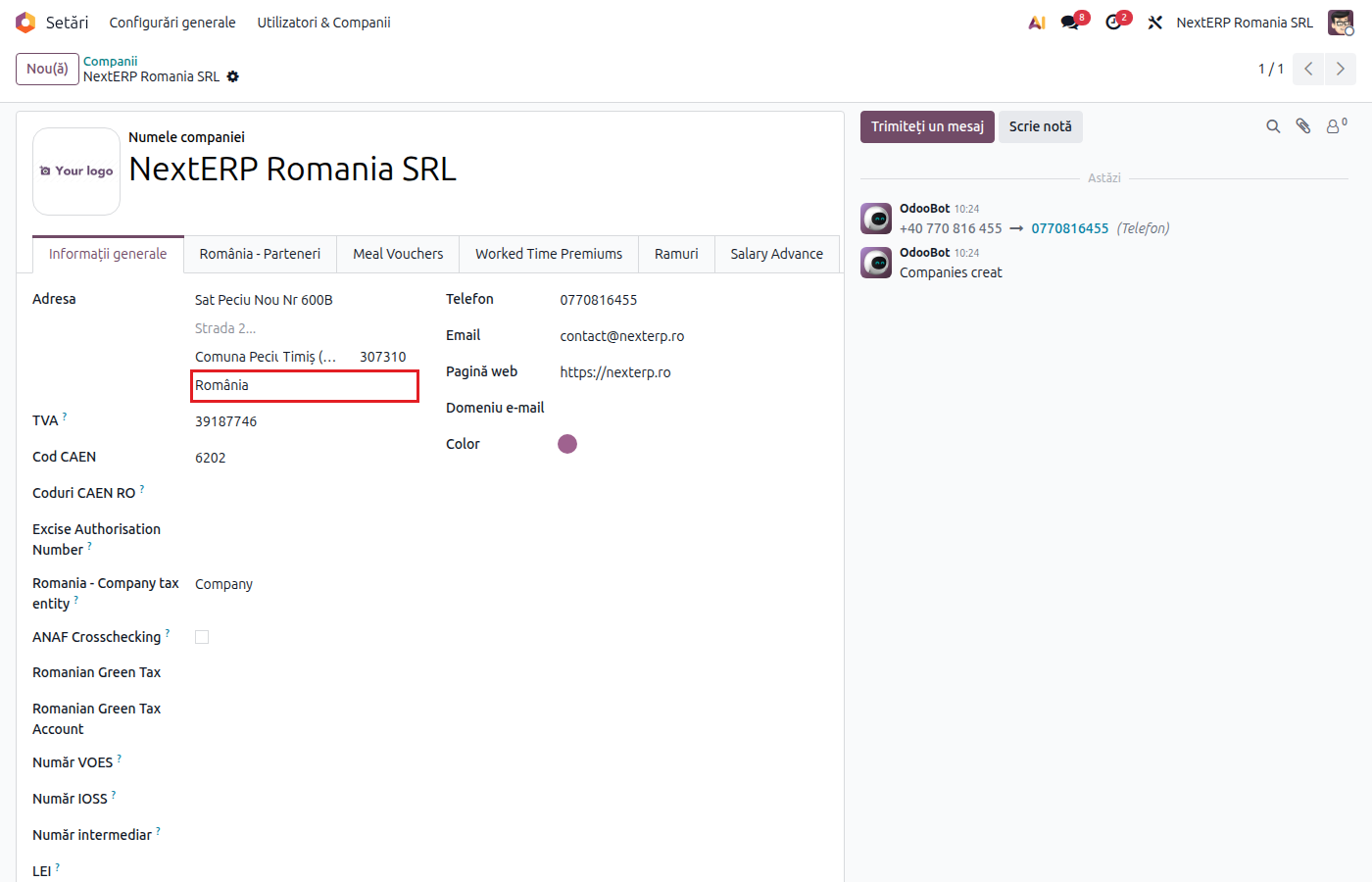
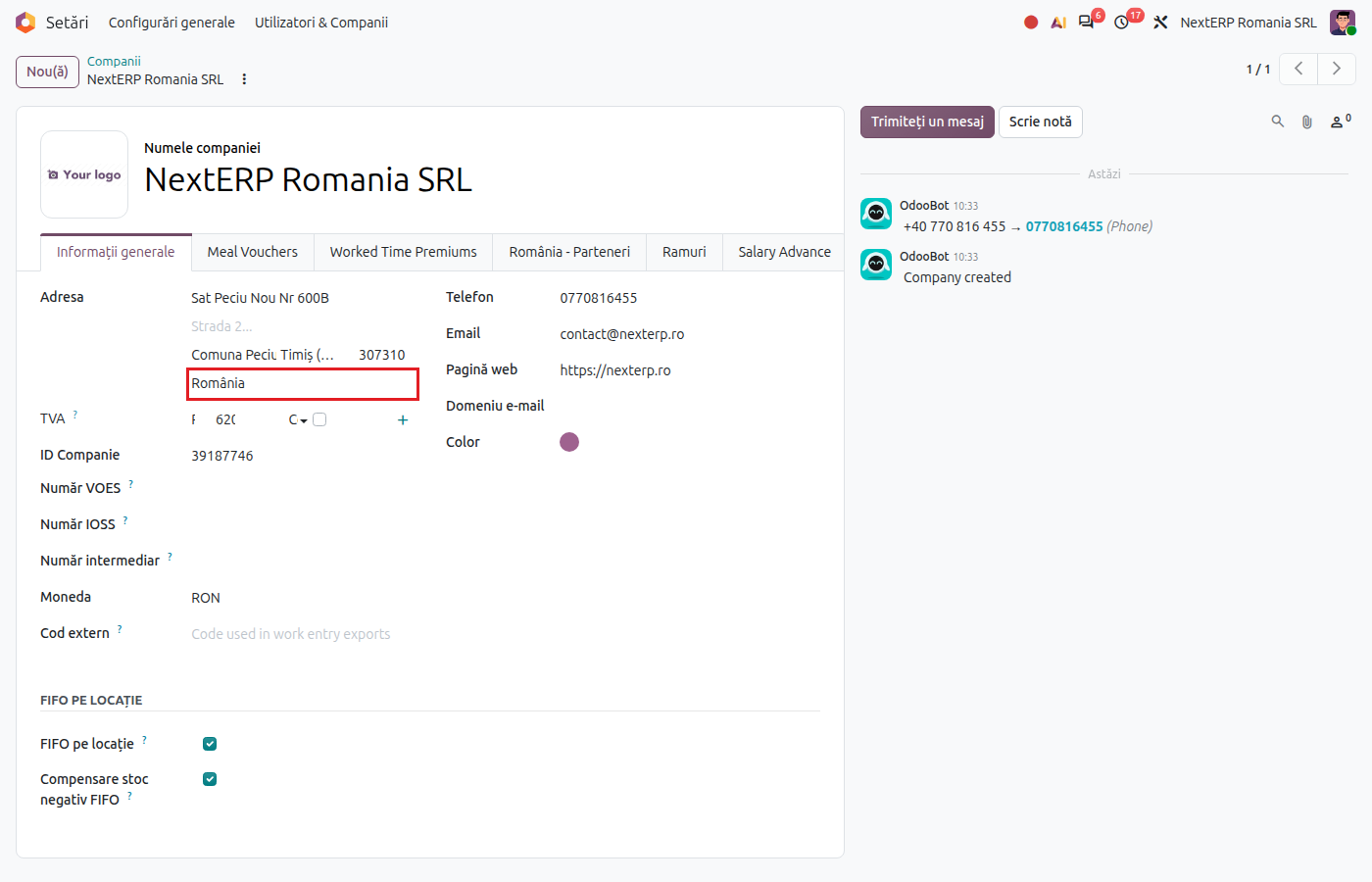
Settings › Users & Companies › Companies, open the company.
2. Fill in the country before any accounting operation
Choose Country = Romania and save, before installing the Accounting or Invoicing app and before the first invoice. When the country is saved, Odoo installs the Romanian localization and loads the Romanian chart of accounts.
3. Fill in the identification data
Fill in Tax ID (with the RO prefix for VAT payers), the address, the Trade Register number, phone and email. This data appears on invoices, in e-Factura (the Romanian e-invoicing system) and in tax returns.
4. Fill in the Romanian data
In Settings, open the Romania page, Accounting section: check the Romania - Use Romanian Accounting box and fill in Romania - Share Capital and Romania - CAEN Code.
5. Activate the currencies
Accounting › Configuration › Accounting › Currencies: activate the currencies you work with (EUR, USD). The company currency stays RON.
6. Update the BNR rate automatically
Accounting › Configuration › Settings, check Automatic Currency Rates and choose the National Bank of Romania as source. The rate is fetched daily.
Variants
Several companies in the same database
Settings › Users & Companies › Companies, click New and fill in the second company, again starting with the country. Each company has its own chart of accounts, journals and returns. Users see the companies they have access to and switch between them from the top-right corner.
A company from another country in the group
For a company from another country, choose its country: Odoo installs that country's localization, and the Romanian menus and fields do not appear for it.
Autocomplete from the CIF
With the Romania - Partner Create by VAT module, typing the CIF of a Romanian company fills in the name and address from ANAF data. It works the same way for partners.
Common mistakes
- Accounting installed before the country was set. Odoo loads a generic chart of accounts, with non-Romanian accounts, and the localization features are not activated. If there is no journal entry yet, choose the Romanian chart in Accounting › Configuration › Settings, under Fiscal Localization › Package; after the first journal entry the choice can no longer be changed.
- CIF without the RO prefix for a VAT payer. Invoices and returns go out with the wrong code.
- Company currency changed after the first operations. The company currency is chosen once, at the start: RON.
- Currencies activated without a rate. Foreign-currency invoices are converted with an old or missing rate. Activate the automatic update from BNR.
For the accountant: what the localization does on a Romanian company
What is activated
The features of the Romanian localization (the Romania menus, the Romanian fields on invoices and partners, the specific journal entries) apply only to companies that have the Romanian chart of accounts. Companies with another chart do not see them.
What the Romanian chart loads
- the accounts of the general chart (OMFP 1802/2014, the Romanian accounting regulations), with 6-digit codes;
- the sales and purchase VAT taxes, separate for goods and services;
- the fiscal positions (national regime, reverse charge, cash-basis VAT, intra-Community, extra-Community);
- the company's default accounts: customers 4111, suppliers 4011, exchange differences 6651 / 7651, bank suspense account 5125.
The details are in Chart of accounts, journals and taxes.