Special activities · Article 01
Excise - configuration and authorizations
Applies to Odoo 19 · 20
For Odoo to calculate excise duty by itself, it must know three things: under which authorizations you operate, which excise category each product has and, if you have a tax warehouse, which locations are under the duty suspension regime. Missing configuration does not cause an error at receipt or delivery: the stock move is validated, but no excise entry is generated. That is why the configuration is checked before the first operation.
When to use
- You start working with excise goods.
- You received a new authorization (registered consignee, importer, warehousekeeper) or one has been extended.
- You add a new excise product to the catalogue.
- A new year has started and you want to check the excise rates.
Before you start
- The excise management module is installed (Romania - Excise Management in Apps).
- The chart of accounts contains accounts 635 (other taxes and duties expense) and 446 (excise duties payable).
- The categories of the excise products use the FIFO or average cost method: excise is added to the stock value through landed costs, which do not work with standard cost.
Steps in Odoo
1. Check the excise categories
Accounting › Configuration › Excise › Excise Categories. The categories match the rows of D120 (Decont privind accizele, the excise duty return) (for example R0 beer, R3 still wines, R12 cigarettes) and are preloaded, each with its ANAF unit of measure (hl/degree Plato, hl of product, 1,000 cigarettes).
2. Check the rates for the year
Accounting › Configuration › Excise › Excise Years. Each year and period holds the rates by category: Specific excise duty (the fixed amount per ANAF unit) and Excise ad valorem (%) (the percentage part, for cigarettes). The rates for 2025 and 2026 are preloaded. For a new year, add the year and its rate lines.
3. Create the authorizations
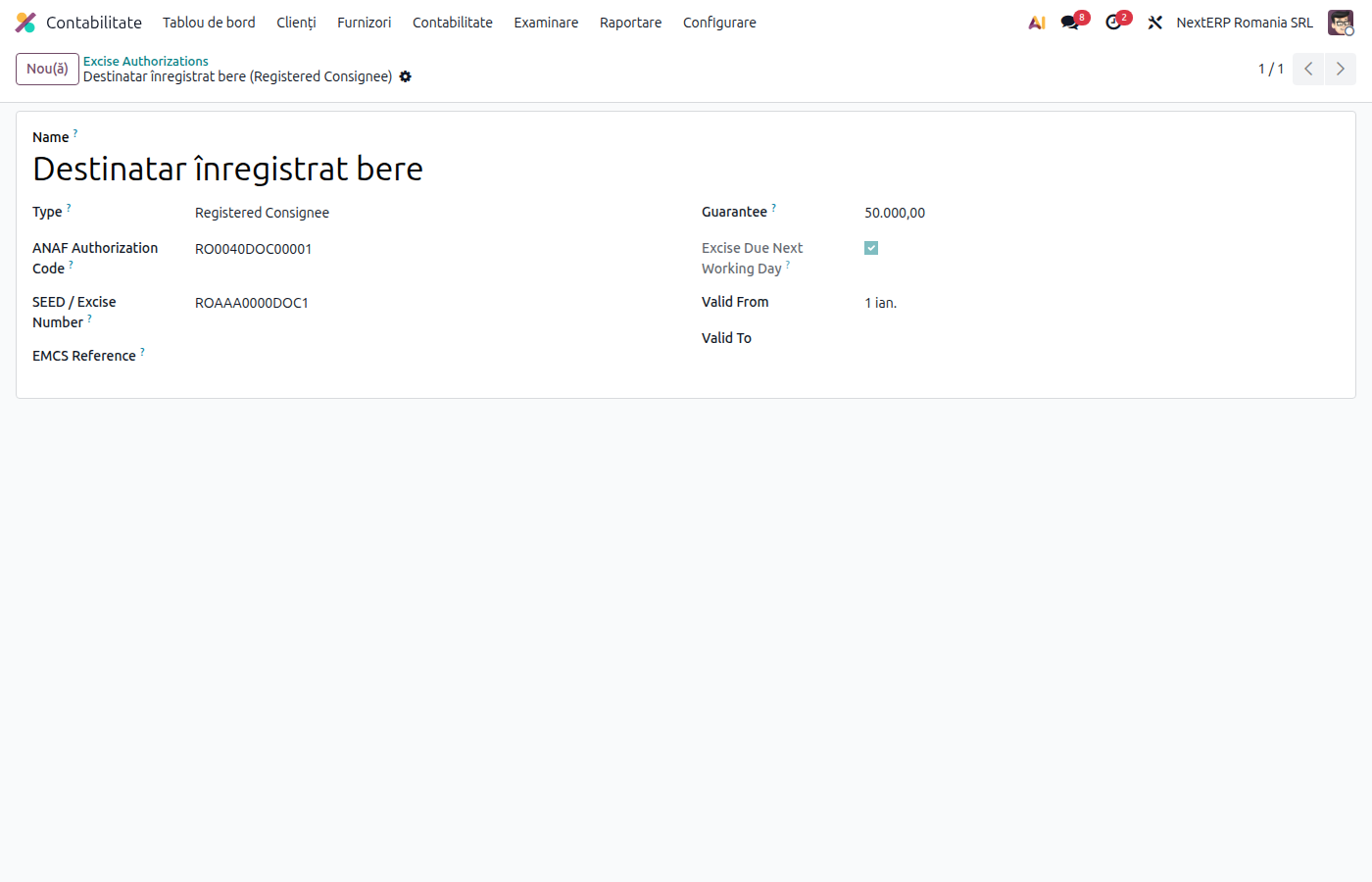
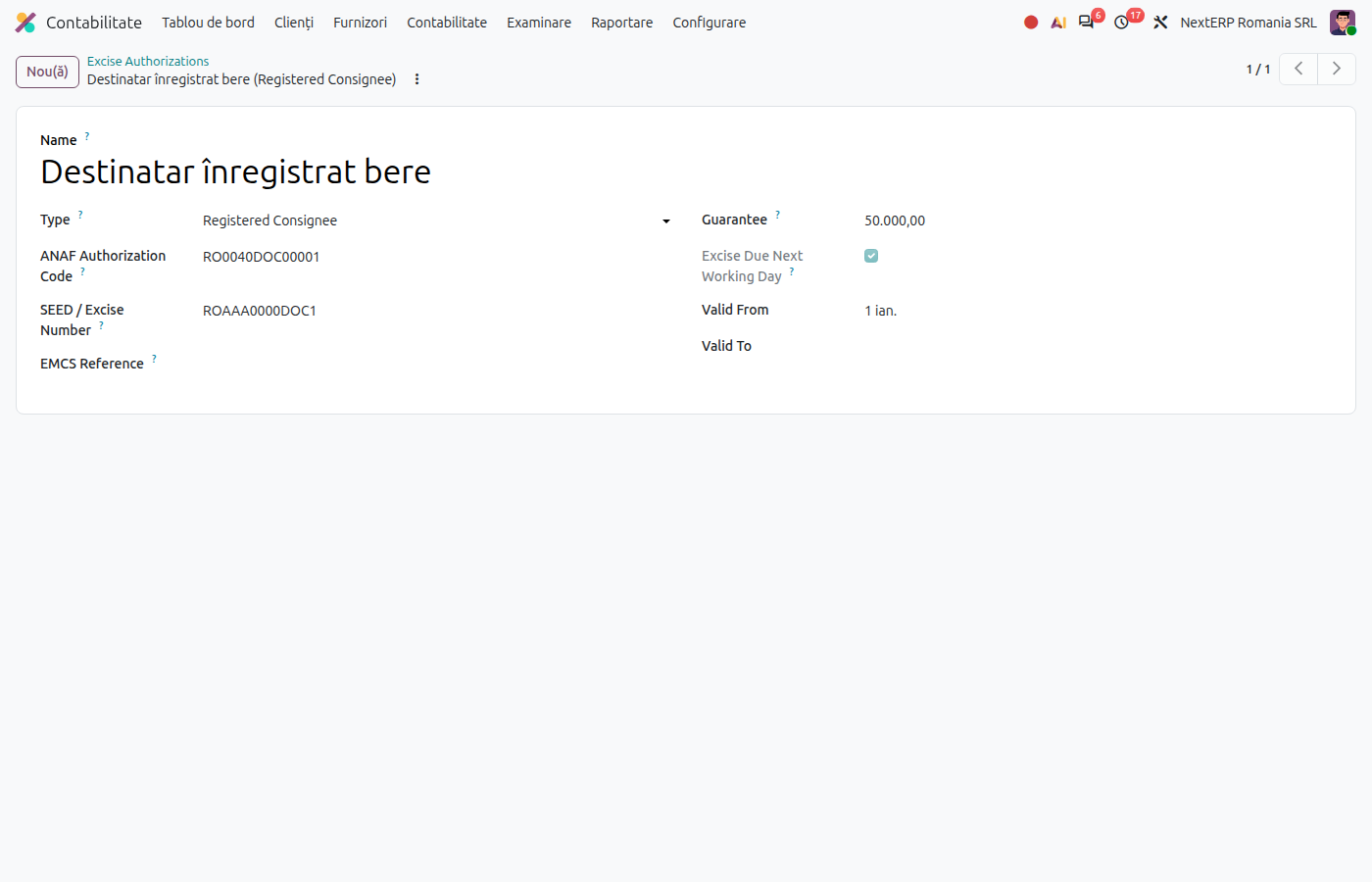
Accounting › Configuration › Excise › Authorizations, click New. Fill in the name, the authorization type, ANAF Authorization Code, SEED / Excise Number, EMCS Reference, Guarantee (the guarantee lodged) and the validity period.
| Type | When to use it |
|---|---|
| Registered Consignee | You receive under duty suspension from another EU state; excise is due at receipt |
| Certified Consignee | You receive from another EU state products with excise paid there; Romanian excise is due at receipt |
| Importer | You import from outside the EU; excise is due on release for free circulation |
| Authorised Warehousekeeper | You have a tax warehouse; excise is due when goods leave the warehouse |
| Domestic Supplier (no authorization) | You buy from a supplier in Romania, with excise already paid; no excise is generated |
4. Configure the excise products
On the product form, Accounting tab, section Romanian Excise:
| Field | What to fill in |
|---|---|
| Excise Category | The product's D120 row. Without it, the product is not treated as an excise product |
| Excise Conversion Ratio | The conversion from the product unit to the ANAF unit: 0.01 for liters to hl; 0.02 for a pack of 20 cigarettes to 1,000 cigarettes |
| Plato / Alcohol Degrees | Plato degrees for beer or alcohol degrees where the rate is per degree; 1 for categories with a fixed rate |
| Declared Retail Price and Pieces per Pack | The declared retail price of the pack and the number of pieces in the pack, where excise has a percentage part (cigarettes) |
The Current Excise Rate field shows the rate in force, as a check. Lot tracking is recommended: the authorization and the excise paid are recorded on each lot.
5. Mark the tax warehouse locations
Only if you have a tax warehouse: Inventory › Configuration › Locations, open the location and fill in Excise Regime. Locations inside the warehouse get Tax Warehouse (suspended), those holding duty-paid goods Free Circulation (duty-paid). Locations outside the excise chain have no regime.
Variants
Domestic supplier with excise paid
Create an authorization of type Domestic Supplier (no authorization) and choose it on purchase orders. No excise is generated, but sales can be tracked by supply channel in the report by authorization.
Common mistakes
- Degrees left at 0 for a category with a fixed rate. The calculated excise is zero. Enter 1.
- Wrong conversion ratio. Excise comes out 10 or 100 times too high or too low. Check the ANAF unit of the category and the product unit.
- Cigarettes without a declared price or without pieces per pack. The percentage part is then calculated from the sales price in Odoo, which has no legal basis. Fill in both fields.
- Rates for the period are missing. Without a rate, no entry is generated. Add the year and the rates before the first move of the year.
- Registered consignee's receiving location marked as a warehouse. The receipt no longer generates excise. A registered consignee does not hold goods under duty suspension: leave the location without a regime or in free circulation.
For the accountant: accounts and calculation
- Excise due is recorded as 635 = 446. Odoo uses the first 635 account and the first 446 account in the company's chart of accounts; if you have several 446 sub-accounts, check on the first generated entry that the excise one was used.
- The calculation: quantity in the product unit × conversion ratio × degrees × specific rate, plus, where applicable, the ad valorem percentage of the declared retail price.
- Legal framework: Codul fiscal (the Romanian Fiscal Code), Title VIII (harmonized and non-harmonized excise duties); the rates are updated every year.