e-Factura, e-Transport and SPV · Article 01
Connecting to SPV
Applies to Odoo 19 · 20
Odoo sends invoices and transports to ANAF on behalf of the company through SPV (Spațiul Privat Virtual, the taxpayer's private online space at ANAF). For this, the company registers Odoo as an application in its ANAF profile and authorizes the link once, with the digital certificate (the USB token) registered in SPV. No certificate is uploaded to the Odoo server: the result of the authorization is an access token, which Odoo renews by itself.
When to use
- You start e-Factura (the national e-invoicing system) or e-Transport (the national road transport monitoring system) for a new company in Odoo.
- Sending gives a token error (expired, unauthorized, forbidden).
- You changed the digital certificate or the person who has SPV access.
- You move from the ANAF test environment to production.
Before you start
- The company has SPV access with a qualified digital certificate, and the certificate is plugged into the computer you work on.
- The company's country in Odoo is Romania; otherwise the Romanian E-Factura block does not appear in the settings.
- You have administrator rights in Odoo.
Steps in Odoo
1. Open the e-Factura settings
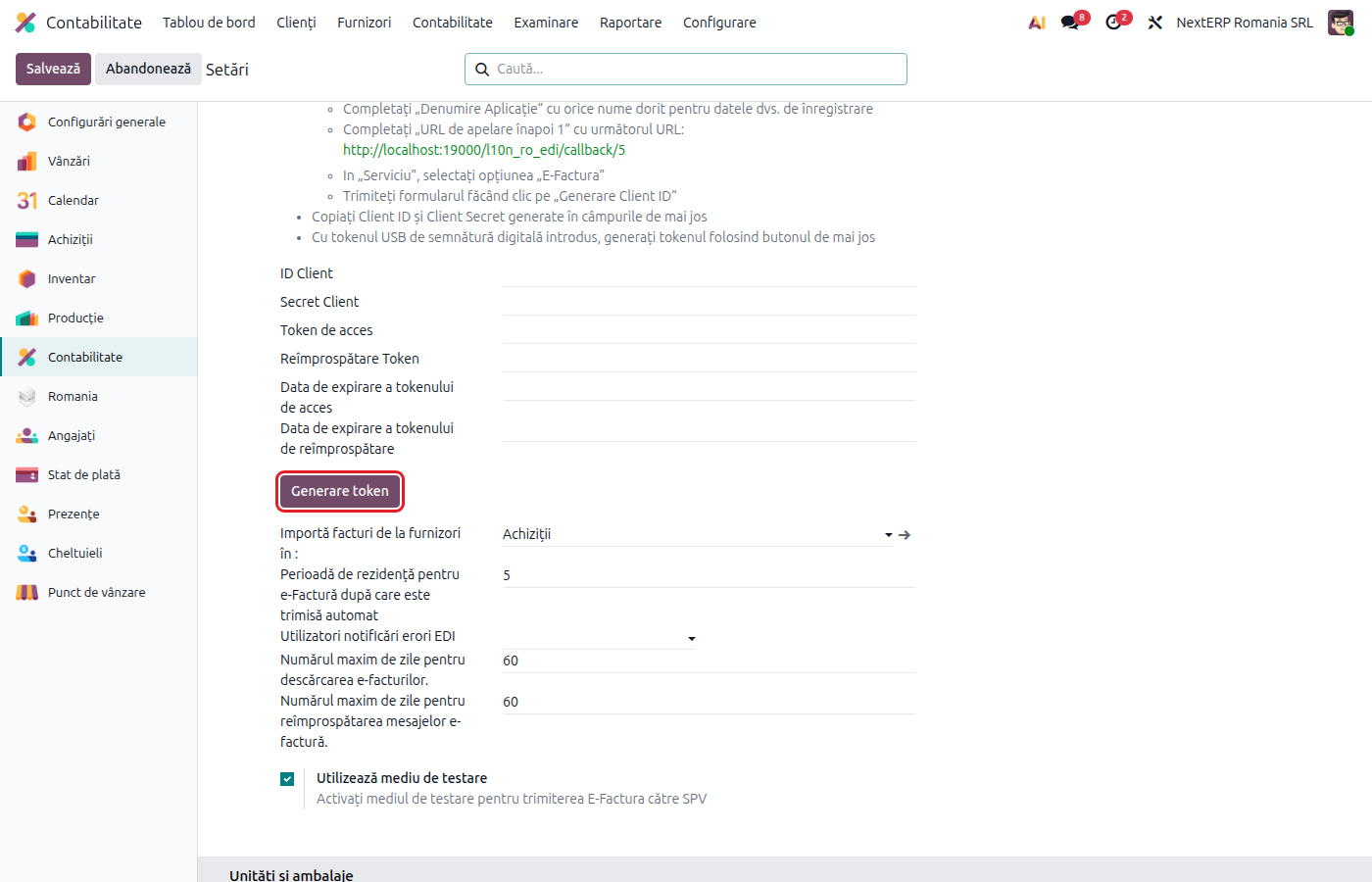
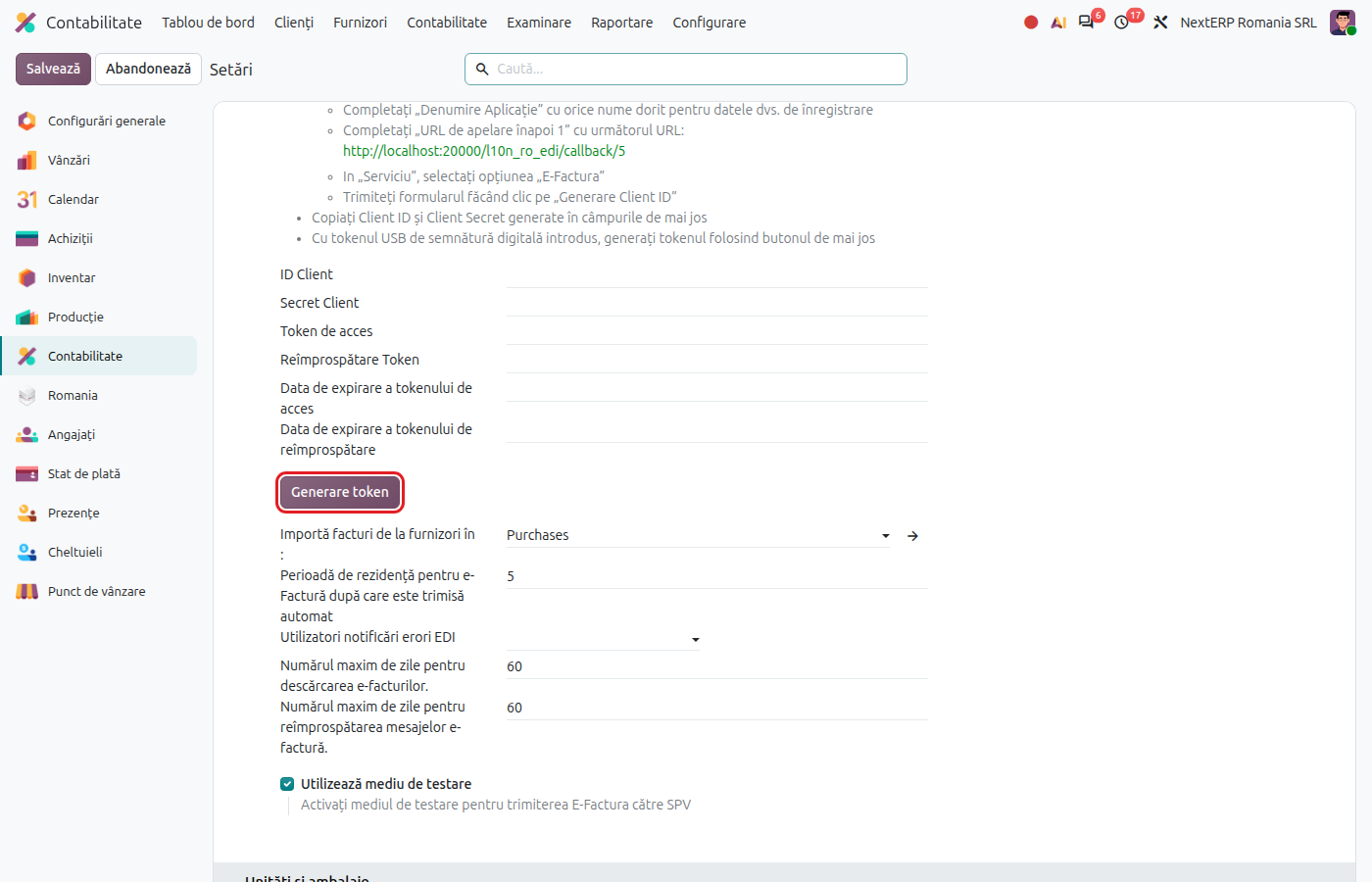
From Accounting › Configuration › Settings, go to the Romanian E-Factura block. Copy the redirect address shown there.
2. Register the application in the ANAF profile
In the company's ANAF account (pfinternet.anaf.ro), when editing the OAuth profile, create a new application: a name of your choice, the redirect address copied from Odoo and, under Serviciu (service), E-Factura. If you also use e-Transport, tick E-Transport too. ANAF generates a client ID and a client secret.
3. Fill in the data in Odoo
Copy the ID and the secret into the Client ID and Client Secret fields and save the settings.
4. Generate the token
With the digital certificate plugged in, click Generate Token and authorize access in the ANAF window. On success, Access Token, the refresh token and their expiry dates are filled in.
5. Move to production
By default, Use Test Environment is ticked: documents sent reach the ANAF test environment and have no tax value. Untick it when you start sending real documents and save.
Variants
Several companies in the same database
The ID, secret and tokens are kept per company. Repeat the steps for each CUI (the Romanian tax identification number), with the certificate that has rights on that CUI.
Renewing the token
The scheduled action E-Factura: Refresh Access Token renews the access token by itself using the refresh token. Generate a new token only if the refresh fails or the certificate has changed.
Common mistakes
- Test environment left ticked. Invoices seem sent, but do not appear in the production SPV. Untick Use Test Environment.
- Application registered only for E-Factura. e-Transport submissions are refused with "Tokenul de acces este interzis." (the access token is forbidden). Re-authorize the application with both services ticked and generate the token again.
- Certificate without rights on the CUI. ANAF refuses the requests. Generate the token with the certificate of the person registered in SPV for that company.
- Scheduled action stopped. The token expires and submissions stop. Check in Settings › Technical › Automation › Scheduled Actions (in developer mode) that the refresh is active.